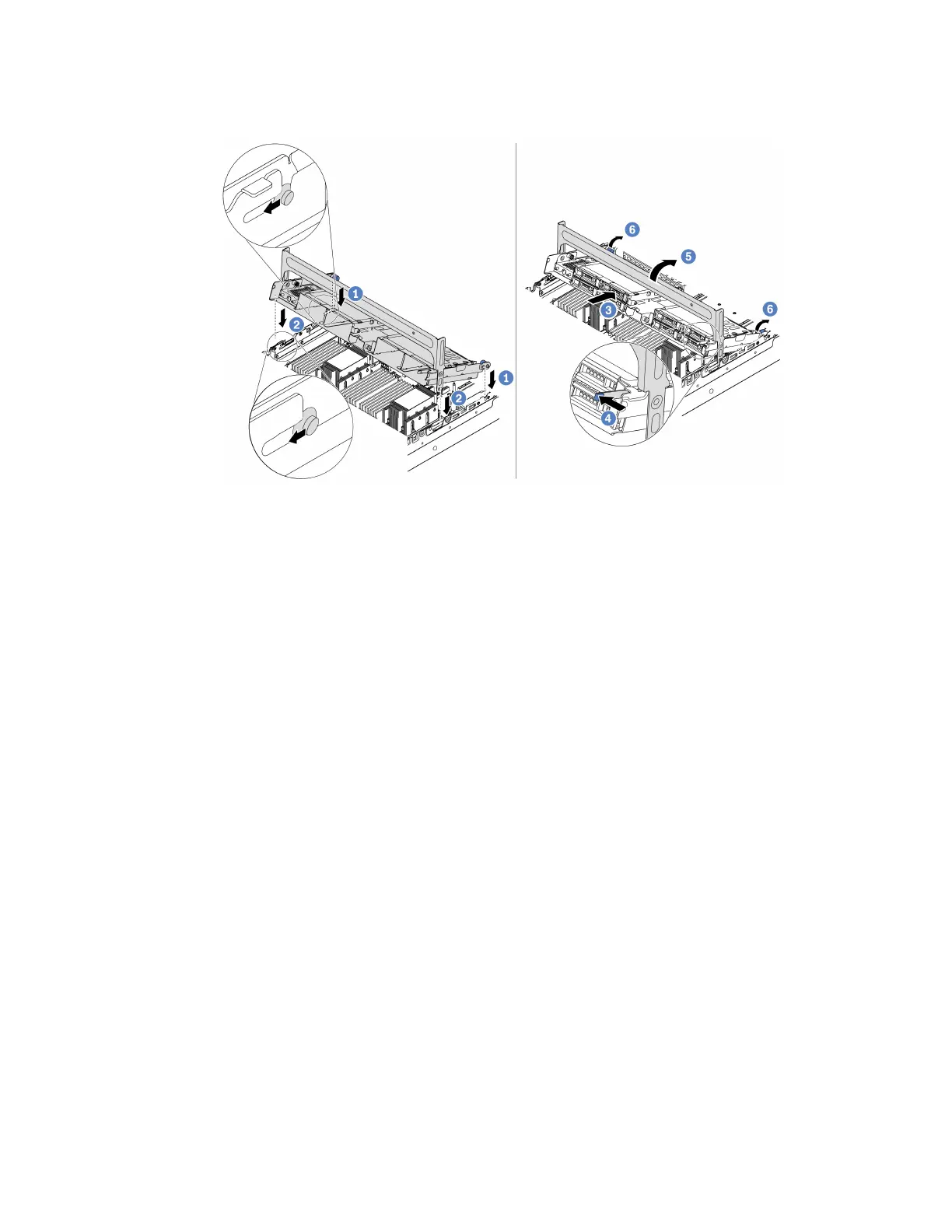
Step 3. Install the middle drive cage onto chassis and drives into drive bays. Then close the handle.
Figure 103. Installing the middle 2.5-inch drive cage and drives
1. Put the rear pins into the chassis slots.
2. Rotate the front of the drive cage down into place.
3. Install drives into the middle drive cage. See “” on page .
4. Press the latch as shown.
5. Rotate the handle to close it.
Step 4. Connect cables from the backplanes to a RAID/HBA adapter. See Chapter 3 “Internal cable
routing” on page 57.
After you finish
1. Connect cables from the backplanes to a RAID/HBA adapter. See Chapter 3 “Internal cable routing” on
page 57.
2. Complete the parts replacement. See “Complete the parts replacement” on page 397.
Remove the middle 3.5-inch drive cage
Use this information to remove the middle 3.5-inch drive cage.
About this task
Attention:
• Read “Installation Guidelines” on page 129 to ensure that you work safely.
• Power off the server and disconnect all power cords for this task.
• Prevent exposure to static electricity, which might lead to system halt and loss of data, by keeping static-
sensitive components in their static-protective packages until installation, and handling these devices with
an electrostatic-discharge wrist strap or other grounding system.
A video for this task is available at:
246
ThinkSystem SR665 Maintenance Manual







 To Next Page