LinMot
Configuration Software
User Manual V1.01 5-34
5.13.4 Saving curves
In order not to loose the curves created, we want to save all three to a file. For this
purpose we select them all with the mouse and click on the “Right” button
. All the
curves are now in the download window. We want the “Jump Back” curve to be the first
in the list. For this we select the curve and click twice on the “Up” button
. We now
have the following sequence: 1. "Jump Back", 2. "Linear Out" and 3. "Hold". By
clicking on the “Save” button
a “Save file” dialog box opens, from which we can
save the curves under the name “Curves1.csv”. After doing this we can open the file
with the “Open” button
. We now have the same curves in the left and right panels of
the Curve Inspector window.
5.13.5 Merging curves
By saving a number of curves to a file the single curves remain separated. Should it be
required to join the curves to a single, continuous movement, this can be done by means
of the “Join” command. Before we do this, we must move the “Jump Back” curve back
to the last position in the list (selecting “Jump Back” and clicking twice on “down”).
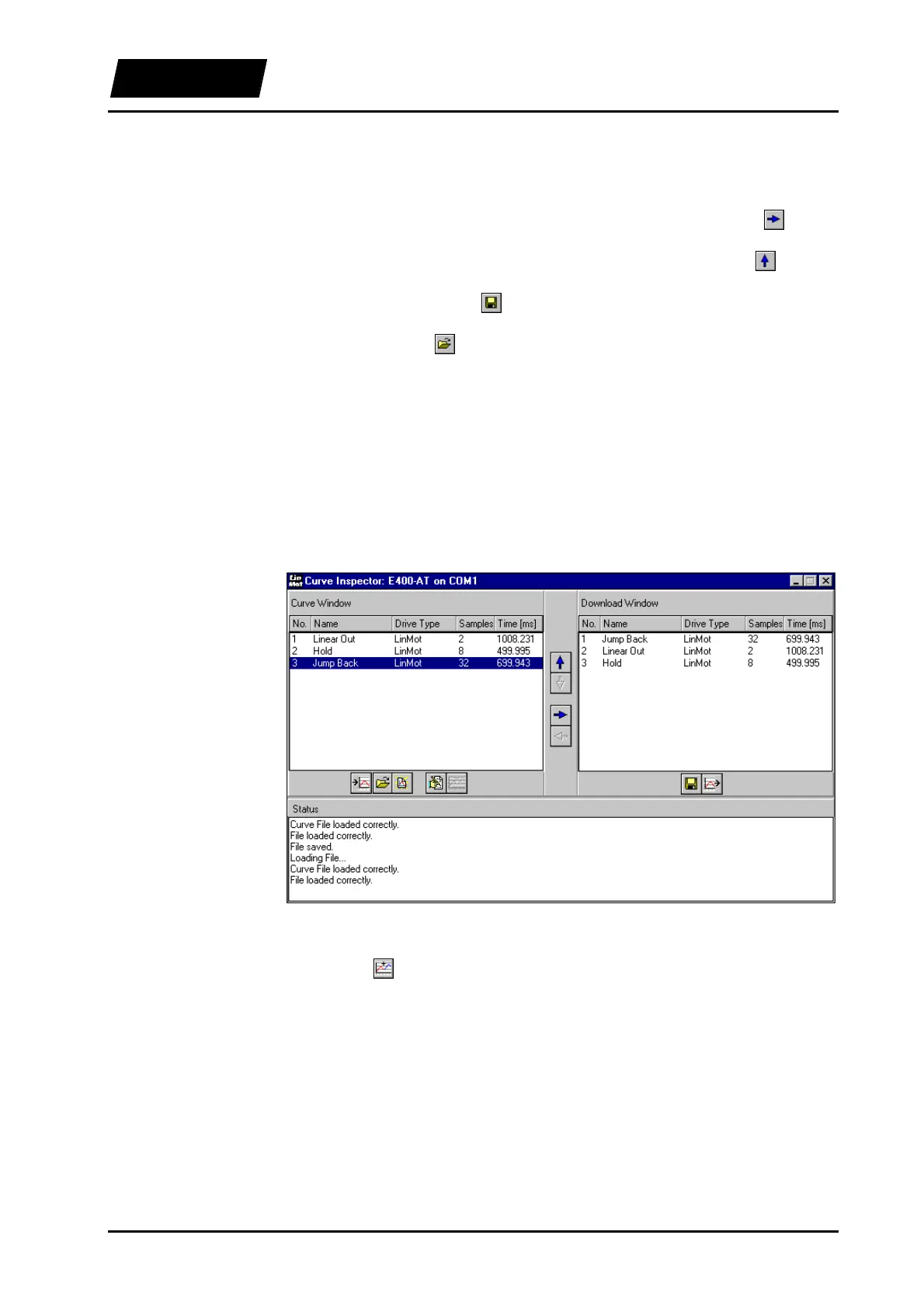
The window should appear like this:
Figure 5-27: Curve Inspector before merging the curves
Now to the merging: we select all the curves in the curve window and then click on the
“Join” button
. We accept the proposed number of points (98) with “OK”. The Curve
Editor appears again. We name the curve “Motion” and see the following window:


 To Next Page