Start-up
Navigation in the menu
The arrow keys of the Assist remote control are shown as follows in these instruc-
tions for use:
The arrows correspond in the text: "".
The OK- button on the remote control is shown in the text as OK.
Call up the Main Menu.
Select desired option.
Move Back in the menu.
Close the menu.
Press OK to confirm.
Main Menu
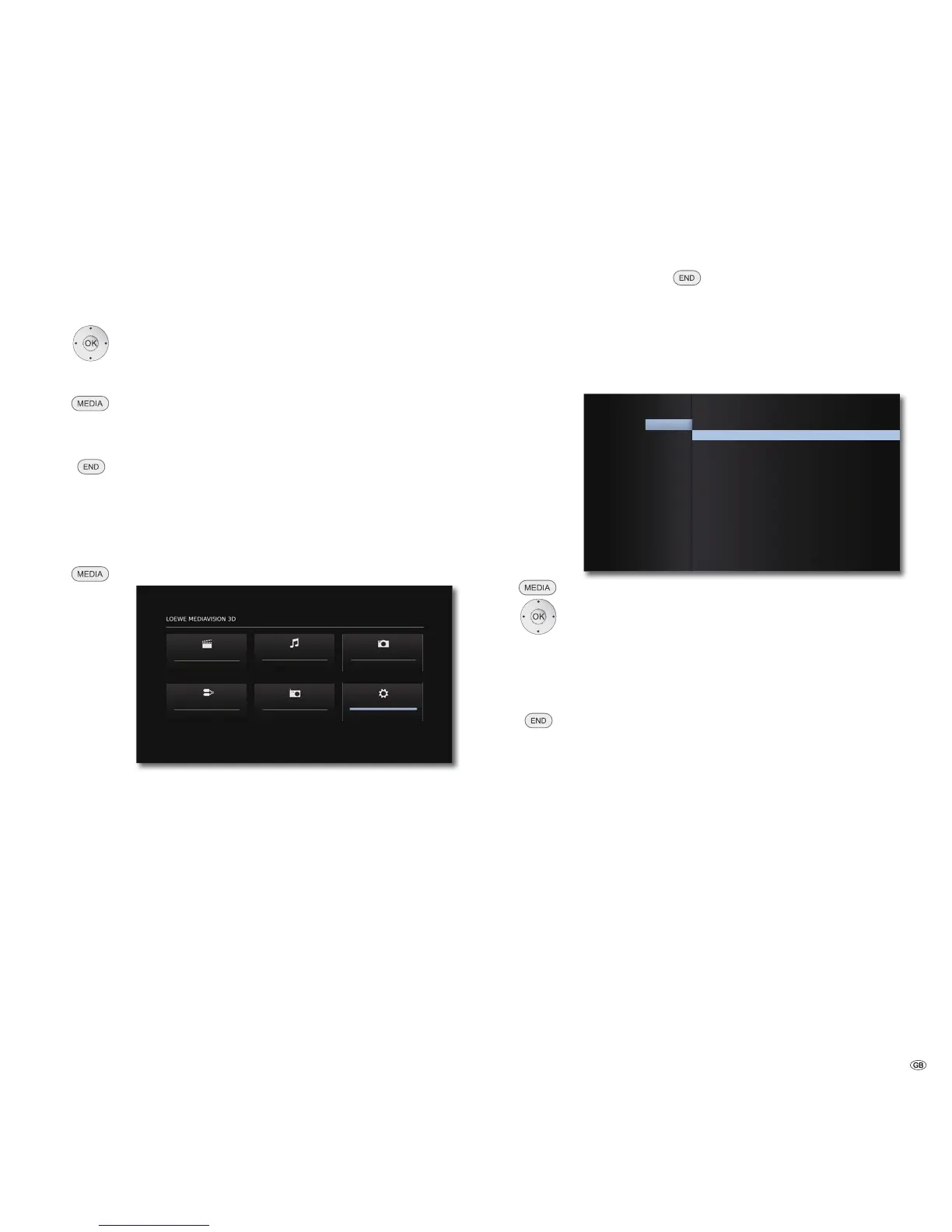
The Main Menu of the MediaVision 3D is shown on the screen of the TV set
connected. Here you can select the required functions.
Call up the Main Menu.
Movie
FM Radio
Photo
Setup
Music
Input
Select the desired function.
Press OK to confirm.
Movie Display the Movie Menu (page 34) for playing
video files or the Disc Menus
Music Display the Music Menu (page 36) for playing
audio files
Photo Display the Photo Menu (page 37) for displaying
photo files
Input Display the Input Menu (page 41) for playing
wired audio sources
FM Radio Display the FM Radio Menu (page 39) for Radio
Mode
Setup Display the Setup Menu (page 17), to make
settings
➠ To call up the Main Menu, close any other menus that might
be open with
.
➠ The menu items Movie, Music, Photo can be selected if a
corresponding medium is available.
Setup Menu
The Setup Menu allows you to make any settings and adjustments that might be
necessary to e.g. your TV set.
79$VSHFW5DWLR 2ULJLQDO
5HVROXWLRQ $XWR
S'LVSOD\0RGH +]
+'0,&RORU6HWWLQJ <&E&U
'0RGH 2Q
'LVSOD\
$XGLR
'ROE\3/,,
/RFN
1HWZRUN
/DQJXDJH
'LVSOD\'LPPHU 2ꊞ
2WKHUV
Call up the Main Menu.
Select the Setup option.
Select desired category.
Select desired subcategory.
Make desired setting.
Press OK to confirm.
Close the menu.
➠ If the blue bar for the menu selection appears in the first level
(left), you will see the settings currently valid in the overview
in the third level (right).
17 -



 To Next Page