Playing discs
BD-LIVE™
Your MediaVision 3D supports the BD-LIVE™ function (Blu-ray™ Profile 2.0).
This allows you to access interactive content provided via the Internet by some
Blu-ray Discs™ providers.
Insert the Blu-ray Disc™ with the BD-LIVE™ function.
➠ The BD-LIVE™ function requires a broadband Internet con-
nection. Set up the access to your home network as described
from page 23.
➠
Activate the option whereby your MediaVision 3D can set up
an online connection to the BD-LIVE™ service (page 24).
➠ Ensure sufficient free memory space for the BD-LIVE™
content by deleting older saved data on the BD-LIVE™
currently used (page 25). If the internal memory of your
MediaVision 3D is insufficient, you can also connect an
H[WHUQDO86%VWRUDJHPHGLXPZLWK*%IUHHPHPRU\
Select the die BD-LIVE™ function in the Disc Menu of the Blu-ray
Disc™.
The player establishes an Internet connection to the content
provider and displays a selection menu. These menus have
individual layouts, depending on the provider, and can contain
diverse information and functions, e.g. trailers, games, up-to-date
information etc.
Select menu item.
Press OK to confirm.
It may be possible to select menu functions with the coloured
buttons.
The selected media are loaded (this can take several minutes
depending on the speed of the Internet connection) and a prompt
to play or start the function appears.
➠ Do not remove a connected external USB stick while data is
being transferred.
Stop 2x Quit BD-LIVE™.
Sound functions
The functions of button differ depending on whether you are using Medi-
aVision as an audio system (page 11 to 13) or as a player (page 14)
Audio system
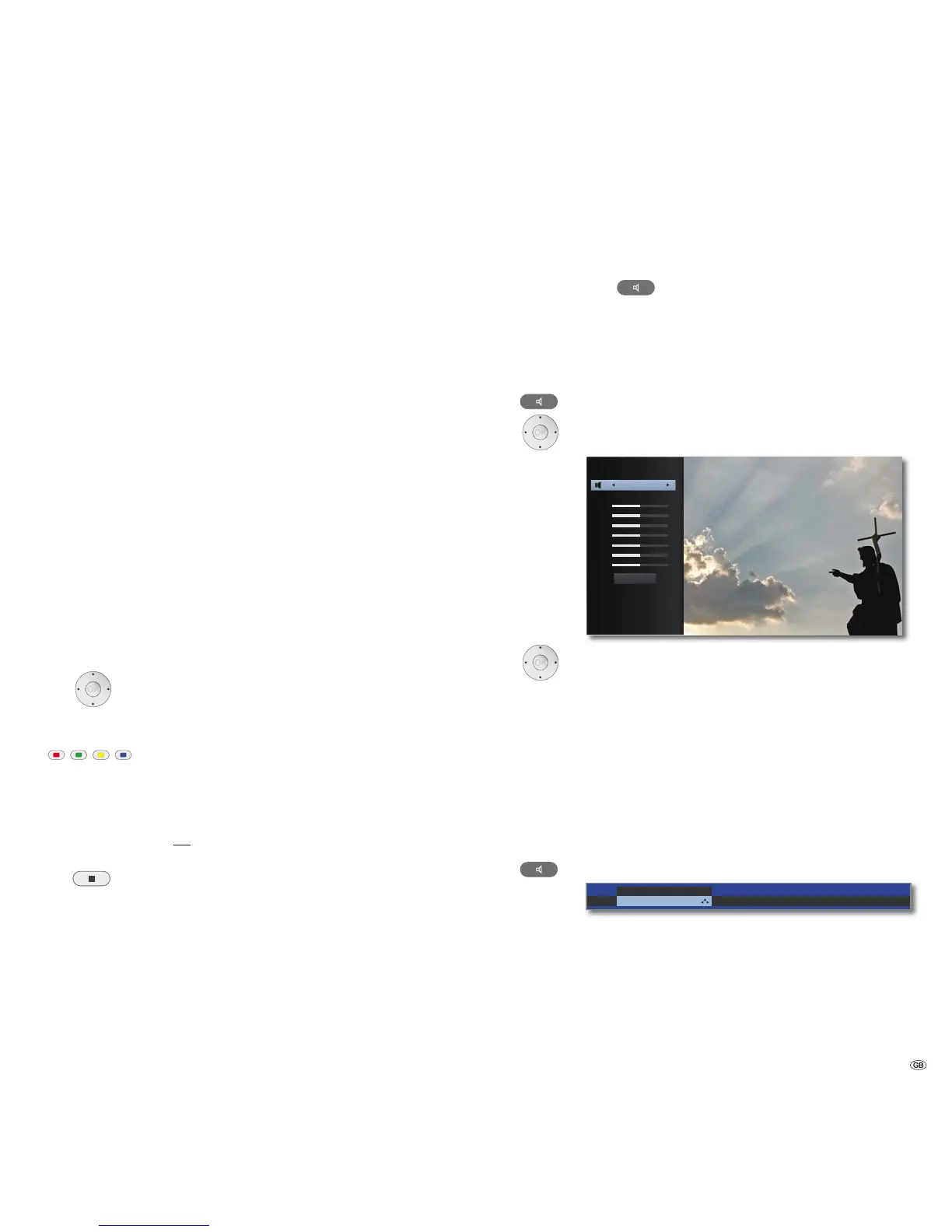
MediaVision has a range of pre-set surround sound effects. The entries for the
equaliser shown on the device display may vary depending on the sound sources
and effects.
Open sound mode (press several times).
Select option.
+]
+]
+]
N+]
N+]
N+]
N+]
(TXDOL]HU
5HVHW
Select/activate options
Equaliser The sound reproduction can be individually set up
Personal Set up bass and treble
Bypass Sound is not adapted
Dialogue The sound reproduction is optimised for dialogue
Classic The sound reproduction is optimised for classical
music
Pop The sound reproduction is optimised for pop music
Reset Restore factory settings
As a player
Open listening mode (press several times)
Sound mode ...
optimal
܃܃܃܃܃
Select the number of loudspeakers that you’d like to hear.
33 -



 To Next Page