Showing media files
Photo files
Showing photo files
Call up the Main Menu.
Select the Photo option in the Main Menu.
Press OK to confirm.
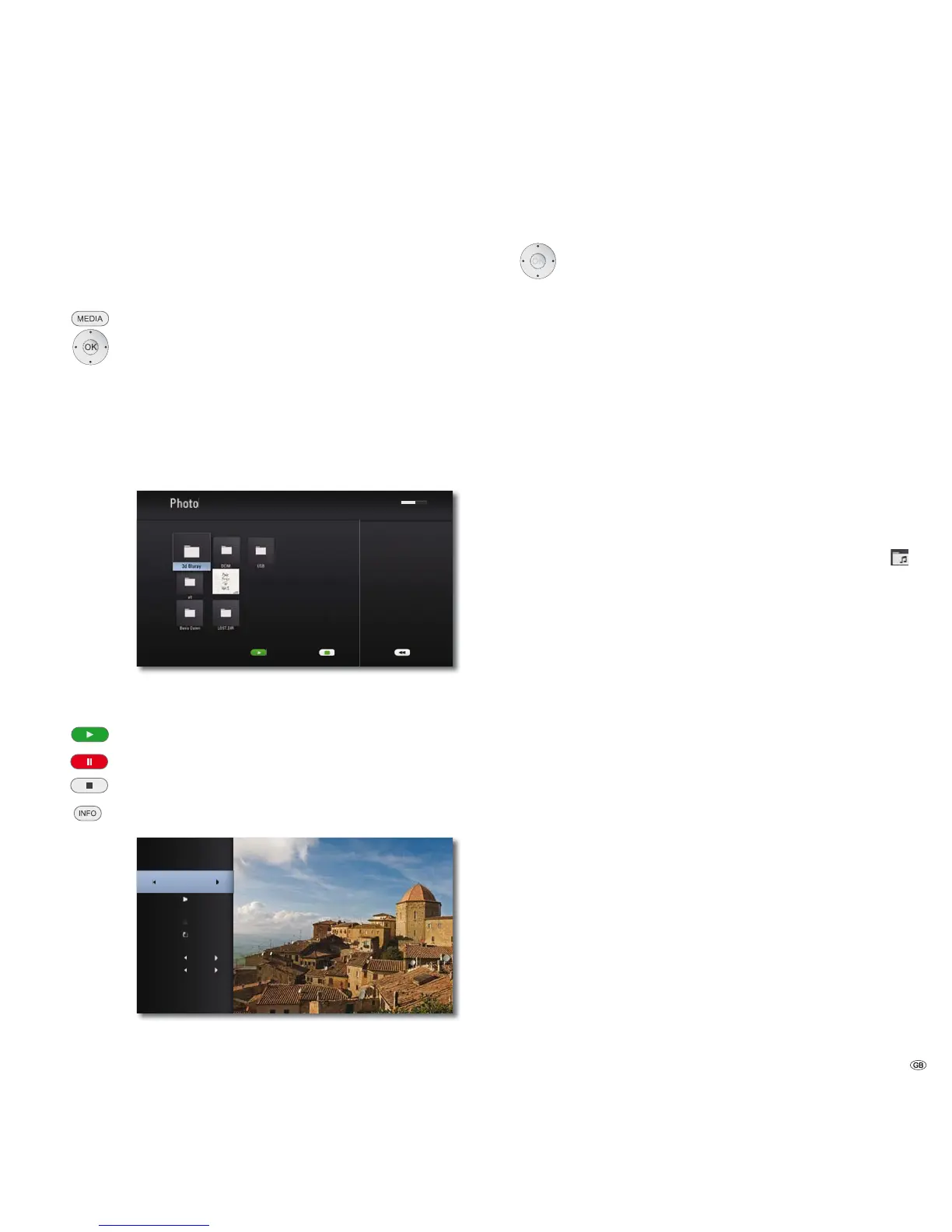
A selection menu showing the various media sources appears.
Select required medium.
Press OK to confirm.
Select file or folder.
OK Show photo or change to folder.
0%0%
86%'&,0
Cover.jpg
6OLGH6KRZ
%DFN
'HYLFH&KDQJH
Slide show
You can automatically display your photo files as a slide show.
Play Start / Continue slide show.
Pause Stop slide show.
Stop Quit slide show/photo display/Zoom Mode.
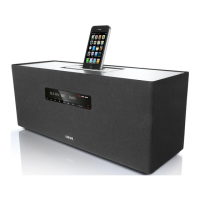
Show/Hide Info Menu.
'&,0MSJ
6OLGH6KRZ
0XVLF
5RWDWH
=RRP
(ꊞHFW
2ꊞ
1RUPDO6SHHG
0XVLF6HOHFW
Select/Set options.
Uppermost line Select photo with
Slide show Pause/Play slide show with OK
Music select Select music for slide show
Music Pause/Play music with OK
Rotate Rotate image 90° to the right
Zoom Call up Zoom Mode with OK (page 31)
Effect Set transition effects
Speed Anzeigedauer einstellen
Music selection
You can play music to accompany the slide show.
Select Music Select option in the Info Menu
Press OK to confirm.
Select medium and music album.
➠ Folders containing music are marked with the symbol
gekennzeichnet.
Select OK button.
Press OK to confirm.
if necessary, go to the Info Menu and start play in the Music
option with OK.
Prerequisites for photo files
• Max. pixel width: 4000 x 3000 pixels /24bit/pixel
• Max. pixel width: 3000 x 3000 pixels /32bit/pixel
• Max. file size 4 Mbyte
• 7KHPD[LPXP QXPEHURIILOHVDQGIROGHUVLV7KHVHDUFKFDQWDNH
longer than 1 minute.
• File extensions: ".jpg", ".jpeg", ".png"
• Photo files that are compressed progressively or without loss cannot be
displayed.
37 -



 To Next Page