Start-up
Set network connection manually
The network parameters can be set manually (e.g. if there is no DHCP server in
your home network).
Call up the Main Menu.
Select the Setup option.
Select the Network option.
Select the Connection settings option.
Press OK to confirm.
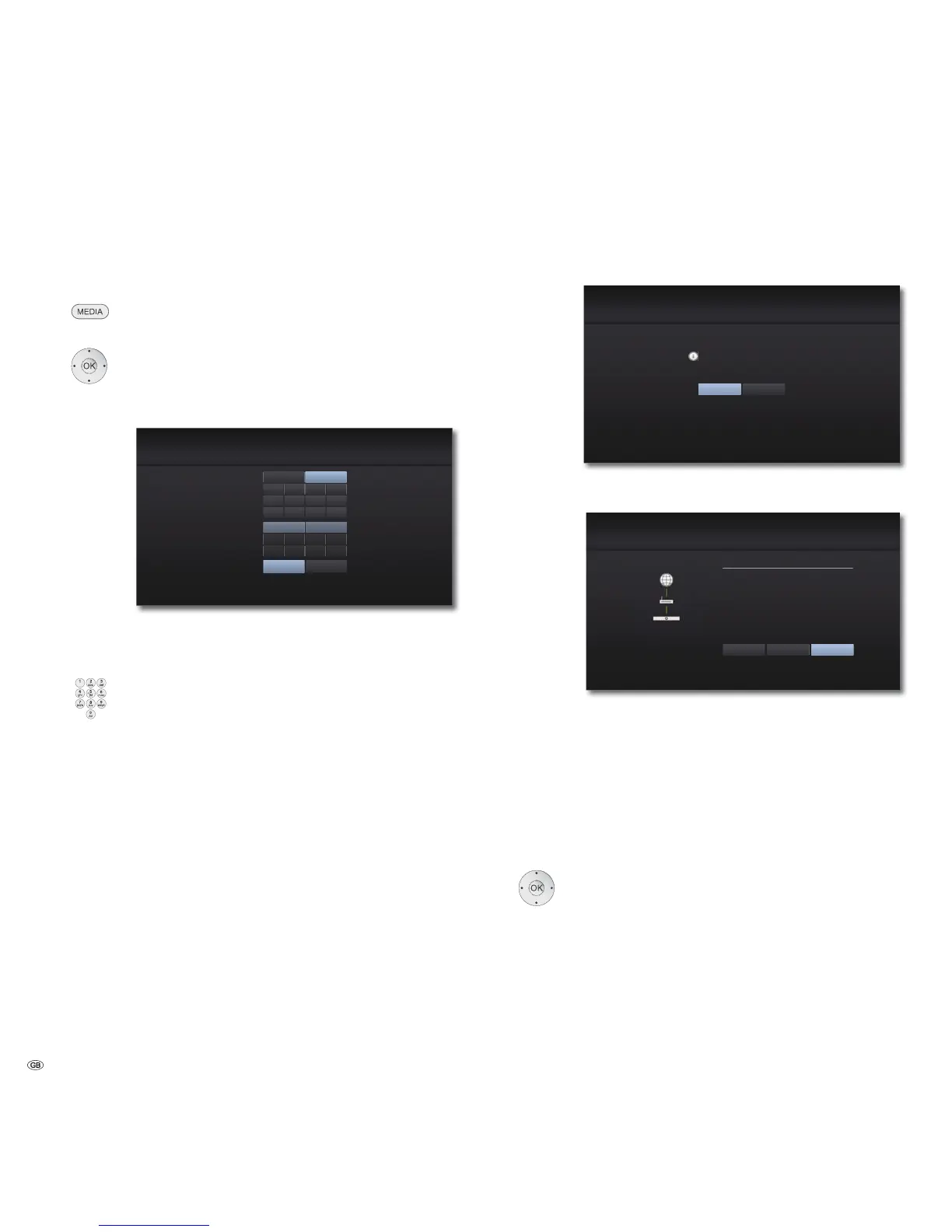
The Connection Settings Menu appears.
&RQQHFWLRQ6HWWLQJ
,30RGH
'166HUYHU
,3$GUHVV
6XEQHW0DVN
3ULPDU\
*DWHZD\
6HFRQGDU\
&DQFHO
'\QDPLF
$XWR
0DQXDO
6WDWLF
2.
Select the option IP Mode: Static.
Press OK to confirm.
Enter the IP address, Subnetwork Mask and
gateway using the numerical buttons on the Assist remote
control.
Select the option DNS Server: Manual.
Press OK to confirm.
Enter the Primary and poss. Secondary DNS
server address using the numerical buttons on the Assist
remote control.
Select the option OK.
Press OK to confirm.
Your MediaVision 3D will now attempt to establish a
connection to the Internet router in your home network with
the parameters set.
A message appears stating that a fixed IP address has been
assigned.
&RQQHFWLRQ6HWWLQJ
6HWWLQJ:LUHG6WDWLF,3FRPSOHWHG
)RUWKHFRQQHFWLRQWHVWSUHVV7HVW
7HVW
2.
Select the option Test to perform a connection test.
Press OK to confirm.
HEEFDGDE
&RQQHFWLRQ6WDWXV
1HWZRUNLVQRWFRQQHFWHG
:LUHG1HWZRUN
0$&
,3
6XEQHW0DVN
*DWHZD\
,QWHUQHW6XFFHVV
/RFDODUHDQHWZRUN6XFFHVV
6HWWLQJ 7HVW
2.
3ULPDU\'16
6HFRQGDU\'16
If the connection test was successful, a corresponding
message will be displayed in the Connection Status Menu.
OK Close menu
Test Repeat connection test
Settings Call up the Connection Settings Menu
BD-LIVE™ connection
You can specify whether your MediaVision 3D may establish an Internet connec-
tion to the BD-LIVE™ service (page 33).
Call up the Setup Menu.
Select the Network option.
Select the option BD-LIVE™ Link.
Press OK to confirm.
Permitted BD-LIVE™ is allowed for all contents
Partially permitted BD-LIVE™ is only allowed for content for which a
user certificate is available
Prohibited BD-LIVE™ is locked
- 24



 To Next Page