Start-up
Network Menu
Your MediaVision 3D can be connected via the LAN connection on the rear to a
home network (LAN) with Internet connection (page 11 to 13). That means you
can use the BD-LIVE™ service, which provides you with optional accompanying
material from the manufacturer of the Blu-ray Disc™.
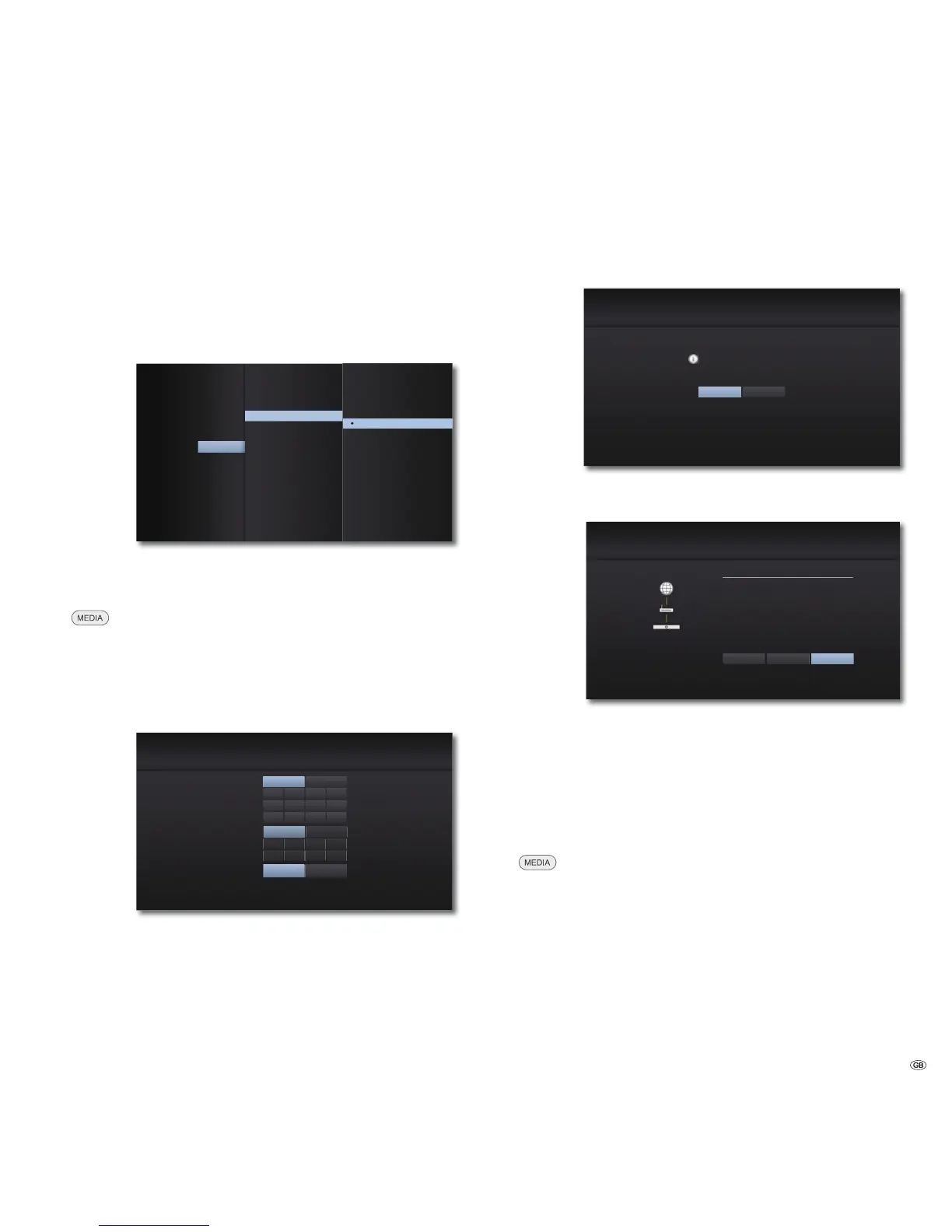
In the Network Menu you can make the settings required for your home network.
%'/,9(FRQQHFWLRQ
3DUWLDOO\SHUPLWWHG
3URKLELWHG
&RQQHFWLRQ6WDWXV
3HUPLWWHG
&RQQHFWLRQ6HWWLQJ'LVSOD\
$XGLR
/DQJXDJH
'ROE\3/,,
/RFN
1HWZRUN
2WKHUV
Set network connection automatically
If your home network has a DHCP server (e.g. a DSL router),
your MediaVision 3D can automatically set all network parameters.
Call up the Main Menu.
Select the Setup option.
Select the Network option.
Select the Connection settings s.
Press OK to confirm.
The Connection Settings Menu appears.
&RQQHFWLRQ6HWWLQJ
,30RGH
'166HUYHU
,3$GUHVV
6XEQHW0DVN
3ULPDU\
*DWHZD\
6HFRQGDU\
&DQFHO
'\QDPLF
$XWR
0DQXDO
6WDWLF
2.
Press OK to confirm.
Your MediaVision 3D will now attempt to establish a
connection to the Internet router in your home network. The
standard setting shown above (IP Mode: Dynamic, DNS server:
Auto) is used for the automatic search for the network
parameters.
If a dynamic IP address has been assigned, a corresponding
message will appear.
&RQQHFWLRQ6HWWLQJ
6HWWLQJ:LUHG'\QDPLF,3FRPSOHWHG
)RUWKHFRQQHFWLRQWHVWSUHVV7HVW
7HVW
2.
Select the option Test to perform a connection test.
Press OK to confirm.
HEEFDGDE
&RQQHFWLRQ6WDWXV
1HWZRUNLVQRWFRQQHFWHG
:LUHG1HWZRUN
0$&
,3
6XEQHW0DVN
*DWHZD\
,QWHUQHW6XFFHVV
/RFDODUHDQHWZRUN6XFFHVV
6HWWLQJ 7HVW
2.
3ULPDU\'16
6HFRQGDU\'16
If the connection test was successful, a corresponding
message will be displayed in the Connection Status Menu.
OK Close menu
Test Repeat connection test
Settings Call up the Connection Settings Menu
Connection Status Menu
You can display the network parameters currently set.
Call up the Main Menu.
Select the Setup option.
Select the Network option.
Select the option Connection status.
Press OK to confirm.
The Connection status Menu appears.
23 -



 To Next Page