Using the Main Menu13
13.4.1 Manual Firmware Upgrade
The system supports automatic firmware upgrades over the network to ensure your unit is always
up-to-date. It is recommended to always use automatic upgrade unless directed to perform a
manual upgrade by technical support.
Prerequisites:
• Save the .bin firmware upgrade file in the root folder of a USB flash drive (not included),
and connect the drive to one of the USB ports on your recorder.
To manually upgrade the recorder’s firmware:
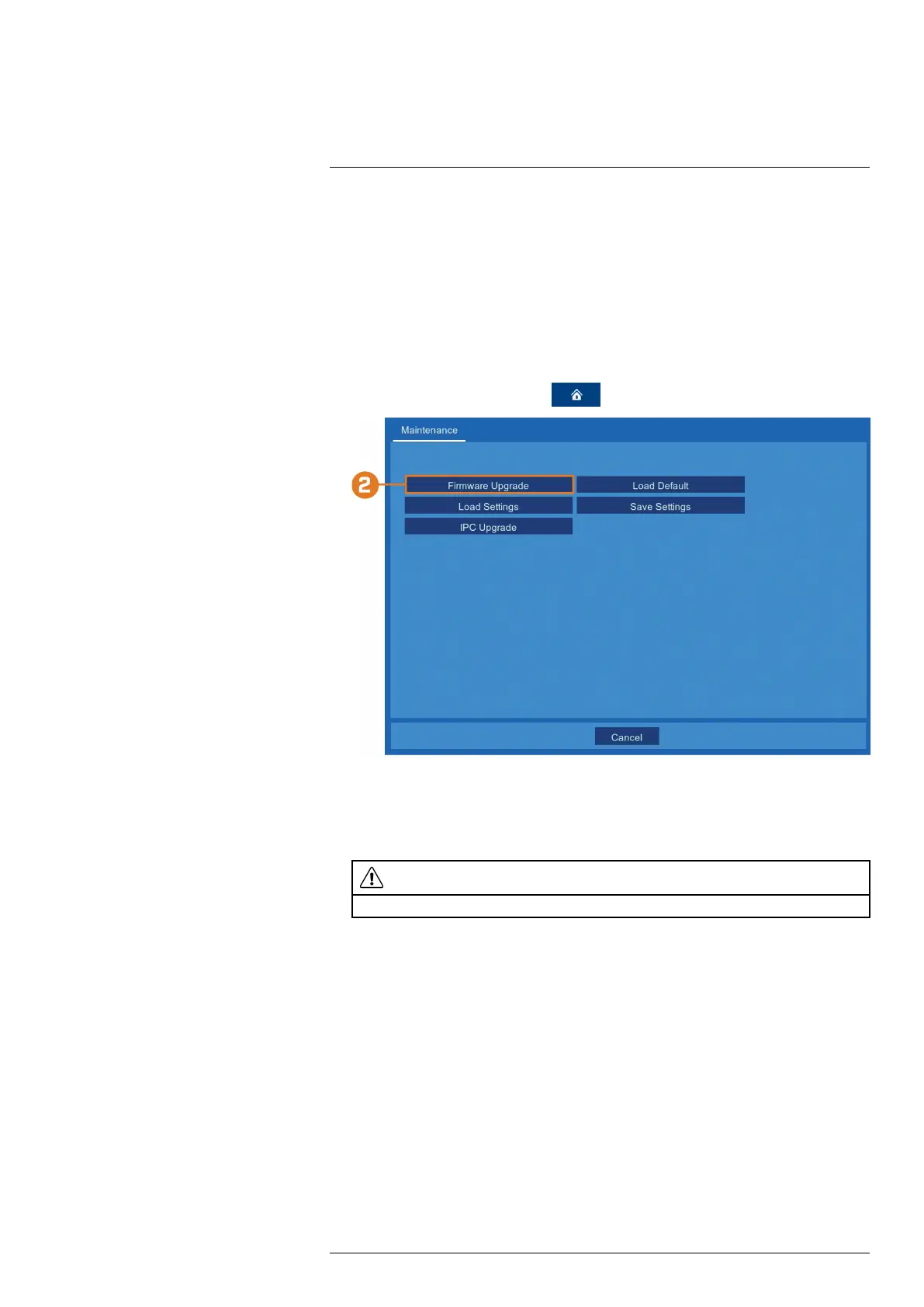
1. From the live viewing screen, click
> Advanced > Maintenance.
2. Click Firmware Upgrade.
3. The drive menu appears. Navigate to and select the .bin firmware file, then click OK.
4. A confirmation window appears. Click OK to confirm.
5. Allow 5-10 minutes for the system to upgrade and reboot.
CAUTION
Do not power off therecorder during firmware upgrade.
13.4.2 Restoring Default Settings
Reset the recorder settings to their out-of-box state. You can choose to reset all settings at once,
or just settings on specific menus. Restoring default settings will not delete recordings and snap-
shots saved to the hard drive.
To restore default settings:
#LX400115; r. 3.0/57178/57178; en-US 59



 To Next Page