Chapter 5 Viewing the results
Page 5-4 MAN 0384
Changing the Records tab
By default the Records tab displays seven fields which include Record number,
Sample name, Source, Measured on, etc.
The record tab can be customised by adding or removing any of the fields that are
stored with the measurement record. The order in which the fields are displayed
can also be rearranged.
Adding a field to the Records tab
There are two ways to add a field to the Records tab:
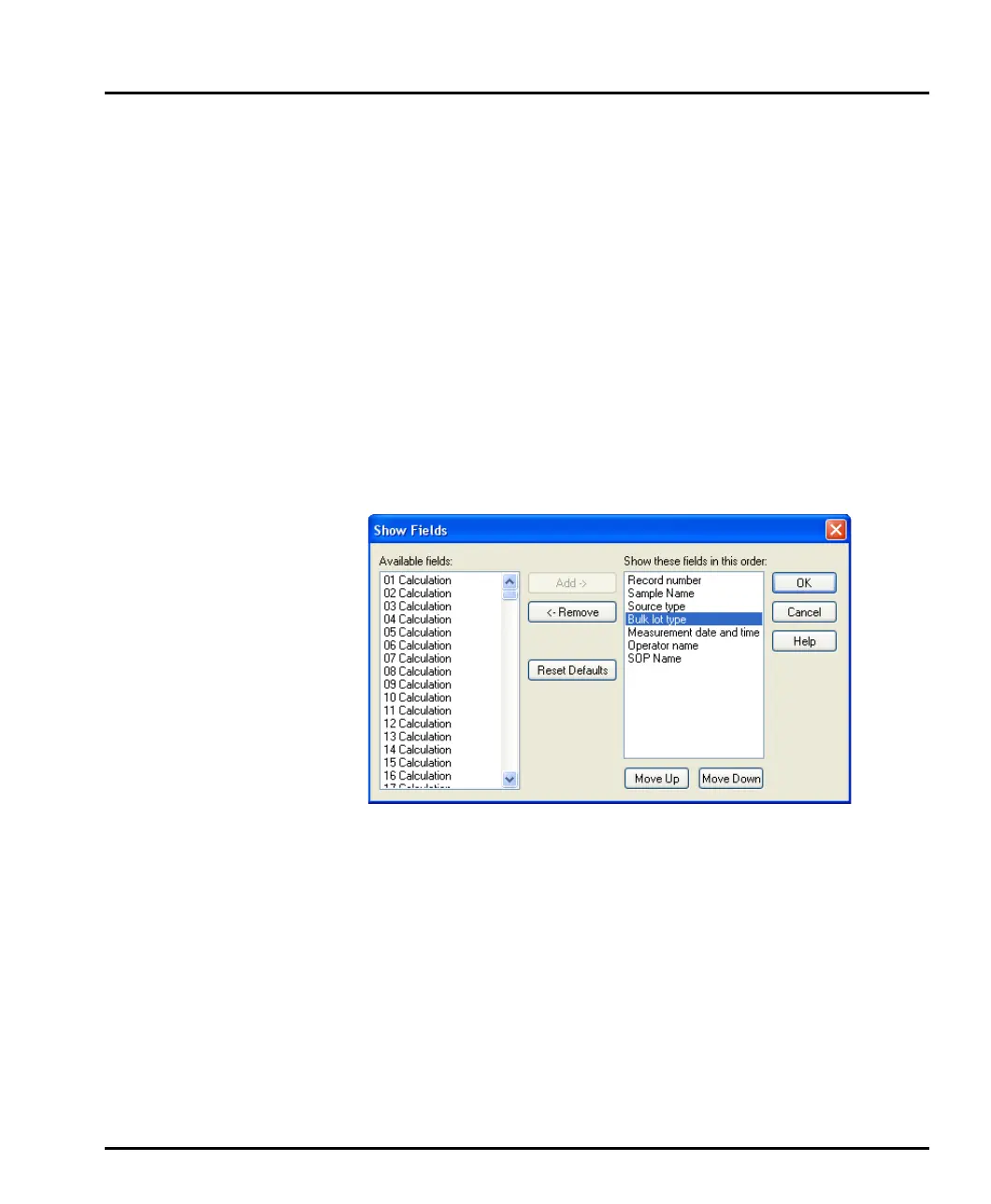
Using the Show Fields dialogue – this is accessed by selecting View-Select
Fields (or right-clicking on the list header). The dialogue is split into two
sides. The list box on the left shows all fields available that can be added to the
records tab. The Show these fields in this order list shows all the fields that
are currently displayed in the Records tab. The order in which they are listed
is the order in which they appear in that tab.
To add a field to the Records tab, select a field from the Available fields list
box and press the Add button.
Using Field Chooser – this is a drag and drop facility that allows the user to
select a field from a list and then drop it directly onto the records tab. The field
chooser can be accessed by selecting View-Field Chooser (or right clicking
on the list header).
MAN0384-1.0 Mastersizer 2000.book Page 4 Tuesday, March 20, 2007 8:56 AM



 To Next Page