Advanced features Chapter 9
Mastersizer 2000 Page 9-9
Defining user size bands
Within a histogram graph or result table, each column of the histogram represents a
size band of particles, for example from 0.25 to 0.7 microns. The default settings
for these are set by the fundamental geometry of the optics within the system.
However, these size bands are fully customisable by the user. A practical use of this
is shown in the sieve reports. These reports use customised size bands so that they
match those required by the relevant standard for sieves.
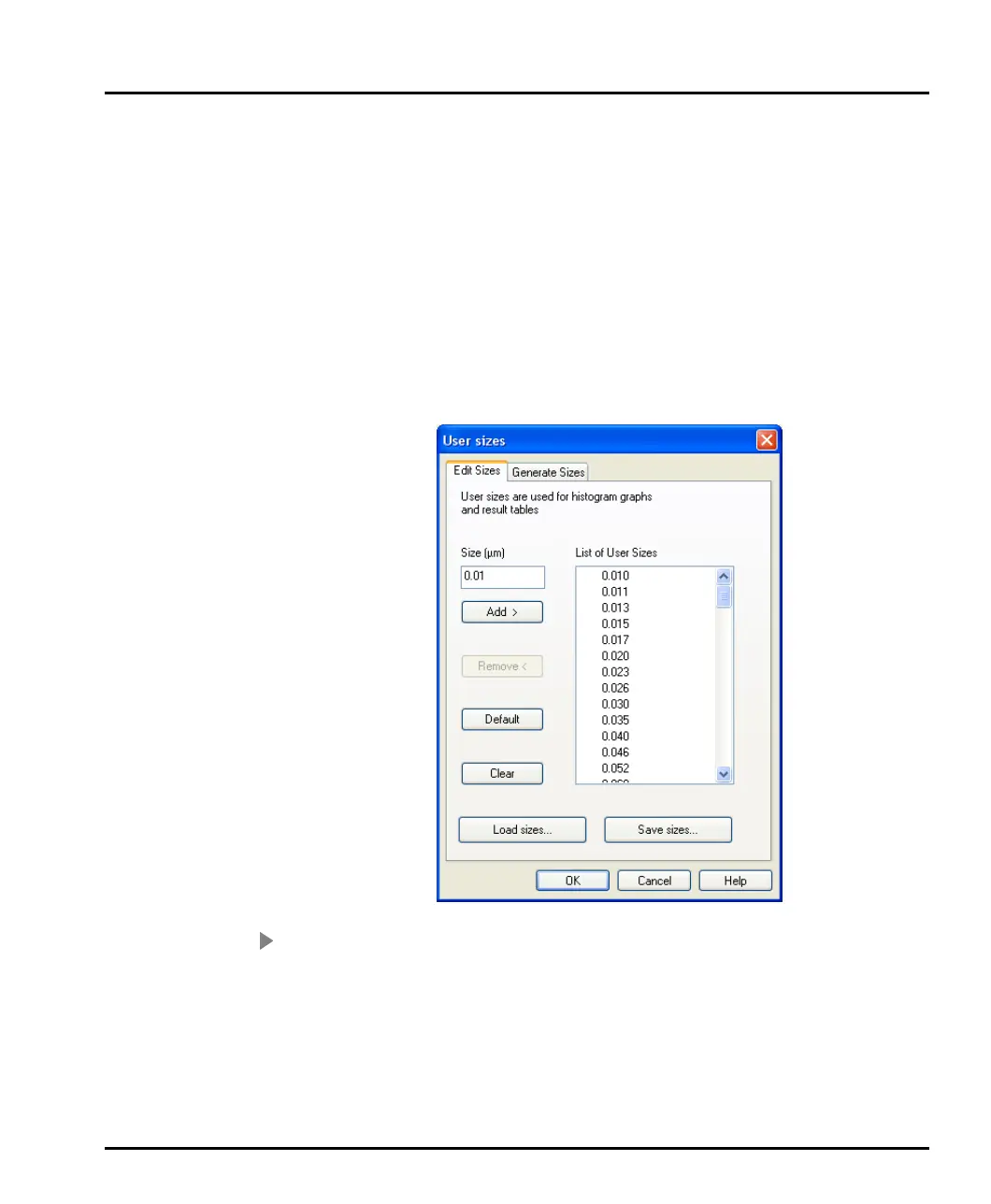
Size bands are defined by selecting Edit-User sizes. The dialogue below will
appear. This dialogue allows the user to either manually set the size bands using the
Edit sizes tab or automatically generating the size classes between user defined
limits, using the Generate Sizes tab.
To define a size band manually:
1. Select the Edit Sizes tab in the Edit-User sizes dialogue (shown above).
2. Type the particle size that will form a new size band boundary in the Size
(µm) box.
3. Select ADD. The new size boundary will be added to the List of User Sizes
list box, creating a new size band.
MAN0384-1.0 Mastersizer 2000.book Page 9 Tuesday, March 20, 2007 8:56 AM



 To Next Page