11.1 wxPropView 97
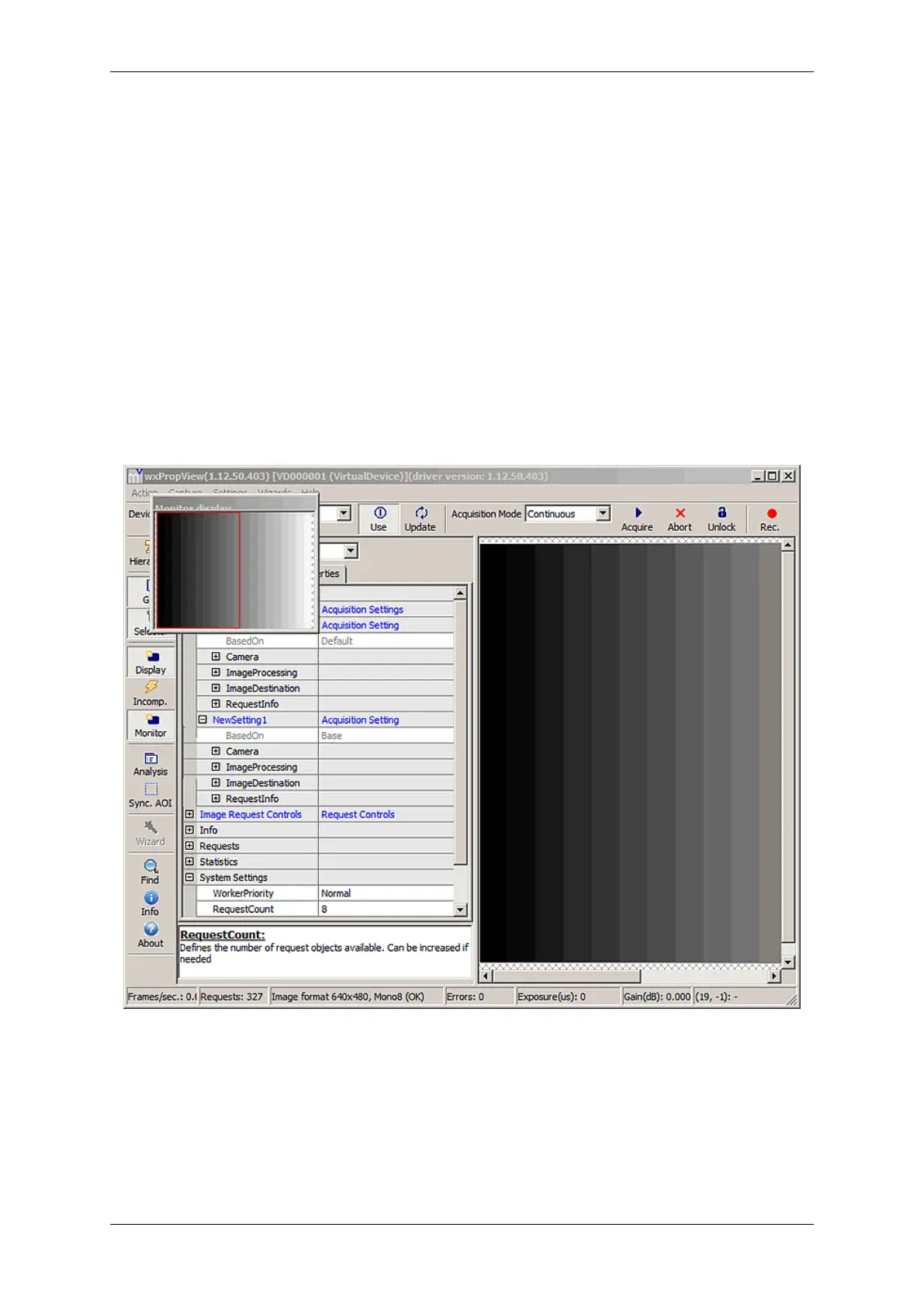
Figure 24: wxPropView - Capture setting usage mode
That's it. Now, starting a live acquisition will display live images in both displays and each display is using a different
set of capture parameters. If a device supports parallel acquisition from multiple input channels, this will increase
• the used bandwidth and also
• the CPU load
as wxPropView (p. 77) now needs to display more images per second. Each display can be configured indepen-
dently thus e.g. one display can be used scaled while the other displays 1:1 data. The analysis plots can be
assigned to a specific display by left-clicking on the corresponding image display, the info plot will plot a graph for
each capture setting in parallel.
Figure 25: wxPropView - Running example
When only one setting shall be used at a given time, this can be achieved by setting the capture setting usage mode
back to "Manual" via "Capture -> Capture Settings -> Usage Mode". Then the setting that shall be used can be
manually selected in the request control list:
MATRIX VISION GmbH


 To Next Page