17
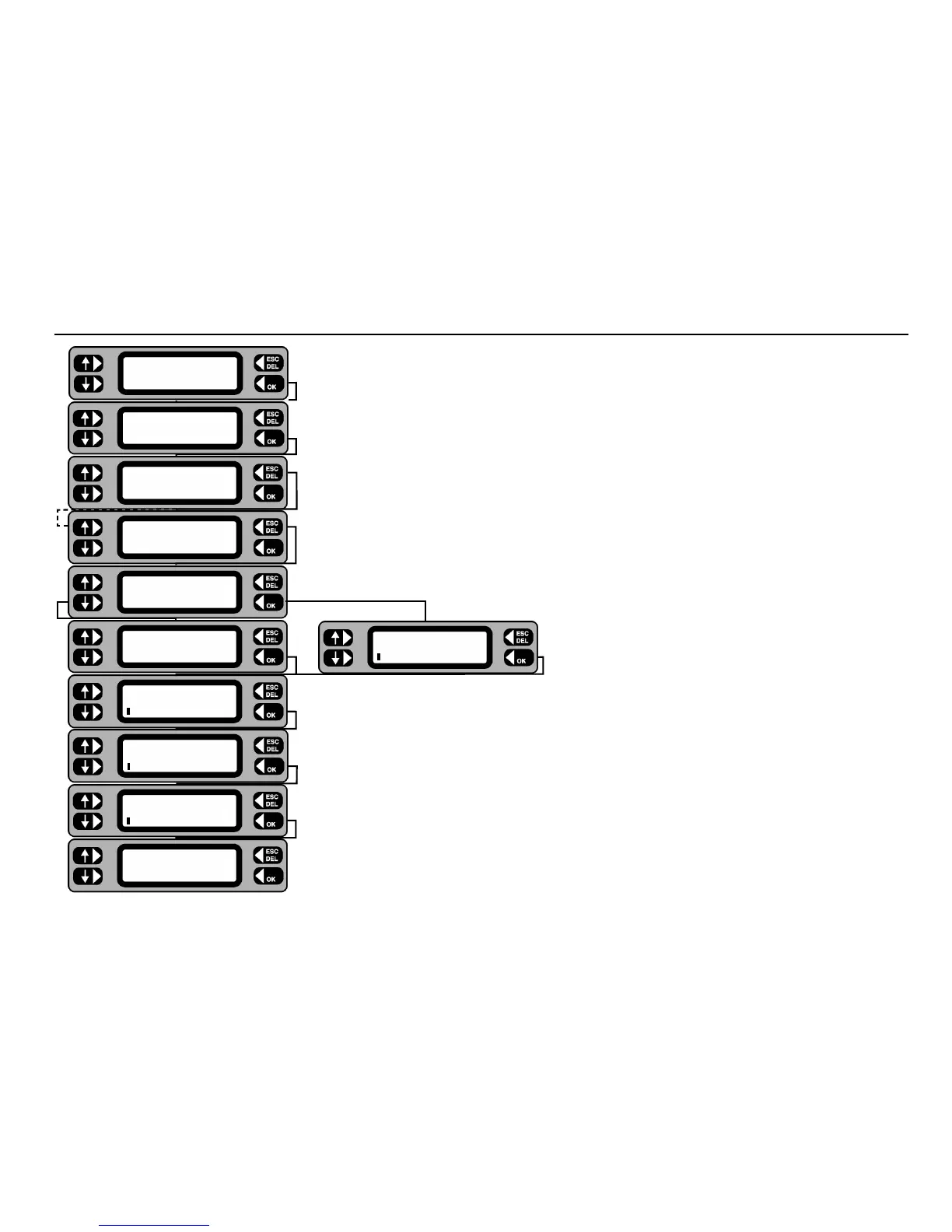
1 From the Main screen, press the MENU key.
2 From the Menu screen, press the
CLIENT key.
The current client name is briefly displayed.
3 Press the
SELECT key.
4 If editing is required, display the required client by repeatedly pressing the
NEXT key,
then press the
MORE key. To add a client, just press the MORE key.
5 Press the
ADD or EDIT key as required.
6 Type in or edit the client name, press the
OK key when the Client name is complete.
7 Type in or edit the client address details, press the
OK key to step onto the next
address line.
8 When the final address line is complete, press the
OK key, the display will briefly
show the current client name.
9 Press
ACCEPT to go on to choose a location, SELECT to choose another
client or
LOGOUT to select another user.
Adding or editing a Client
Client SELECT
LOGOUT ACCEPT
Enter Address Line 3
Enter Address Line 2
Enter Address Line 1
Edit Client
A.N.OTHER CLIENT
ERASE Client E
EDIT
ADD
NEXT Client MORE
A.N.OTHER CLIENT
Client SELECT
LOGOUT ACCEPT
ASSET
SETTINGS CLIENT
TEST QUICK-CHECK
COMMS MENU
Add Client




 To Next Page