28
PAT4 will apply each of the allocated tests for the appropriate Group, in the correct sequence. If AUTOPASS has been selected under the SETTINGS
option, testing will proceed automatically with PAT4 determining the pass/fail status according to the pre selected Group limits. If MANUAL has been
selected, PAT4 will pause after each test and display a Pass / Fail decision prompt. An asterisk is placed against either the PASS or FAIL button depending
on the whether the value falls within the Test Group’s passband.
PAT4 will conduct a pre-test to confirm that electrical continuity exists within the appliance i.e. that it has been switched On, and that any fuses present are
not ruptured. If the asset is very high or very low resistance,
PAT4 will warn that the asset may accordingly be Open or Short Circuit. You have the option
of RETRY (asset turned On?) FAIL, or IGNORE the warning. Some assets containing heating elements, filament lamps or large motors may offer very low
resistance in their de-energised state, causing PAT4 to warn of a possible short circuit. In such cases, the warning can be ignored. When all required tests
have been completed the results may be stored in PAT4 memory.If a printer is attached to PAT4 ’s parallel output, a simple listing of test results can be
printed. If a printer is not attached or this feature has been disabled (See Settings section),
PAT4 will automatically skip the printing process.
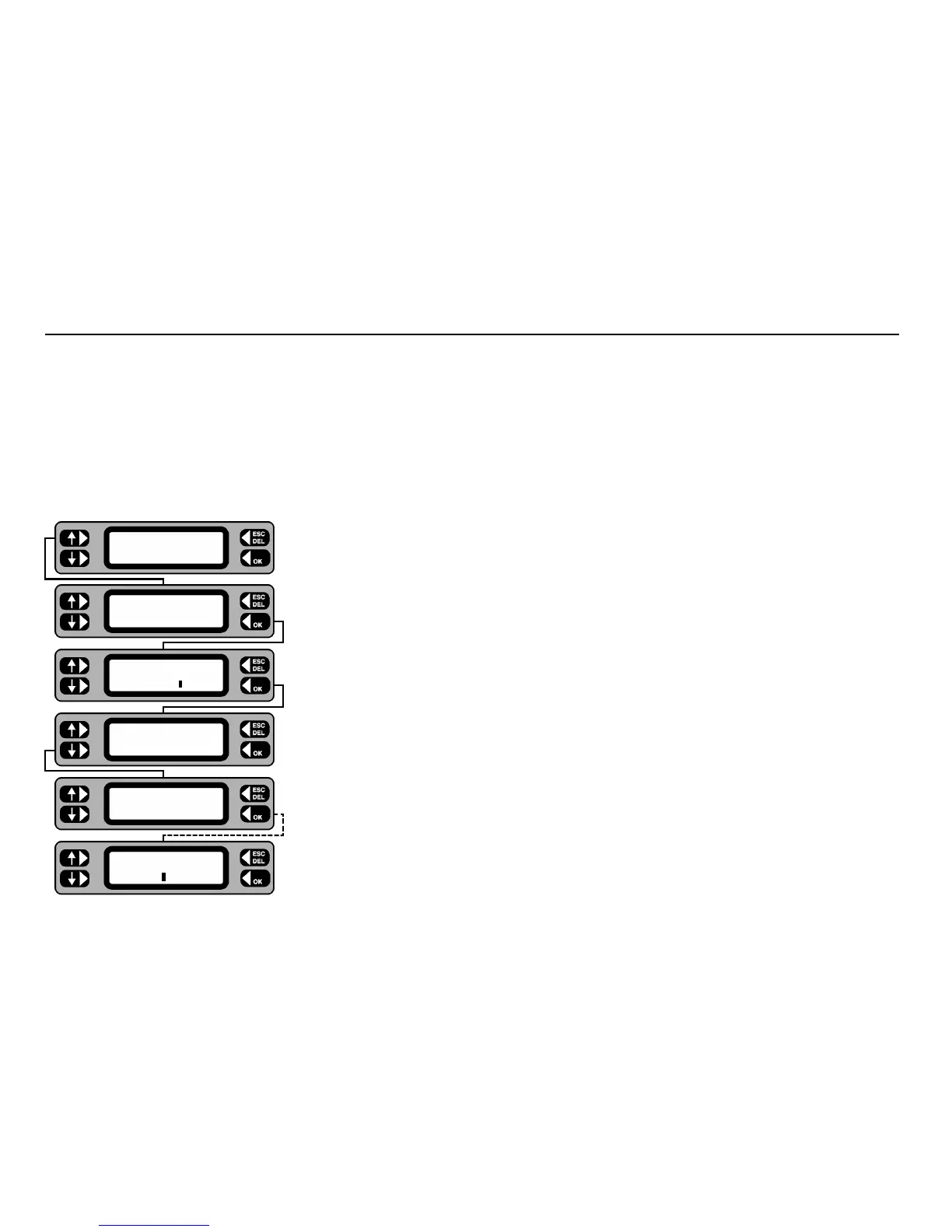
1 From the Main screen, press the
TESTS key.
2 Press the
SELECT key.
3 Scan in, or type in the code for the required asset and press the
OK key.
4 If the asset is recognised, the option to update the asset data is offered. Press the
YES key to enter
the ‘Edit Asset’ routine or the NO key to test the asset now.
5 If previous test results are stored, the date last tested is displayed. Press the
OK key.
The tests selected in the asset’s test group follow on from this point. Refer to the Description of Tests
for detailed information on each test.
6 Enter a repair code – if required.
XPress software
TM
for Windows has 99 built in codes which
you can use when appliance testing to record repair details against tests.
Testing an Asset
TESTS QUICK-CHECK
COMMS MENU
ADD Test
SEARCH SELECT
Asset ID
1068
Update asset data
NO YES
Last tested
17/02/98
Repair Code



 To Next Page