26
It may be necessary to locate and test an asset (for the current Client) for which only the Location, Test Group, or an approximate retest date is known.
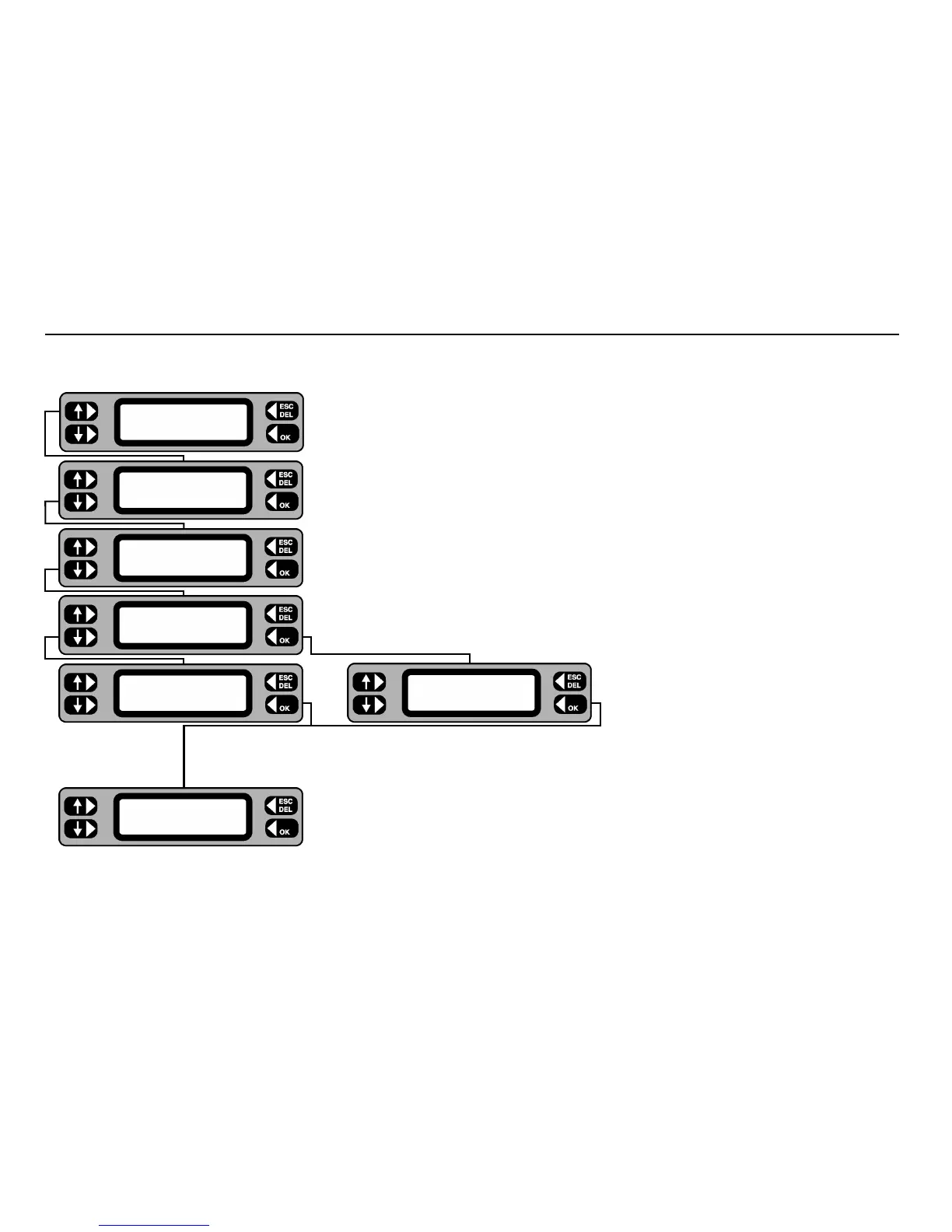
Search by location (Location or Room)
1 From the Main screen, press the TESTS key.
2 From the Test screen, press the
SEARCH key.
3 Press the
LOCATION key.
4 Continue the search by selecting
ROOM or LOCATION. The screen changes.
Note: - In order to search by ‘Room’, the room ID must be specified in the asset details.
5 If
ROOM is selected, toggle the NEXT key to step through the list of rooms and display the required
room. Press the
OK key.
6 If
LOCATION is selected, toggle the NEXT key to step through the list of locations and display the
required location. Press the OK key.
7 Toggle the NEXT key to step through the list of assets and display the required asset ID. Press the
TEST key. The Test screen is displayed.
8. Follow the Test Asset routine.
This facility is very useful if you have to test assets in a large organisation, with many different rooms. You may start in any room or location, and call
up all the assets for testing before moving on to the next room or location
Locate an Asset
TESTS QUICK CHECK
COMMS MENU
ADD Test
SEARCH SELECT
DATE Search
LOCATION GROUP
Search
ROOM LOCATION
NEXT Room ID
Workshop
NEXT Search
ID: PT736 TEST
NEXT Location
Anytown



 To Next Page