25
TESTS QUICK-CHECK
C
OMMS MENU
TESTS QUICK-CHECK
COMMS
MENU
TESTS QUICK-CHECK
COMMS
MENU
TESTS QUICK-CHECK
COMMS
MENU
TESTS QUICK-CHECK
COMMS
MENU
LIST Group
NEXT Location
Anytown
Asset ID
1068
ERASE Asset
EDIT 1068 ADD
NEXT Asset MORE
1068
LIST Asset
1068
ASSETS
GROUPS REPORTS
ASSET
SETTINGS CLIENT
Asset description
Table fan - 9 inch
Serial number
435576
Save asset to memory
NO YES
Asset 1068 saved
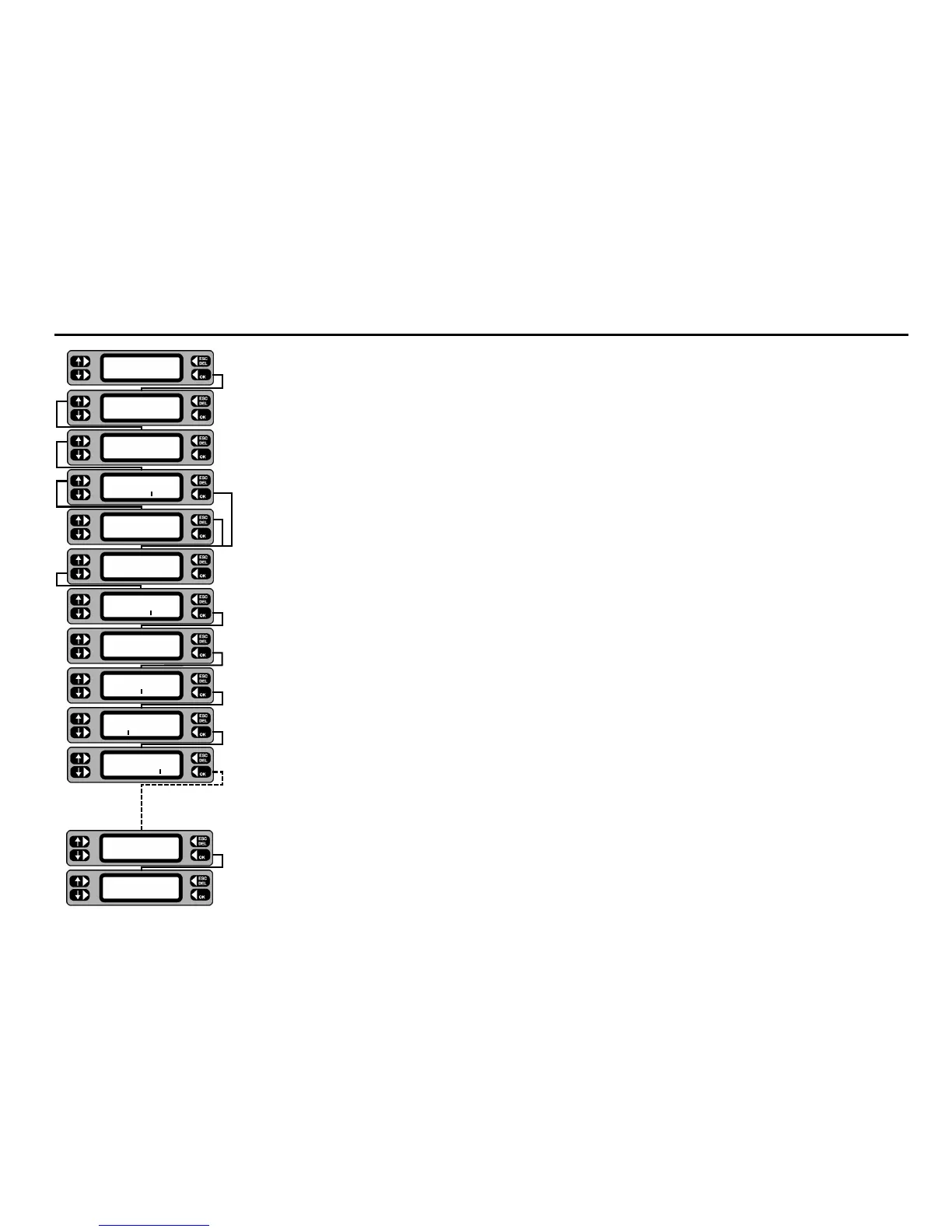
Editing or erasing an Asset
1 From the Main screen, press the MENU key.
2 Press the
ASSET key.
3 Press the
ASSETS key.
4 Scan in, or type in the ID for the required asset and press the
OK key. Alternatively, press the LIST
key, then step through the assets using the NEXT key.
5 If the asset ID is recognised, the Asset screen with options to
ERASE, EDIT or ADD is displayed.
6 To edit, press the
EDIT key. Each subsequent screen allows amendments to be made for the selected
asset. Press the
OK key to sequentially step through the details.
To erase, press the
ERASE key. At the confirmation screen, press the OK key to erase the asset, or
ESCape to abort the erase.
7 To save the amended asset details to the memory, press the
YES key. The screen returns to the Asset
list screen. Press the ESCape key to return back to the Menu screen.
8 To abort the operation, press the
NO key. The Asset screen is displayed.



 To Next Page