9
User names and Pin numbers
Names and Pin numbers for up to 10 authorised Users can be entered at any time. Test results are individually credited to the person logged in at the time of
testing and downloaded to Megger software if used.
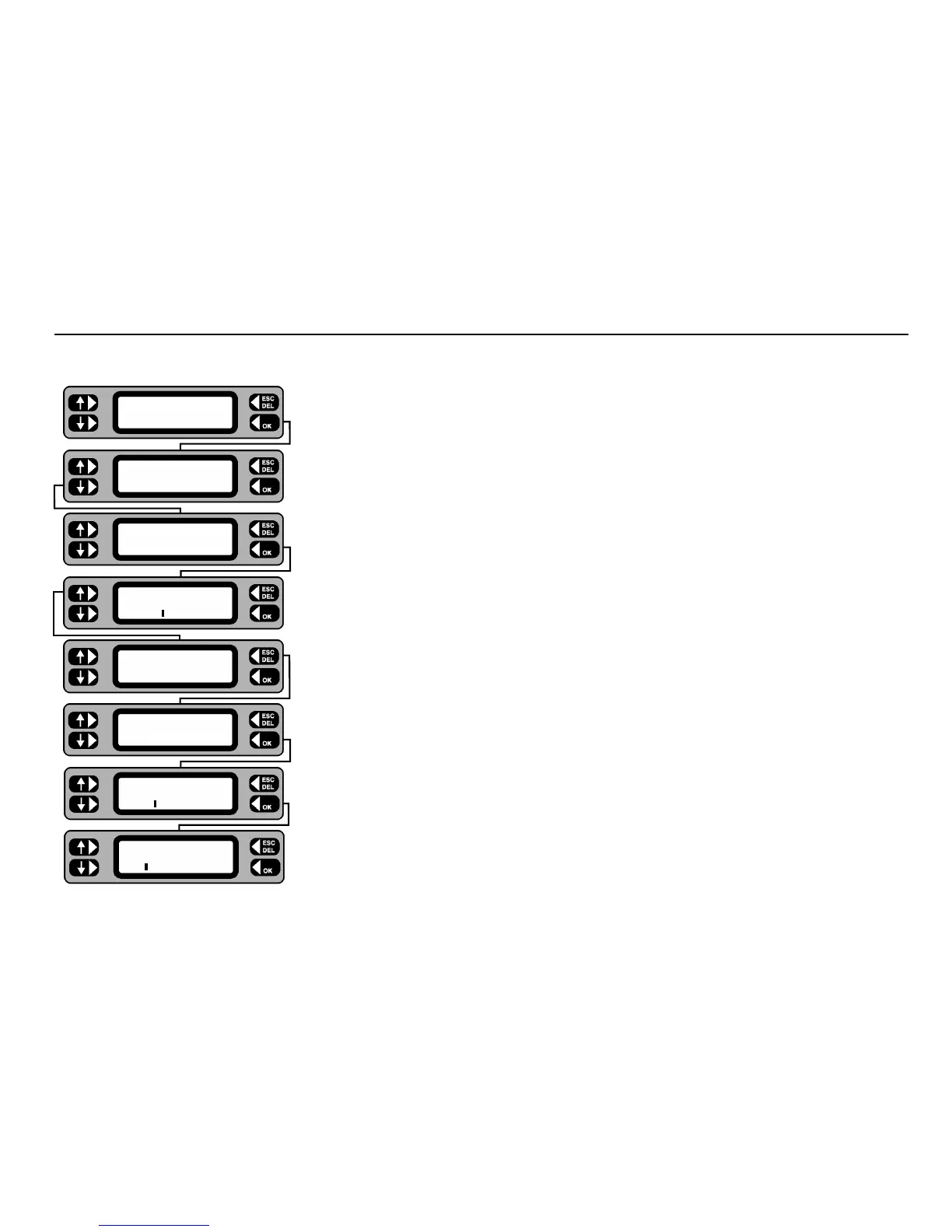
1 From the Main screen, press the
MENU key.
2 From the Menu screen, press the SETTINGS key.
3 Press the
USERS key.
4 To check current Users, press the LIST key.
5 Use the left hand keys to scroll through the user list. The user who is currently logged in is displayed with an
asterisk * against the name. To edit or erase a user scroll until the required user is displayed.
6 Press the
MORE key. The softkey options are displayed. From this screen you can ADD a new user, EDIT or
ERASE the currently displayed user.
7 To add a new user, press the
ADD key.
8 Type in the new User name then press the
OK key.
9 Type in the desired PIN number (4 digits), press the OK key to save the user and PIN.
To login a different User, the current User must first be logged out - refer to the Client/Location Selection flow
chart - press the
LOGOUT key. The User/PIN screen is displayed.
TESTS QUICK-CHECK
COMMS MENU
ASSET
SETTINGS CLIENT
CLOCK
MISC USERS
LIST Users
LIST Users MORE
SMITH
ERASE Users
EDIT SMITH ADD
User
SMITH
PIN
5678



 To Next Page