MA-5162-ENG MICRON
+
PISTON ADHESIVE MELTERMELTER OPERATION
4-5
MICRON+ PISTÓN
HMI : S02001101 v1.1.2
TC : S02200100 v1.0.84
IO FM : XXXXXXXXX vx.x.x
10 min
85 °C 60 s
Modbus
B: 57600Node: 10
2.2 Extra Settings
Inside device temperature alarm
Off after reset
Screen saver
Sound on alarm
Pumping autolock
BACK HOME FORWARD
White: editable text.
Blue: non-editable text.
Explanation of the screen contents
!
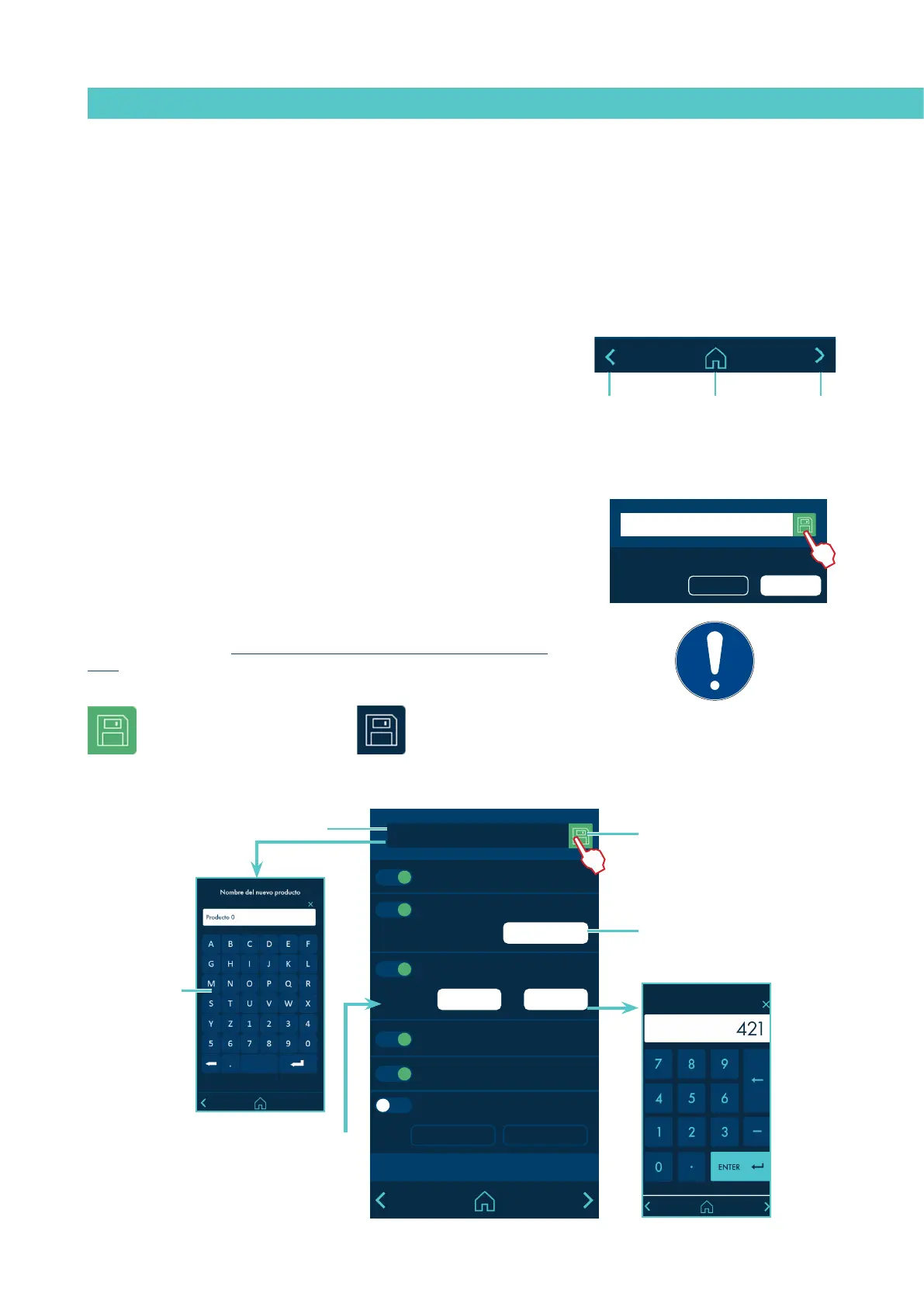
Save changes
The ‘SAVE CHANGES’ icon, located in the upper right part of the screen,
appears in the data entry and programming screens. If the data shown on the
screen is stored, the icon appears with a blue background. If the data has not
been stored, the icon is shown with a green background.
Note: In some options, the unit does not automatically store programming
data. Whenever you modify or program any data that you wish to keep press
“SAVE CHANGES”.
Press to save
Parameters saved
MICRON+ PISTÓN
HMI : S02001101 v1.1.2
TC : S02200100 v1.0.84
IO FM : XXXXXXXXX vx.x.x
30
12
300
P:
I:
D:
-60 °C
150 °C152 °C
Temperature: Real Set Point
T: Tank
!
General characteristics
In general, there are several icons and pieces of information that are repeated
throughout the screen navigation, so they will be explained at the beginning
and then not in the next screens.
Navigation icons
Right arrow icon (FORWARD), located in the lower right part of the screen.
Appears when there is a possibility of navigation to a next screen. From the
HOME screen it provides access to the MENU.
Left arrow icon (BACK), located in the lower left part of the screen. This icon
appears on all the menu screens, allowing you to return to the previous
screen.
From any screen you can return to the main screen by clicking on the icon
(HOME) located in the bottom centre of the screen.
White: editable parameter.
Grey: non-editable parameter.
Green: activated.
White: deactivated.
Grey: disabled.
Green: press to save.
Blue: parameters saved.
Alphanumeric
keyboard
Numeric keyboard


 To Next Page