36
MicroEn
ine
XP-GT/GTR Programming Manual
v4.00
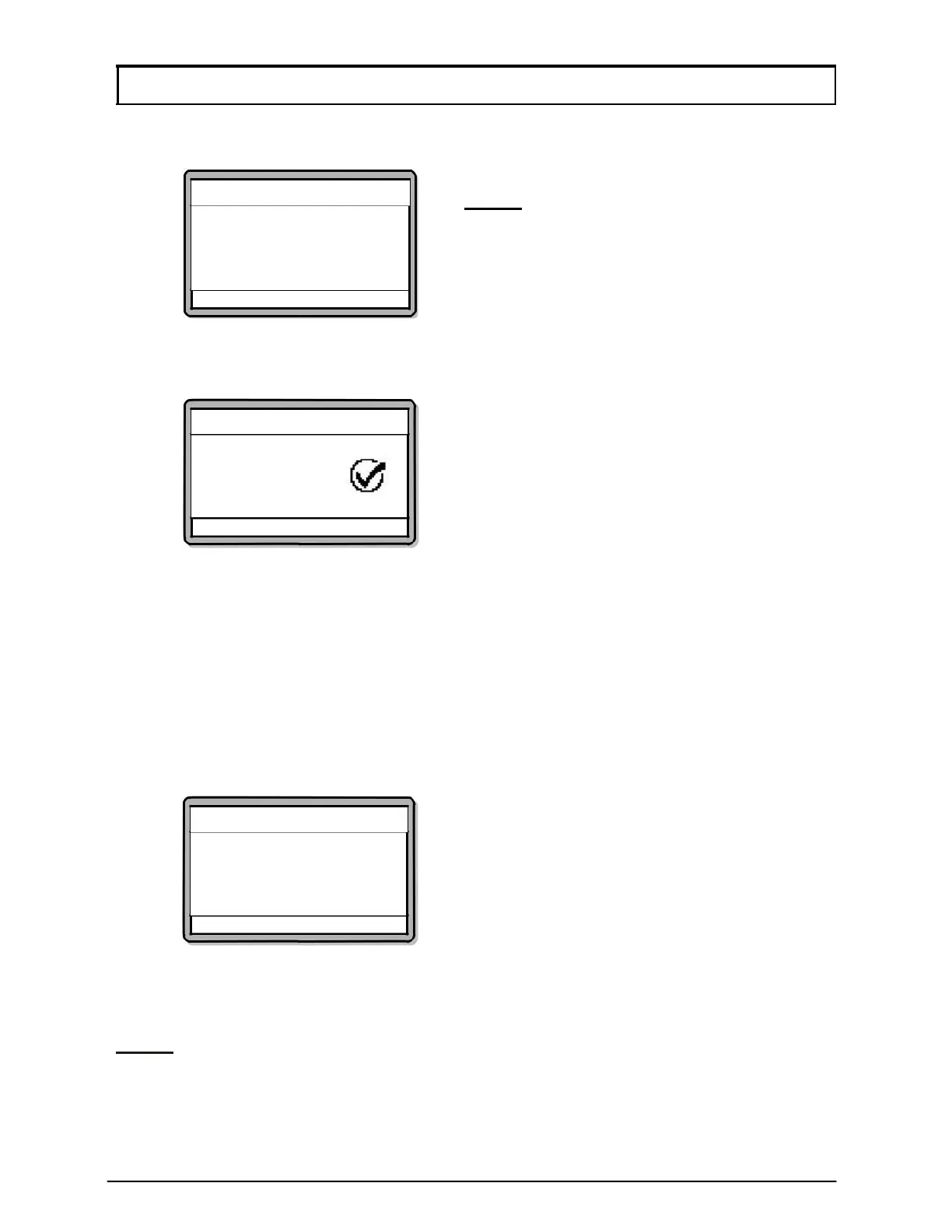
8. The screen below will be shown. Select whether to allow the new user to
access Configuration Menu and press
√ to proceed to the next screen.
9. Screen as below will be shown if all the information entered is valid. Repeat
steps 3 to 8 to add another user, or press
X to return to Database Menu.
Add User
New User
Installed
√ - OK X - Cancel
2.3 Delete User
This menu allows users to delete an existing user from the database.
To delete a user, please follow steps below:
1. Enter Configuration Menu.
2. Press 2 for Database Menu.
3. Press 3 for Delete User. Screen as below will be shown. Enter the user ID to
specify the user to be deleted.
Delete User
Enter User No.
ID: [------]
√ - OK X - Cancel
4. If the user exists, screen as below will be shown. Enter another user number
to delete the user, or press
X to return to Database Menu.
NOTE:- If the user to be deleted has fingerprint template data, the fingerprint
templates have to be deleted first before deleting the user details.
Add User
√ - OK
X - Cancel
Allow Config. Access
Allow? – [NO]
NOTE:- This sub-menu is only available
to GT/GTR (1500L, 3500L,
1500ABL, 3500ABL) series only.


 To Next Page