28
MicroEn
ine
XP-GT/GTR Programming Manual
v4.00
NOTE:- 1) Sub-menu v., vi., and vii. are only available to GT/GTR (1500L, 3500L,
1500ABL, 3500ABL) series only.
2) By default, sub-menu v., vi., and vii. are set OFF so that users can
enter Configuration Menu via Master Pin set in Section B (iii).
3) To specify which user has access into Configuration Menu, please
refer to Section 2.4 Edit User Settings under the Allow Config Access
sub-menu.
viii. Card Mode (for Prox. Card)
This parameter lets users select whether the controller will be reading the
card’s serial number (digit 5 to digit 10 on the card) or Wiegand’s Standard
26-bit format (digit 13 to digit 18 on the card) for the purpose of identification.
When this parameter is set YES, the controller will be reading the card in the
Wiegand’s Standard 26-bit format instead.
NOTE:- Sub-menu viii. is only available for GT/GTR (1500L, 3500L) series only.
ix. Swap Card (for Mifare Card)
This parameter lets users select whether the controller will be reading the
Mifare card’s normal serial number or reversed bit CSN reading as
identification. When this parameter is set YES, the controller will be reading
reversed bit CSN format instead.
NOTE:- Sub-menu ix. is only available for GT/GTR (1500ABL, 3500ABL) series
only.
1.7 Network Parameters
This menu allows users to configure the network settings to enable the controller to
connect to the server.
The settings accessible in this menu are:
i. Local IP Address
ii. Local Port Number
iii. Remote IP Address
iv. Remote Port Number
v. Subnet Mask
vi. Gateway IP
To change the network settings, please follow steps below:
1. Enter Configuration Menu.
2. Press 1 for System Menu.
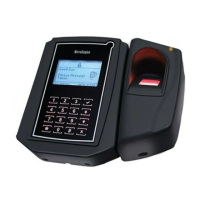
3. Press 7 for Network Setting. The screen below will be shown. Enter the
IP Address for the controller and press
√ to proceed to the next screen.


 To Next Page