10 Microtek ScanWizard EZ Reference Manual
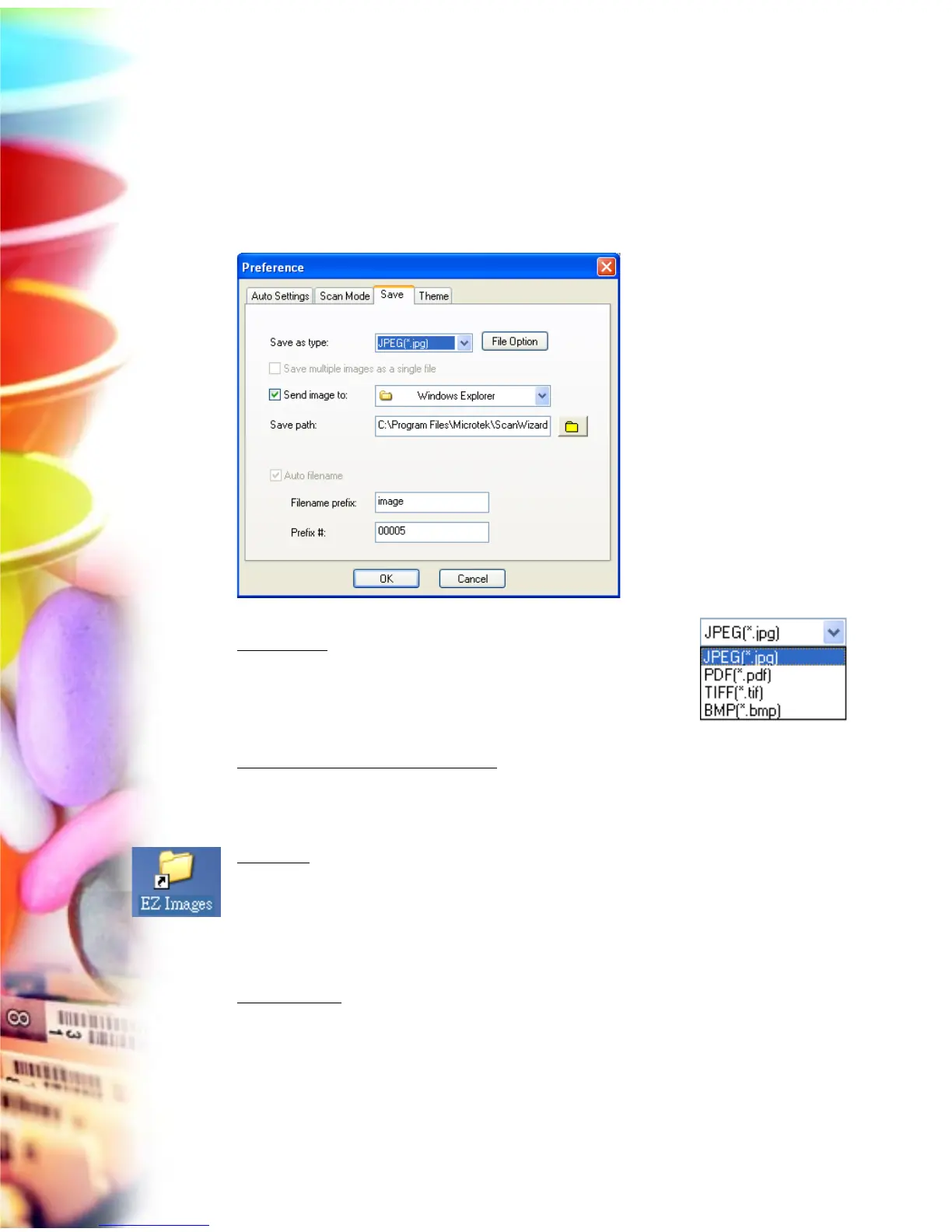
Save Panel
The Save panel allows you to choose a file format for the scanned images, to
specify the desired folder for storing the images, and to name the images as
desired. Also, it allows you to open the output image in your preferred
application.
Save as type
This option allows you to choose a file format when
saving a file. The selectable file format includes JPEG,
PDF, TIFF and BMP. “JPEG” is the default file format.
Save multiple images as a single file
This option allows you to save the scanned images to a single file. You can
enable this function if the output image file format is PDF or TIF.
Save path
This option allows you to assign the preferred folder into which the scanned
images are saved. If you use the default folder “C:/Program Files/Microtek/
ScanWizard EZ/My Images/” as your preferred folder, you can access it directly
by clicking the “EZ Images” icon on the desktop of the Windows.
Auto filename
If Auto filename is checked, the file name consists of the file prefix, plus the file
serial number. By default, this option is grayed out and users are not allowed to
uncheck it.



 To Next Page