Microtek ScanWizard EZ - Professional Mode Reference Manual 49
Custom Settings
When you click on each AIC setting in the Settings window, a drop-down menu
will show options for adding, removing, or loading custom settings. These
custom settings are settings that you define yourself for your scan jobs.
For instance, if you wish to change the shadow to an image and then save that
shadow setting for future scan jobs, you can add the shadow setting as a custom
setting. The next time you wish to retrieve that particular shadow setting, simply
go to the White/Black Point AIC drop-down menu, and choose that setting.
Adding Custom Settings
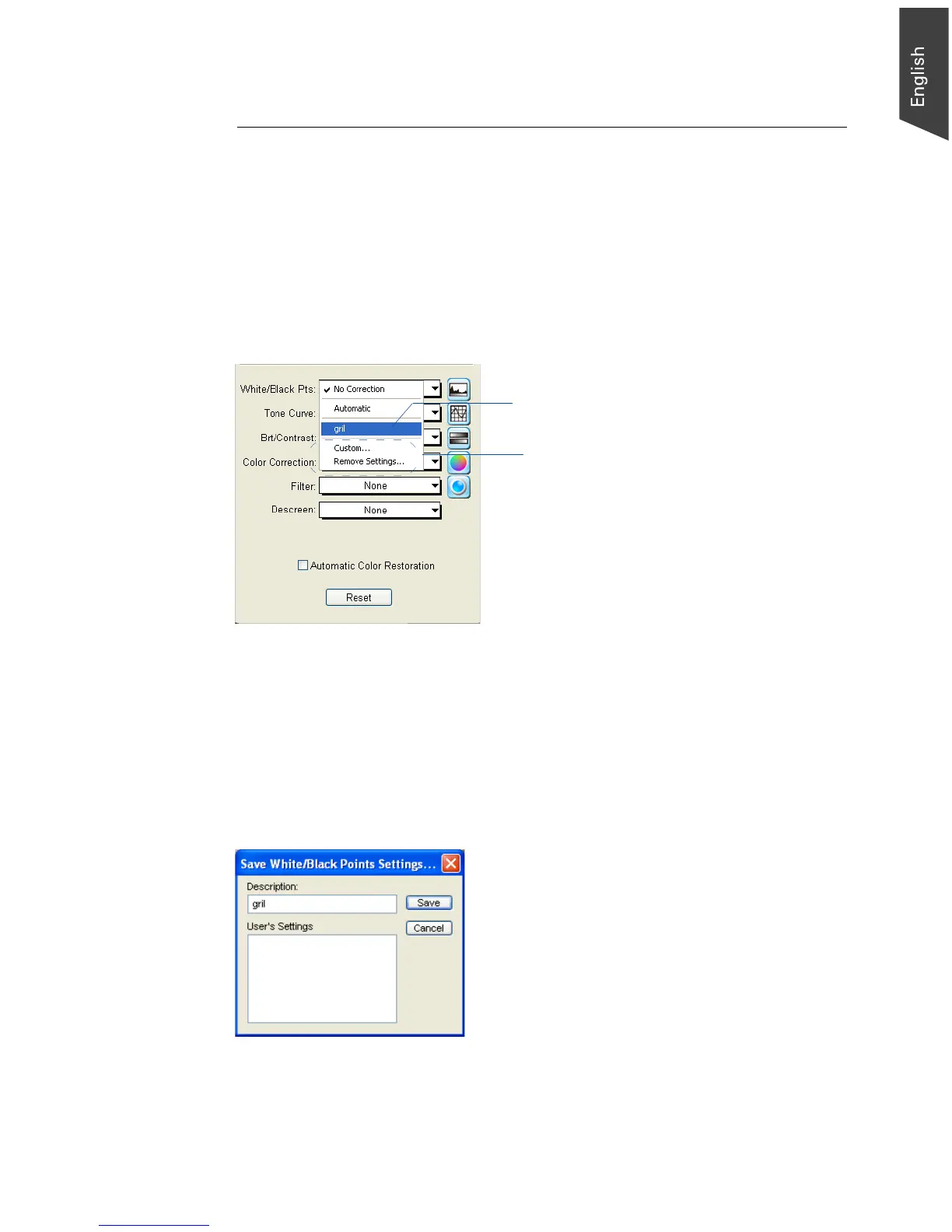
To add a custom setting for an AIC tool, click the Custom...in that tool’s pop-up
menu, or click the Add To Menu ... button in that tool's dialog box. When a dialog
box comes up, enter the name of the new custom setting to be added. For
instance, the added setting can be called “girl” as shown below.
A user-defined setting that has been added
and can now be retrieved
Lets you add or remove from the menu
settings you have previously defined



 To Next Page