52
3.6.3. Licensing settings
Click the Licensing button to manage the licensing file or to check the licensing status.
To obtain a new licence (if required):
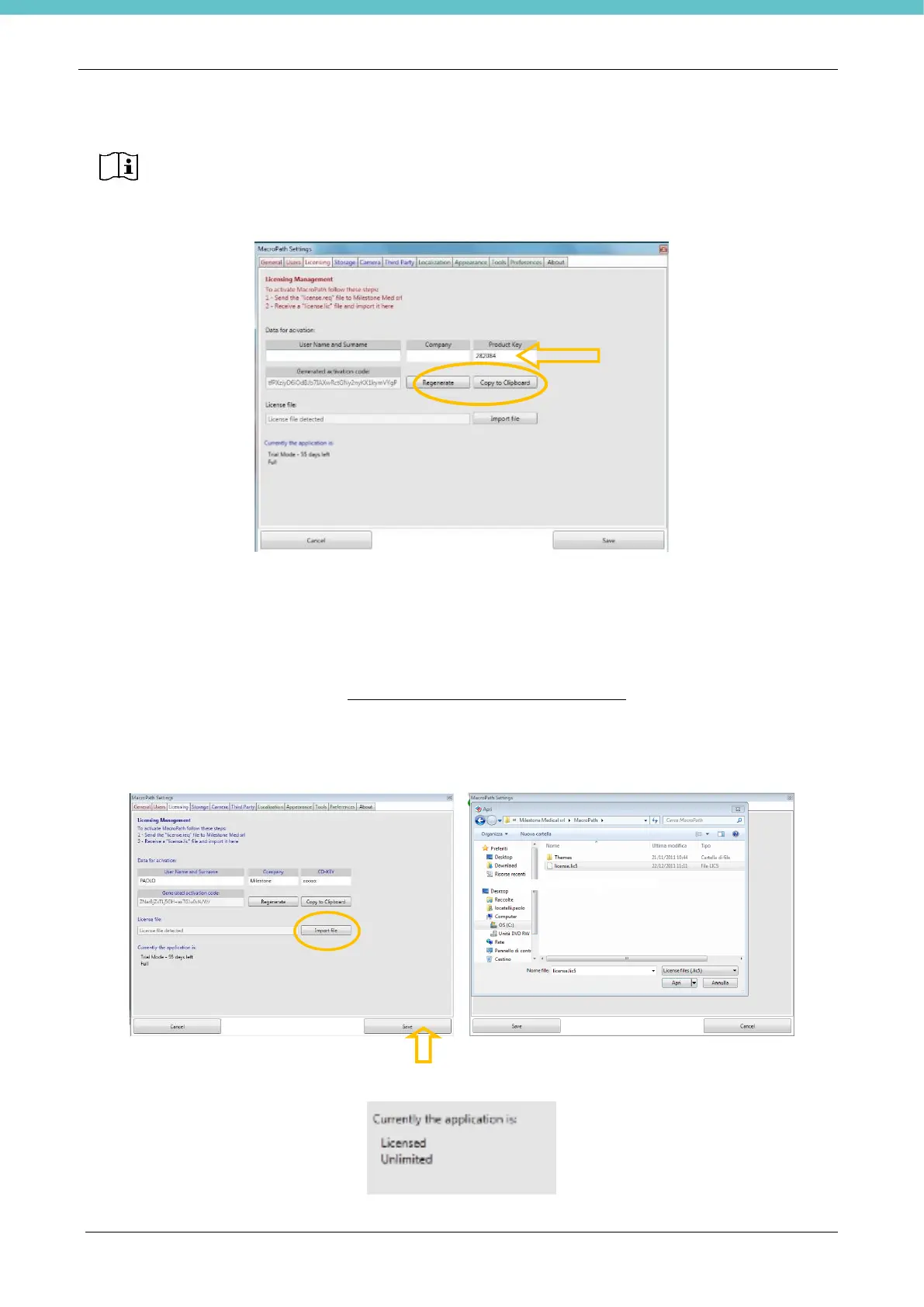
• Enter the PRODUCT KEY code printed on the supplied USB key (see the arrow in the previous picture),
• Press “Regenerate” (marked by the circle in the figure above),
• Press the “Copy to Clipboard” button, to copy the Machine ID code (circled in the figure above),
• Paste onto a text file or directly in an email message
• Describe the reason why a new license is required
• Send the information by email to customersupport@milestonemedsrl.com,
• When you receive the reply mail, save the file you received from the Milestone customer support
service,
• Press “Import file” (circled below) and select the saved lic5 file,
• Press “Save” (indicated by the arrow below).
• Restart MacroPATH and make sure that the license level is “Unlimited” or “Editing” according to the
license that you have bought, as shown below:
The MacroPATH unit is provided with a full license file already installed.


 To Next Page