53
3.6.4. Data storage settings
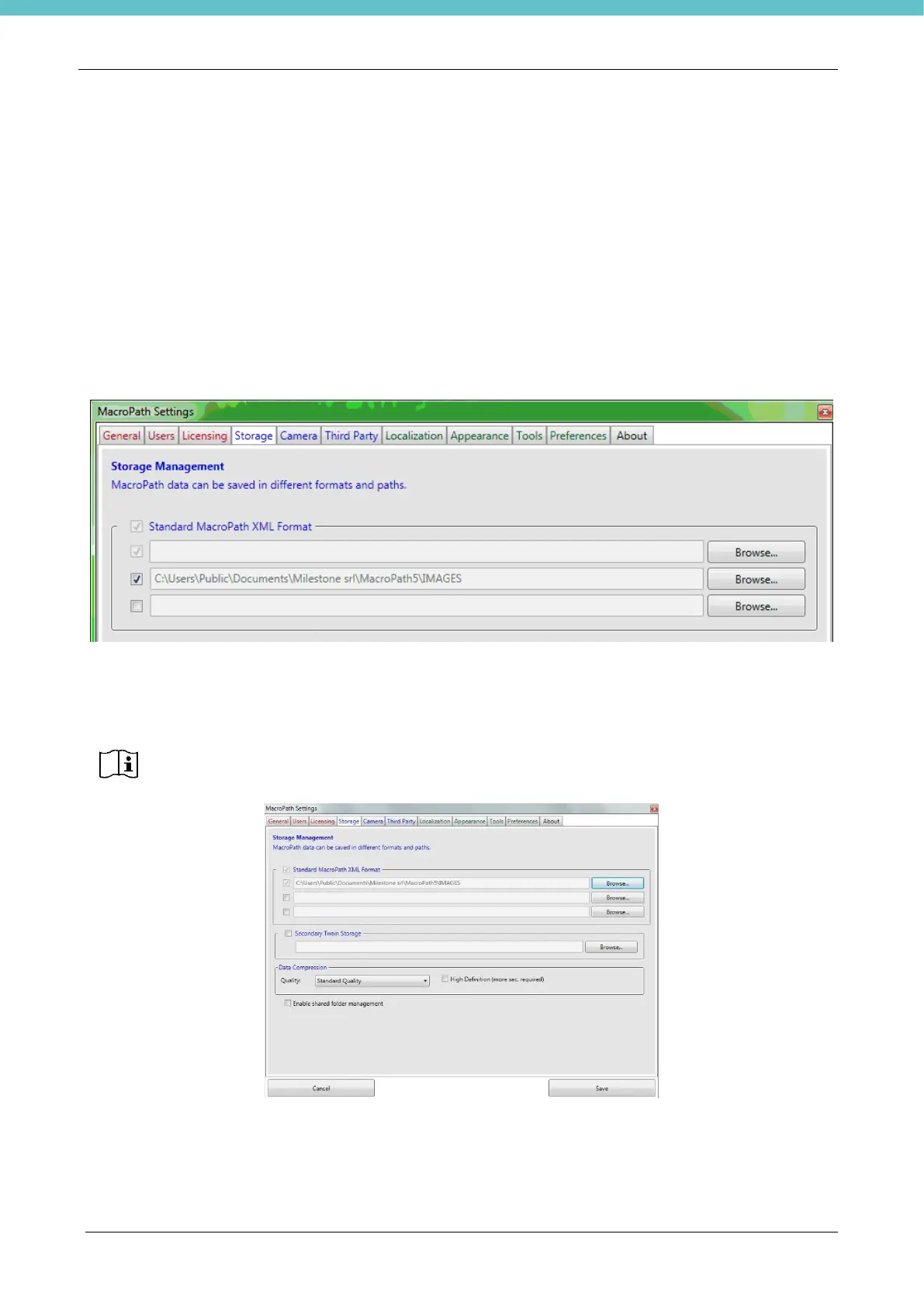
Click on the Storage button to either change or add new storage folders (up to 3). The system automatically
saves files in each folder selected.
For appropriate installation, specifically with multiple stations (when several MacroPATH units are installed or
installed in the office PCs with the “Editing” license), it is advisable to have the unit save data on a shared
folder (a server, for example). For correct system configuration, the first path needs to be the shared folder
located on the server. This folder must be set up for full control for each account (read/write/edit) and for
each PC running the MacroPATH software.
Accordingly, the second path should be a local folder (located on the PC’s internal hard disk).
For Windows 7 and Windows 10, a default folder (the user can obviously change it):
C:\Users\Public\Documents\Milestone srl\MacroPath5\IMAGES
As shown in the picture below (which illustrates the example of the first path):
The local folder will ONLY store the files created and opened by the MacroPATH you are using. The shared
folder on the server will collect ALL the files created and managed by all the workstations/units.
Data compression: you can define three different image compression levels: Full Quality, Standard and
Low file size.
See chapter 3.4.8 to select the best degree of compression depending on image quality.


 To Next Page