48
3.5.2. Display utilities
Image, audio and video Library
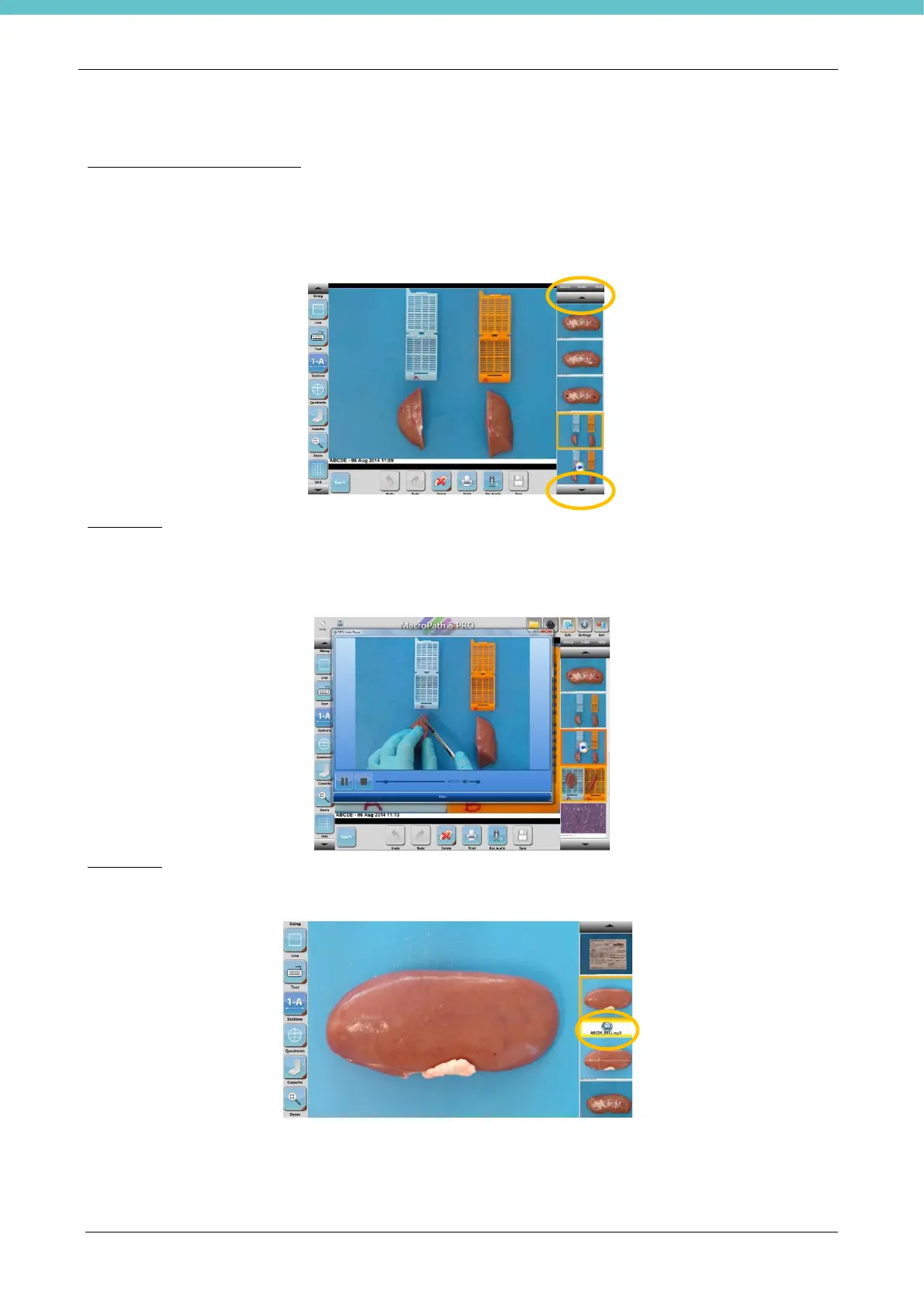
The user can easily view case assets in the library by using the following controls.
1. Scroll arrows (up/down) at the top and bottom of the library let you move through the case.
2. Images/Audio/Video tabs at the top of the library let you filter individual file types. (Example:
unchecking the Images tab only displays the captured videos and audio files).
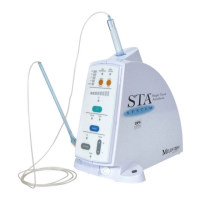
Play Video
Select a video thumbnail on the right of the screen and click on it. The video will automatically start once
selected. The Viewer screen appears and the video starts. At the end, the window must be closed to go back
to the main screen.
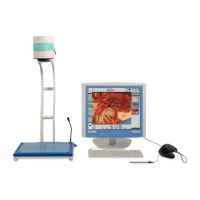
Play Audio
Click an audio thumbnail in the library: it plays automatically once selected. No windows appear.


 To Next Page