Print or save - miniDSP Flex
https://docs.minidsp.com/product-manuals/flex/print_page.html
BACK
PEQ Details (Output 1)
Menu
Channels
OUTPUT 1 OUTPUT 2 OUTPUT 3 OUTPUT 4 OUTPUT 5 OUTPUT 6 OUTPUT 7 OUTPUT 8
Link Channel
No Link Output 2 Output 3 Output 4 Output 5 Output 6 Output 7
Active Links
RESET TO DEFAULT
LOAD BIQUADS FILE
Output 8
Click to jump to a different channel
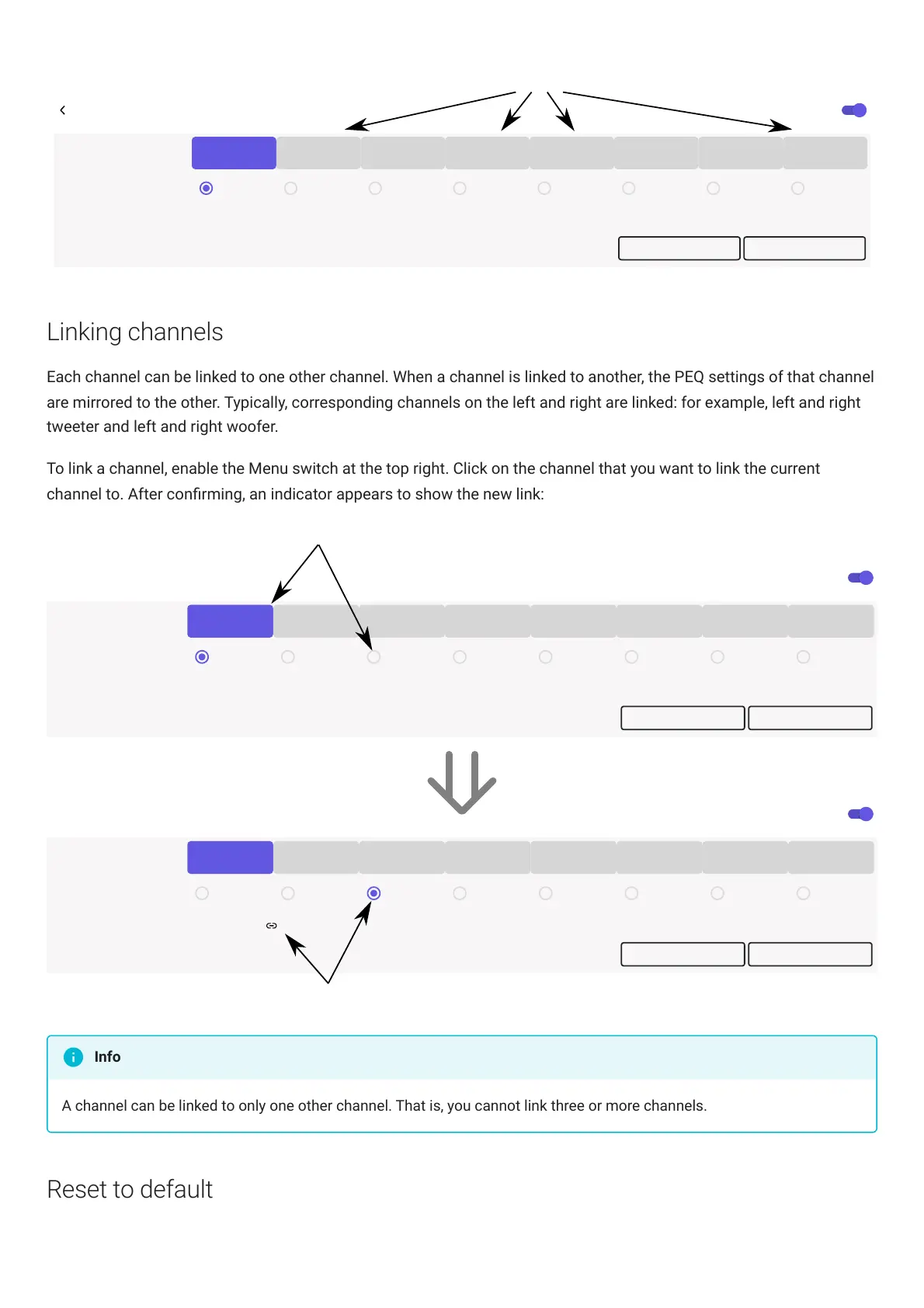
Linking channels
Each channel can be linked to one other channel. When a channel is linked to another, the PEQ settings of that channel
are mirrored to the other. Typically, corresponding channels on the left and right are linked: for example, left and right
tweeter and left and right woofer.
To link a channel, enable the Menu switch at the top right. Click on the channel that you want to link the current
channel to. After conrming, an indicator appears to show the new link:
Menu
Channels
OUTPUT 1 OUTPUT 2 OUTPUT 3 OUTPUT 4 OUTPUT 5
OUTPUT 6
OUTPUT 7
OUTPUT 8
Link Channel
No Link Output 2 Output 3 Output 4 Output 5 Output 6 Output 7
Active Links
RESET TO DEFAULT
LOAD BIQUADS FILE
Output 8
Menu
Channels
OUTPUT 1 OUTPUT 2 OUTPUT 3 OUTPUT 4 OUTPUT 5 OUTPUT 6 OUTPUT 7 OUTPUT 8
Link Channel
No Link Output 2 Output 3 Output 4 Output 5 Output 6 Output 7
Active Links
RESET TO DEFAULT
LOAD BIQUADS FILE
Output 8
Output 1 Output 3
While viewing channel 1, click on channel 3's Link Channel selector
The indicators change to show linked status
A channel can be linked to only one other channel. That is, you cannot link three or more channels.
Reset to default
Info


 To Next Page