Print or save - miniDSP Flex
https://docs.minidsp.com/product-manuals/flex/print_page.html
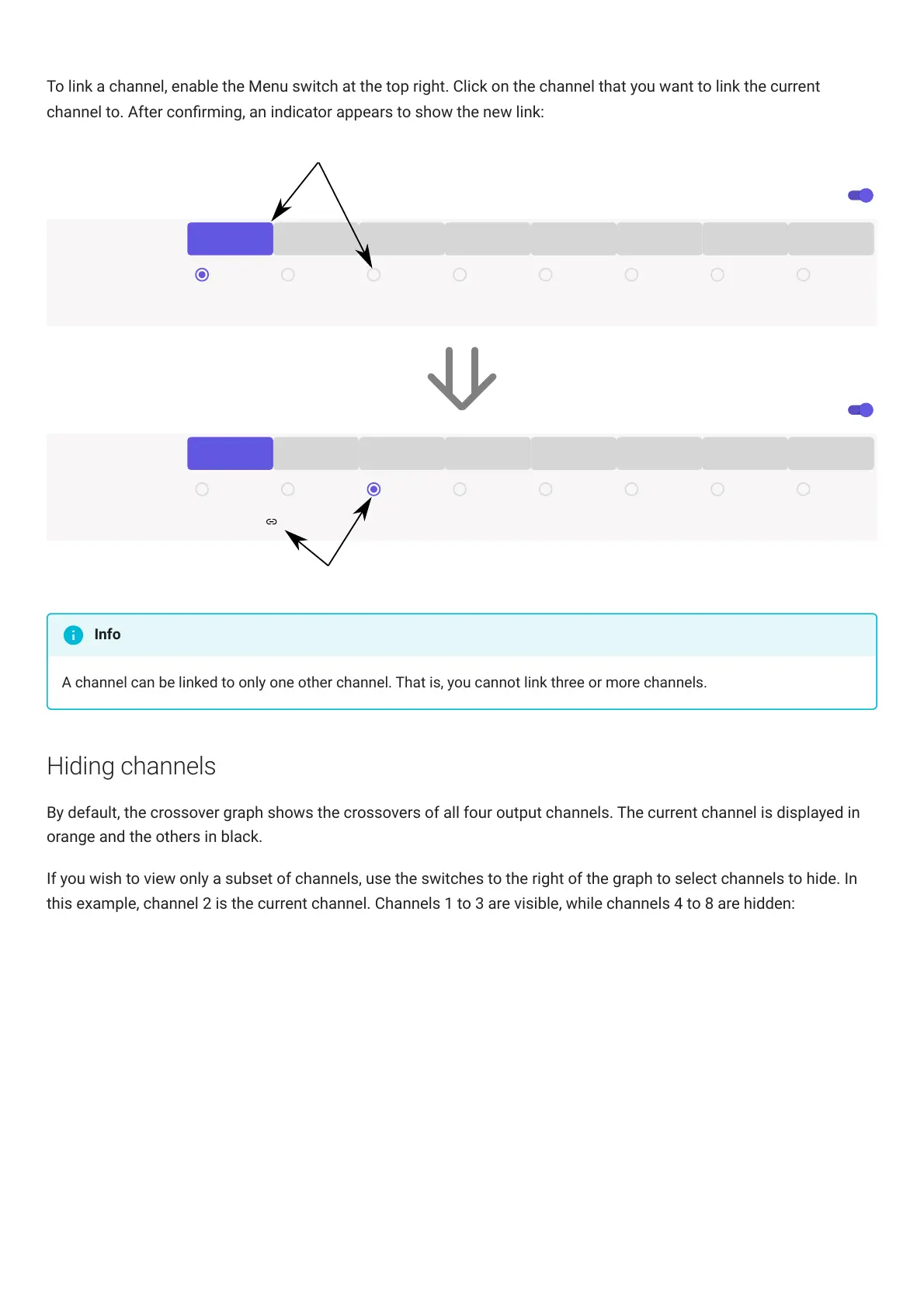
To link a channel, enable the Menu switch at the top right. Click on the channel that you want to link the current
channel to. After conrming, an indicator appears to show the new link:
Menu
Channels
OUTPUT 1 OUTPUT 2 OUTPUT 3 OUTPUT 4 OUTPUT 5 OUTPUT 6 OUTPUT 7 OUTPUT 8
Link Channel
No Link Output 2 Output 3 Output 4 Output 5 Output 6 Output 7
Active Links
Output 8
Menu
Channels
OUTPUT 1 OUTPUT 2 OUTPUT 3 OUTPUT 4 OUTPUT 5 OUTPUT 6 OUTPUT 7 OUTPUT 8
Link Channel
No Link Output 2 Output 3 Output 4 Output 5 Output 6 Output 7
Active Links
Output 8
Output 1 Output 3
While viewing channel 1, click on channel 3's Link Channel selector
The indicators change to show linked status
A channel can be linked to only one other channel. That is, you cannot link three or more channels.
Hiding channels
By default, the crossover graph shows the crossovers of all four output channels. The current channel is displayed in
orange and the others in black.
If you wish to view only a subset of channels, use the switches to the right of the graph to select channels to hide. In
this example, channel 2 is the current channel. Channels 1 to 3 are visible, while channels 4 to 8 are hidden:
Info


 To Next Page