Moneris® Go Plus: Using Your Terminal 41
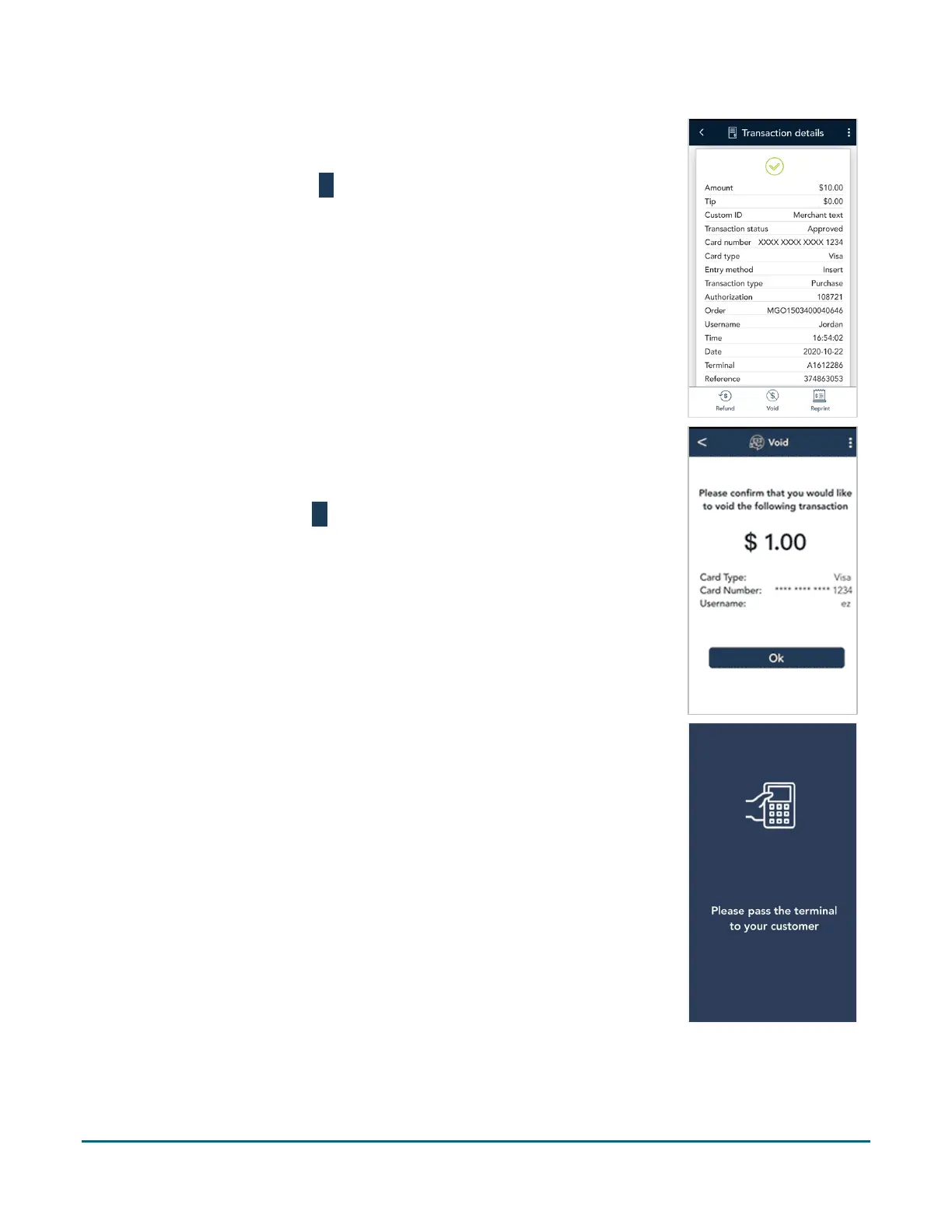
3. The transaction details appear.
Verify this is the right transaction, then tap Void.
Otherwise, tap the Back
icon in the title bar to go back to the
previous screen.
Note: What if Void does not appear at the bottom of the screen? This
means the transaction is not in the current batch. Only transactions in the
current batch can be voided. If you need to reverse the transaction,
perform a refund instead of a void.
4. The application prompts you to confirm that you want to proceed with
voiding the transaction.
To proceed, tap OK. Continue to step 5.
To cancel, tap the Back
icon.
5. Choose one option:
If the original transaction was processed using an Interac or UnionPay
card, continue to step 6. Otherwise, skip to step 8.
6. As indicated on-screen, pass the terminal to the customer so they can
enter their debit card and respond to any customer prompts.



 To Next Page