Moneris® Go Plus: Using Your Terminal 42
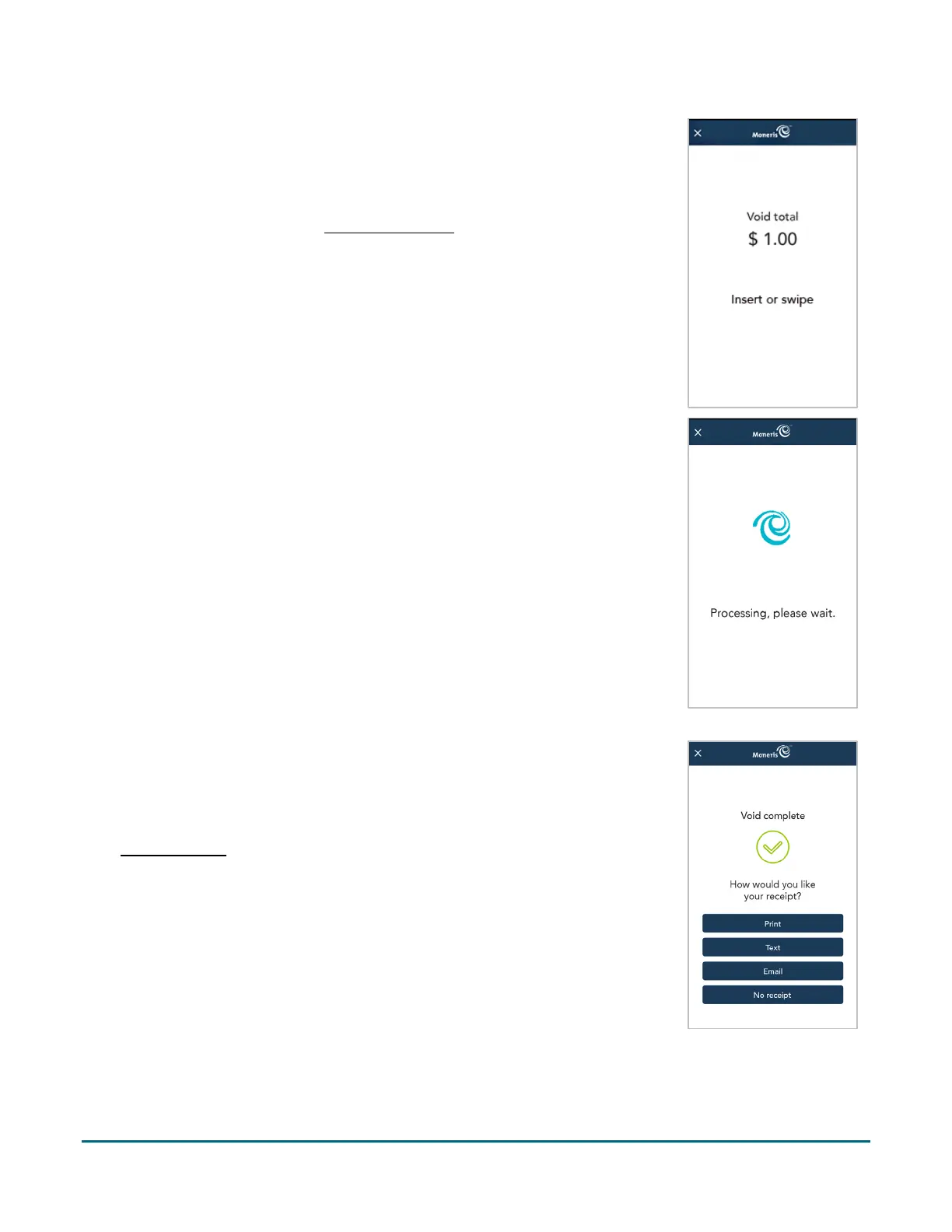
7. The Void total screen appears, prompting the customer to “Insert, or
swipe.”
a. The customer enters their debit card or Union Pay card on the
terminal. Depending on the type of card, they can insert, or swipe it.
For more information on Card entry options
(page 11).
b. The customer responds to any additional prompts. For example:
Select an account (chequing or saving);
Enter PIN
8. The “Processing, please wait” message appears.
If the customer inserted a chip card, the message “Do not remove your
card” also appears.
9. Once the void is approved, the “How would you like your receipt?”
prompt appears, showing the customer the available options for receiving
a receipt: Print, Text, Email, and No Receipt.
Note: You can choose which receipt options customers will see. Refer to
receipt settings
(page 53).
a. The customer selects a receipt format (or no receipt) by tapping one
of the options on screen.
b. If the customer selected Text or Email, they are prompted to enter
the appropriate information.



 To Next Page