A
Alison GraySep 9, 2025
Why can't I see characters on Motorola MC55 PDA display?
- BbyoderSep 9, 2025
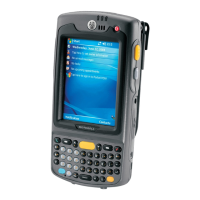
If you cannot see characters on the display of your Motorola MC55 PDA, make sure that the MC55 is powered on by pressing the Power button.


 To Next PageTo Next Page
Why can't I see characters on Motorola MC55 PDA display?
If you cannot see characters on the display of your Motorola MC55 PDA, make sure that the MC55 is powered on by pressing the Power button.
How to turn on sound on Motorola MC55 PDA?
If there is no sound on your Motorola MC55 PDA, the volume setting may be low or turned off. Adjust the volume.
What to do if Motorola MC55 PDA camera application does not launch?
If the camera application on your Motorola MC55 PDA does not launch, the DataWedge application might be running. Stop the DataWedge application by tapping Start > Settings > System > Task Manager. Select DataWedge application and tap End Task.
What to do if my Motorola Barcode Reader MC55 does not turn on?
If your Motorola Barcode Reader MC55 does not turn on, the lithium-ion battery may not be charged. Charge or replace the lithium-ion battery. Also, ensure the battery is installed properly. If it still fails to power on, the system may have crashed. In this case, perform a warm boot. If the MC55 still does not turn on, perform a cold boot.
Why rechargeable lithium-ion battery of Motorola Barcode Reader MC55 did not charge?
If the rechargeable lithium-ion battery of your Motorola Barcode Reader MC55 did not charge, the battery may have failed, so replace it. If the MC55 still does not operate, perform a warm boot, then a cold boot. Also, ensure that the MC55 remains in the cradle while charging; the 3600 mAh battery fully charges in less than six hours. Extreme battery temperatures can also prevent charging; the battery will not charge if the ambient temperature is below 0°C (32°F) or above 40°C (104°F).
 General
| Barcode Scanner | 1D laser scanner or 2D imager |
|---|---|
| Operating System | Windows Mobile 6.1 |
| Display | 3.5 in. QVGA color display |
| Wireless Connectivity | Wi-Fi 802.11 a/b/g, Bluetooth 2.0 |
| GPS | Optional |
| Expansion Slots | SD slot |
| Camera | Optional |
| Keyboard | QWERTY |
Introduces the guide for the MC55 Enterprise Digital Assistant.
Details the various hardware and software configurations of the MC55.
Provides a summary of topics covered in each chapter of the manual.
Lists other guides and resources relevant to the MC55.
Contact details and procedures for obtaining technical support and service.
Introduces the chapter on parts, accessories, and initial setup.
Instructions for removing protective material and verifying package contents.
Lists and describes various accessories available for the MC55 EDA.
Covers installing microSD, SIM, battery, and powering on the device.
Details battery charging, status checks, and replacement procedures.
Covers battery management, power, and backlight settings.
Instructions for turning wireless radios on and off.
Procedure for removing and installing the device's handstrap.
Overview of MC55 features, buttons, and basic operations.
Explains the Today screen and status icons for device information.
Details the default programs and system settings for device configuration.
Covers adjusting volume, checking battery status, and managing power settings.
Procedures for resetting the MC55 and securing the device with passwords.
Explains the different keypad configurations and data entry.
Instructions for scanning bar codes, using the camera, and capturing data.
Introduces GPS technology and its use on the MC55.
Information on installing third-party GPS navigation software.
Details system settings for configuring GPS functionality.
Guidance on acquiring satellite signals and using GPS features.
Explanation of Assisted GPS (A-GPS) modes and configuration.
Overview of MC55 phone capabilities like calls, messages, and connectivity.
Accessing the keypad, turning the phone on/off, and audio modes.
Covers making calls, using contacts, call history, speed dial, and emergency calls.
Explains call waiting, muting, taking notes, and text messaging.
Steps for establishing and ending data connections, including GPRS.
Explains Bluetooth technology, its capabilities, and supported stacks.
Covers Bluetooth security, pairing, and general configuration settings.
Details enabling, disabling, discovering, and connecting to Bluetooth devices.
Explains various services like file transfer, audio, serial ports, and synchronization.
Instructions for managing Bluetooth using the Microsoft stack.
Lists and describes various accessories that support MC55 capabilities.
How to set up and use the USB cradle for charging and synchronization.
Setup and operation of the cradle for Ethernet, modem, or USB connections.
Instructions for using the cradle to charge multiple MC55 devices.
Setup and operation of the cradle for Ethernet connectivity and charging.
Guide for installing and using the vehicle cradle for mounting and charging.
How to use the charger to charge up to four MC55 batteries.
Describes various communication and charge cables and their usage.
Instructions for installing the vehicle holder for mounting the MC55.
Covers cleaning, storing, and troubleshooting MC55 operation.
Guidelines for maintaining the MC55, including cleaning procedures and safety.
Essential safety precautions for battery usage, charging, and disposal.
Solutions for common problems with the MC55 and its accessories.
Detailed technical hardware specifications for the MC55 EDA.
Technical specifications for various MC55 accessories like cradles and cables.
Explains the Voice Quality Manager (VQM) software features.
Covers VQM capabilities, enabling, audio modes, and packet prioritization.
Procedure to disable the Voice Quality Manager software.
Introduces new features in Windows Mobile 6.5 for the MC55.
Explains finger scrolling, home screen, status bar, and tile bar functions.
Covers device locking methods, including PIN and strong password setup.
Details RS507 imager setup, Assisted GPS, and UI settings.
Definitions of terms and acronyms used throughout the manual.