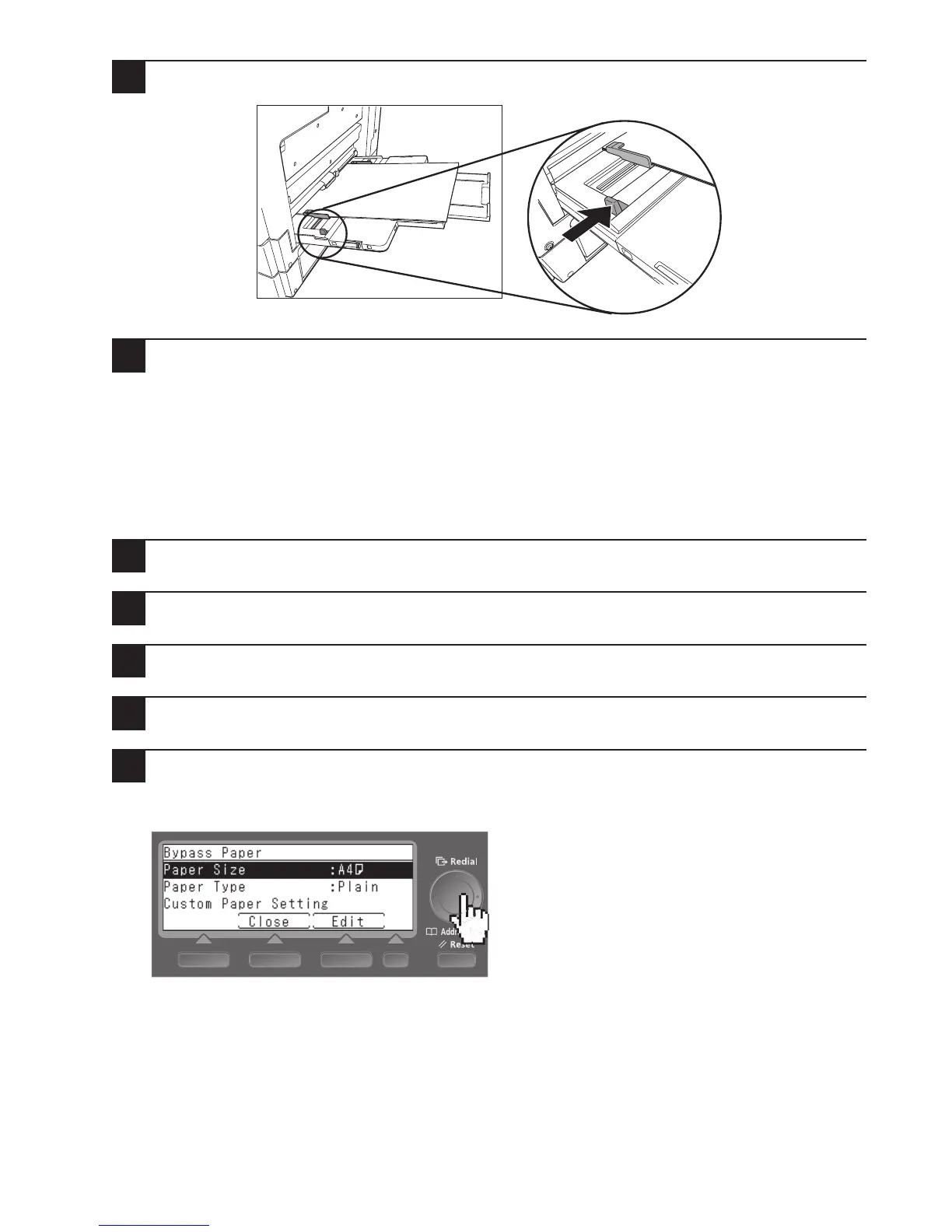
4
Push the lever on the side of the bypass tray to set the paper in place.
5
Set the size and type of paper you have loaded in the bypass tray.
Refer to “Setting the paper size in the bypass tray” (below) to specify the size and type of paper.
Setting the paper size in the bypass tray
Set the size and type of paper you have loaded in the bypass tray.
1
Press <Menu>.
2
Press [Settings].
3
Select “Paper Settings” and press [Enter].
4
Select “Bypass Paper” and press [Enter].
5
Set “Paper Size” and “Paper Type”.
If you set “Paper Size” to “Postcard”, the paper type is automatically set to “Envelope/Postcard/Cardboard”.
Use “Custom Paper Setting” to set custom sizes and types of paper.
When you have made the setting, press [Close] to close the settings screen.








 To Next Page