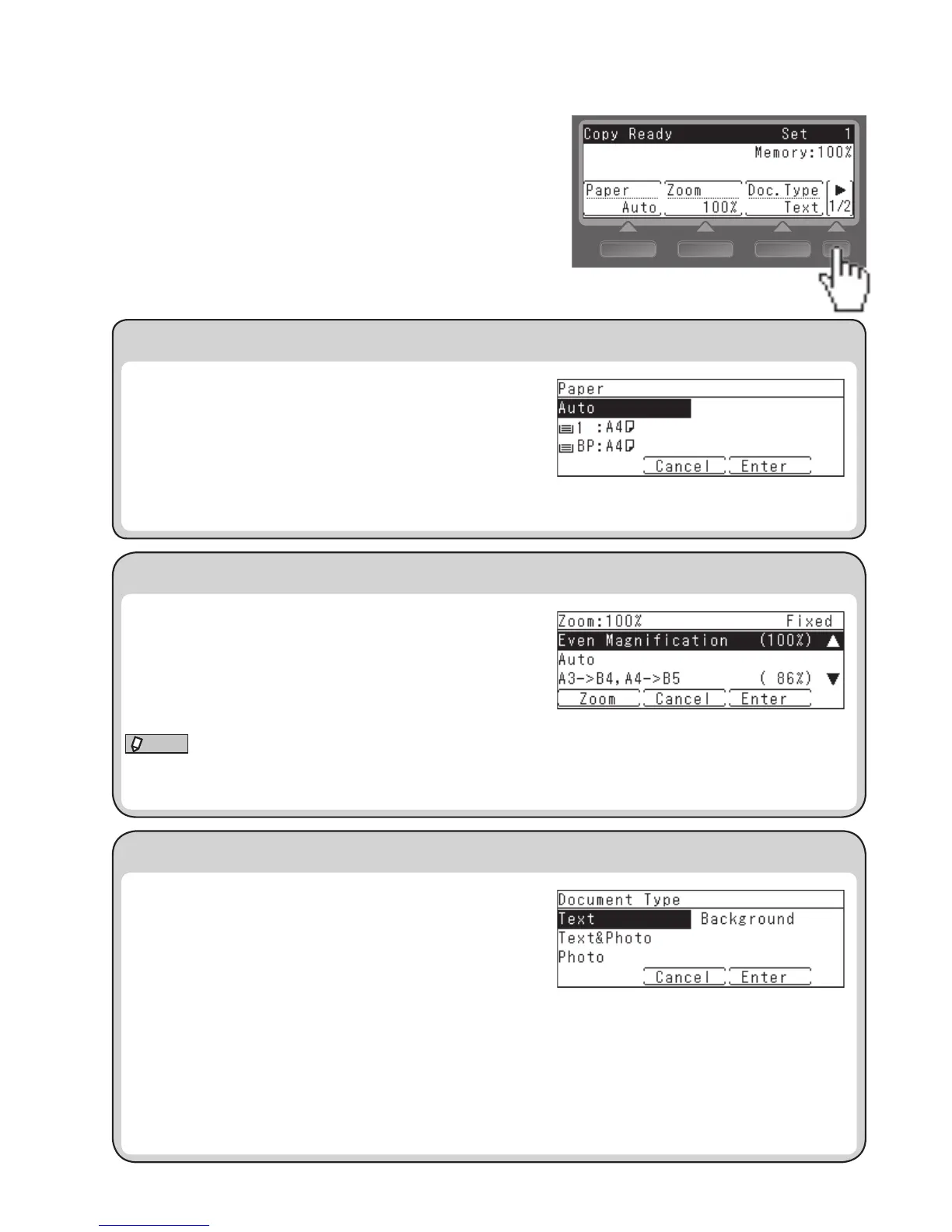
Basic Function Menu
This section describes the basic functions that are shown on the
copy ready screen.
For details, refer to the User’s Guide on the included driver CD.
Press the screen switching key to switch
between the first and second screens.
Select paper (Paper)
Specify the magnification (Zoom)
Select the document type (Doc.Type)
First screen
1. Press [Paper].
2. Press the cursor keys to select the paper cassette and press
[Enter].
If you want to use the bypass tray, press [TraySize] and
then set the paper size and type.
The factory setting is “Auto”.
1. Press [Zoom].
2. Press the cursor keys to select the magnification, then
press [Enter].
Thefactorysettingis“100%”.
•Select“Auto”toautomaticallyselectthemagnicationtotthecopytothepapersizeyouhavespecied.
•Press[Zoom]tochangethemagnicationin1%increments.
1. Press [Doc.Type].
2. Select the document type using the cursor keys and press
[Enter].
•Text ................... Setting suitable for documents contain-
ing text only.
•Text&Photo ...... Setting suitable for documents contain-
ing a mixture of photos, images, and
texts.
•Photo ................ Setting suitable for documents contain-
ing photos or images.
•Background ...... Setting for excluding background pat-
terns and colors.
The factory setting is “Text”.









 To Next Page