EasyManua.ls Logo

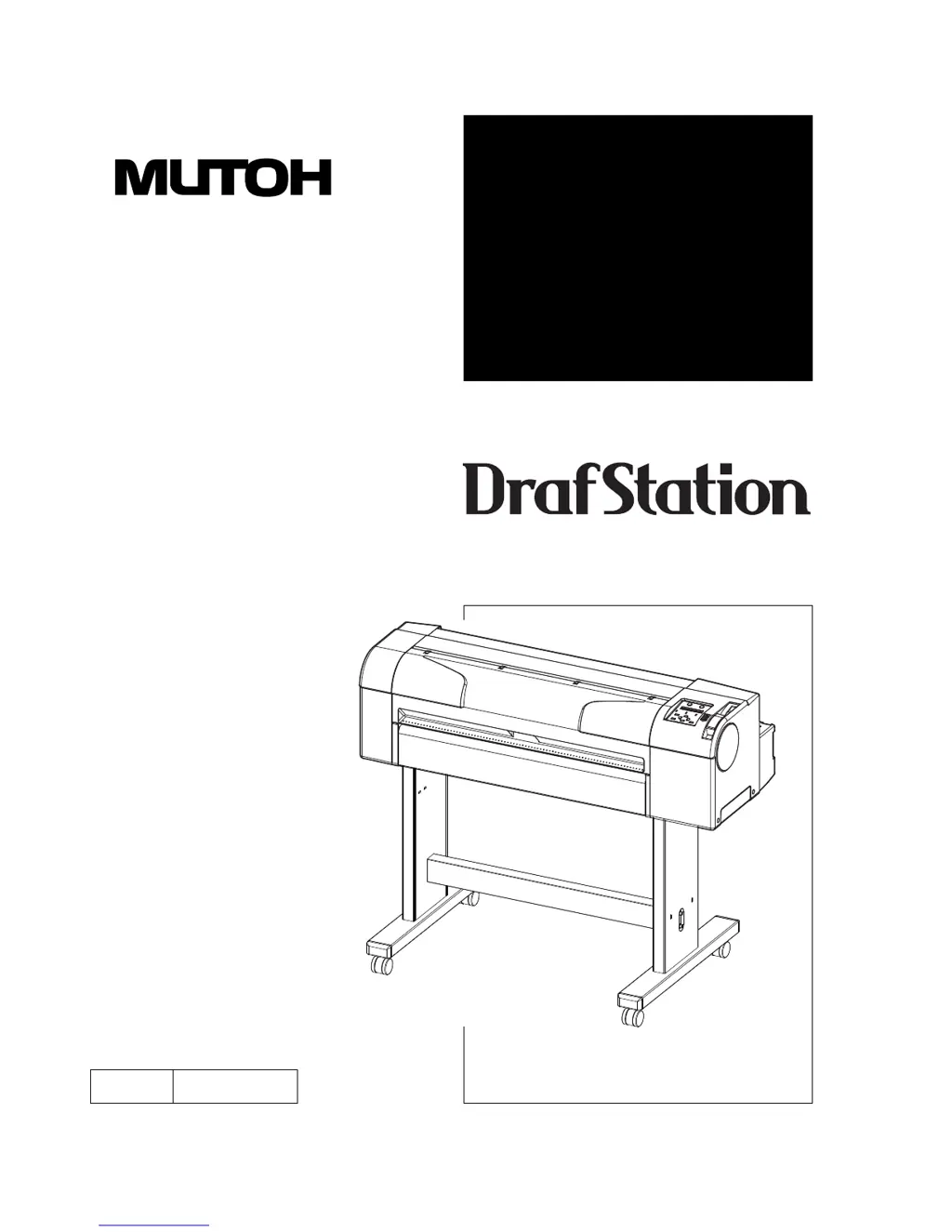
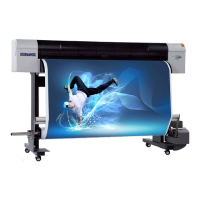
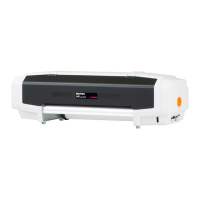
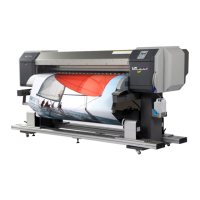
MUTOH DrafStation RJ-900X - User Manual

MUTOH DrafStation RJ-900X
244 pages
Print Icon
To Next Page IconTo Next Page
Loading...
OPERATION
MANUAL
Rev.
RJ900XE-A-02
Full-Color Inkjet Printer
RJ-901X
RJ-900X
Read This Manual Before Using The
Printer.

Table of Contents

Questions and Answers

  • S
    Susan MartinezAug 15, 2025
    Why can't I install the MUTOH DrafStation RJ-900X Printer driver?
    • T
      traceywhiteAug 15, 2025
      If you cannot install the MUTOH Printer driver: * Check if printers are added and try installing the printer driver again. * Ensure the CD-ROM file name contains "*.INF" and correctly specify the CD-ROM or the drive/folder containing the driver program before reinstalling.
  • J
    Justin RobinsonAug 18, 2025
    Why is my MUTOH Printer not actuating after I turn it on?
    • G
      Gregory ScottAug 18, 2025
      Your MUTOH Printer might not actuate after being powered on due to several reasons: * The power cable might not be properly connected to the plug; ensure it is securely connected. * The AC power supply might not be set for the specified voltage; try connecting the cable to another outlet. * The front cover might be open, or the media loading lever might be up; close the front cover and lower the media loading lever. * The waste fluid box might not be fully inserted; ensure it is fully inserted.
  • T
    tina47Aug 21, 2025
    What to do if my MUTOH Printer doesn't work after setting the media?
    • L
      liupaulAug 21, 2025
      If your MUTOH Printer doesn't work after setting the media, check the following: * Ensure the front cover is closed and the media loading lever is down. * Make sure the media is loaded straight. * Verify that the ink cartridge is inserted. * Confirm that you are using the dedicated media. * Ensure the printer is used in the specified environment, avoiding direct sunlight or other unsuitable conditions.
  • J
    Jennifer SmithAug 25, 2025
    How to fix MUTOH Printer when it cannot perform ink initial filling?
    • J
      Jason WalkerAug 26, 2025
      If your MUTOH Printer cannot perform ink initial filling, check the following: * Ensure the front cover is closed and the media loading lever is down. * Verify that all four ink cartridges are fully inserted. * Confirm that the waste fluid box is fully inserted.
  • A
    Alexis OrtizAug 28, 2025
    Why does the media deviate or tear during initialization on my MUTOH DrafStation RJ-900X?
    • M
      medinakristenAug 28, 2025
      The media may deviate or tear during initialization of your MUTOH Printer due to: * Not using the dedicated media; ensure you are using the correct media. * Incorrect loading position of the media; set the media correctly. * Incorrectly set scroller; adjust the scroller to the correct setting. * Foreign materials such as paper attached to the pressurizing roller; clean the roller. * Using the printer in an environment other than the one specified; use the printer in the specified environment. * Loading sheet media; set the media size detection method to "Vert." or "Hori.". * Using folded, torn, or rolled media; replace the media. * Media curling or floating; use dedicated media or adjust settings in the MediaSet Menu (Media and Stiffness).
  • T
    Tommy DixonAug 31, 2025
    What to do if ink does not come out after initial filling on MUTOH DrafStation RJ-900X?
    • M
      Michael RuizSep 1, 2025
      If ink does not come out after initial filling on your MUTOH Printer: * If the ink cartridge is cool or frozen, leave it at room temperature for at least 3 hours and perform cleaning several times. * If the power was turned off during initial filling, turn the power on again and continue initial filling. * If normal printing cannot be performed after initial filling, perform cleaning several times, checking after each attempt.
  • R
    Randy WoodsSep 4, 2025
    How to resolve no response when USB cable is connected to MUTOH DrafStation RJ-900X?
    • K
      Kenneth SanchezSep 4, 2025
      To resolve the issue of no response when the USB cable is connected to your MUTOH Printer: 1. Remove the USB cable. 2. Turn the printer OFF. 3. Turn the printer ON. 4. Connect the USB cable.
  • A
    Alicia BakerSep 7, 2025
    Why can't I use my computer in online mode via LAN with my MUTOH DrafStation RJ-900X?
    • A
      Andrew SmithSep 7, 2025
      If you cannot use your computer in online mode via LAN with your MUTOH Printer: * Ensure the network interface cable is correctly connected. * Verify that the network settings are configured correctly. * Match the printer's network settings with the computer's environment. * If the Data lamp on the operation panel does not turn on after sending graphics data from the computer, contact the computer manufacturer.
  • D
    David ShawSep 12, 2025
    Why can't I use the computer in online mode via USB with my MUTOH Printer?
    • J
      John PhillipsSep 12, 2025
      If you cannot use the computer in online mode via USB with your MUTOH Printer: * Ensure the USB cable is connected correctly. * If the Data lamp on the operation panel does not turn on after sending graphics data, contact the CAD or computer manufacturer. * Match the command setting of the printer to the environment of the CAD and driver.

Summary

Important Notices

For Users in Europe

Information regarding CE marking compliance with EU directives.

For Users in the United States

FCC rules compliance for digital devices and radio frequency energy.

Safety Instructions

Warning, Caution, and Note Definitions

Defines warning terms (WARNING, CAUTION, NOTE) based on danger priority.

General Safety Precautions

Details installation, handling, power, grounding, and electrical safety.

Warning Labels Handling

Instructions for checking, cleaning, and replacing warning labels.

Product Overview

Key Printer Features

Highlights high resolution, discrete ink cartridges, feeding performance, efficiency, and operability.

Printer Components: Front Section

Identifies parts like Media loading lever, Operation panel, Front cover, Waste fluid box.

Printer Components: Rear Section

Identifies AC inlet, Network/USB connectors, Scroller receiver, Media/Ink slots.

Operation Panel Indicators

Explains the function of each indicator lamp (Power, Data, Media, Color, Speed, etc.).

Before Using the Printer

Power Cable Connection

Details safe procedures for connecting the power cable and warnings.

Ink Cartridge Installation

Procedure and precautions for installing ink cartridges.

Loading Roll Media

Step-by-step guide for loading roll media into the printer.

Loading Sheet Media

Step-by-step guide for loading sheet media into the printer.

Handling the Printer

Printing Workflow Chart

Outlines the necessary steps from data creation to printing.

Available Media Types

Lists and describes the types of media supported by the printer.

Head Height Adjustment Guide

Instructions on adjusting head height to prevent head rub.

Printer Driver Setup Procedure

Overview of setting up the printer driver for printing.

Maintenance

Replacing Ink Cartridges

When and how to replace ink cartridges, including types.

Replacing Roll Media

Steps to replace roll media when it runs out or to change types.

Replacing the Razor Blade

When and how to replace the razor blade for cutting media.

Replacing the Waste Fluid Box

How to replace the waste fluid box when it is full or near full.

Troubleshooting

Product Malfunctions During Setup

Addresses issues like failed ink filling, no ink output, and USB connection problems.

USB Connection Before Driver Installation

Solutions for issues when USB is connected before driver installation.

Graphics Generation Issues

Troubleshooting for problems like no graphics, media issues, and data errors.

Media Deviation or Crumpling Issues

Solves media deviation, tearing, and crumpling during initialization.

Appendix

Printer Specifications

Lists technical specs for RJ-901X and RJ-900X models.

USB Interface Specifications

Details USB interface (Rev 2.0) and pin assignments.

Network Interface Specifications

Details Ethernet (IEEE802.3) and TCP/IP protocol.

MUTOH DrafStation RJ-900X Specifications

General IconGeneral
BrandMUTOH
ModelDrafStation RJ-900X
CategoryPrinter
LanguageEnglish

Related product manuals