EasyManua.ls Logo

NETGEAR N600 - User Manual

NETGEAR N600
142 pages
Print Icon
To Next Page IconTo Next Page
Loading...
350 East Plumeria Drive
San Jose, CA 95134
USA
March 2012
202-10642-03
v1.0
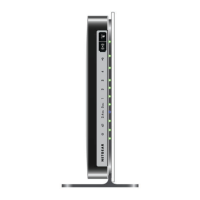
N600 Wireless Dual Band
Gigabit ADSL2+ Modem
Router DGND3700v2
User Manual

Table of Contents

Other manuals for NETGEAR N600

Questions and Answers

  • S
    Shane BeardSep 5, 2025
    Why are changes not saved on NETGEAR N600?
    • M
      Mrs. Bonnie WallSep 5, 2025
      If changes are not being saved on your NETGEAR Wireless Router, when entering configuration settings, be sure to click Apply before moving to another screen or tab, or your changes could be lost. Also, click Refresh or Reload in the web browser, because the changes might have occurred, but the web browser might be caching the old configuration.
  • C
    Carrie DavisSep 3, 2025
    What to do if Internet or Ethernet Port LEDs are off on NETGEAR N600?
    • T
      tracyallenSep 3, 2025
      If the Internet or Ethernet Port LEDs on your NETGEAR Wireless Router are off, ensure that the Ethernet cable connections are secure at both the router and the modem or computer. Make sure that power is turned on to the connected modem or computer. When connecting the router’s Internet port to a cable or DSL modem, use the cable that was supplied with the cable or DSL modem, which could be a standard straight-through Ethernet cable or an Ethernet crossover cable.
  • S
    Sabrina LopezSep 1, 2025
    Why is the Power/Test LED off or blinking on my NETGEAR Wireless Router?
    • K
      Karen YoungSep 2, 2025
      If the Power/Test LED on your NETGEAR Wireless Router is off or blinking, ensure the power cord is securely connected to both the router and a functioning power outlet. Also, verify you're using the 12V DC, 2.5A power adapter supplied by NETGEAR. If the LED blinks slowly and continuously, the router firmware might be corrupted, possibly due to an interrupted firmware upgrade or a detected problem. If the error persists, it may indicate a hardware issue.
  • M
    Monica JacksonAug 31, 2025
    What does it mean when the Push 'N' Connect (WPS) button blinks red on NETGEAR Wireless Router?
    • Q
      qowensAug 31, 2025
      If the Push 'N' Connect (WPS) button blinks red on your NETGEAR Wireless Router: * Make sure that you are using the button and not the wireless modem router’s built-in registrar. * Check that PIN verification has succeeded for the wireless device you are adding to the wireless network. * Make sure you have not pressed the WPS button on the top of the wireless modem router after disabling the WPS feature. * Check that the wireless modem router is not in the temporary AP setup locked state.
  • K
    kennethhensleyAug 29, 2025
    How to troubleshoot wireless connectivity on NETGEAR N600?
    • W
      walkertimothyAug 29, 2025
      To troubleshoot wireless connectivity issues on your NETGEAR Wireless Router: * Check the Wireless LEDs on the front of the wireless modem router. * If you disabled the wireless modem router’s SSID broadcast, check that your wireless network is hidden.
  • L
    lloydjamesAug 27, 2025
    How to fix a NETGEAR N600 Wireless Router with a blinking or off power LED?
    • S
      Sheri PriceAug 28, 2025
      If the Power LED on your NETGEAR Wireless Router is off or blinking, here are some potential solutions: * If the Power LED blinks slowly and continuously, the wireless modem router firmware is corrupted. * Make sure that the power cord is securely connected to your wireless modem router and that the power adapter is securely connected to a functioning power outlet. * Check that you are using the 12V DC, 2.5A power adapter that NETGEAR supplied for this product.
  • S
    Susan MorrisAug 26, 2025
    How to improve wireless signal strength on NETGEAR N600 Wireless Router?
    • L
      Larry GarciaAug 27, 2025
      To improve the wireless signal strength of your NETGEAR Wireless Router, try placing your computer closer to the router, but at least six feet away. Also, check for any objects blocking the wireless signal between the router and your computer.
  • J
    joshua11Aug 25, 2025
    Why is wireless connectivity not working on my NETGEAR N600 Wireless Router?
    • K
      Kimberly MartinAug 25, 2025
      If you are experiencing wireless connectivity issues with your NETGEAR Wireless Router, check the Wireless LEDs on the front of the router. If the wireless is off, you can press the WiFi On/Off button on the side of the router to turn the wireless radio back on. If you have disabled the router’s SSID broadcast, your wireless network is hidden and does not show up in your wireless client’s scanning list.

Summary

Hardware Setup

Router Hardware Features

Describes the router's label, back panel, and front panel components and LEDs.

Get Started with NETGEAR Genie

Setup Preparation and ISP Information

Covers gathering ISP info and checking network device settings before setup.

NETGEAR Genie Setup Process

Guides through Genie setup, using it after installation, and firmware updates.

Dashboard Overview and Adding Devices

Explains the dashboard, adding wireless devices, and guest networks.

Genie Basic Settings

Internet and Basic Network Settings

Configures the router's connection to the Internet and displays attached devices.

Genie Advanced Home Configuration

Advanced Internet, ADSL, and WAN Settings

Manages advanced settings for ADSL, WAN, DMZ, MTU, and related configurations.

Network Security Features

Administration and System Management

Firmware Updates and Status Monitoring

Covers firmware updates, viewing router status, and managing system logs.

Advanced Network Configuration

Port Forwarding, Triggering, and Services

Manages port forwarding, triggering, custom services, and remote access.

Troubleshooting and Problem Solving

Connectivity and Internet Access Issues

Addresses problems with logging in, accessing the internet, PPPoE, and browsing.

NETGEAR N600 Specifications

General IconGeneral
Wi-FiYes
ModulationCCK, OFDM
Wi-Fi bandDual-band (2.4 GHz / 5 GHz)
Security algorithms40-bit WEP, 64-bit WEP, 128-bit WEP, WPA-PSK, WPA2-PSK
Networking standardsIEEE 802.11a, IEEE 802.11b, IEEE 802.11g, IEEE 802.11n
Maximum data transfer rate600 Mbit/s
InterfaceWLAN
USB version2.0
Connectivity technologyWireless
InternalNo
CertificationFCC, CE
Component forPC/Laptop
Product colorBlack
Operating temperature (T-T)0 - 40 °C
Windows operating systems supportedWindows 7, Windows 8, Windows 8.1, Windows Vista, Windows XP Home, Windows XP Professional
Weight and Dimensions IconWeight and Dimensions
Depth28 mm
Width87 mm
Height14 mm
Weight19 g

Related product manuals