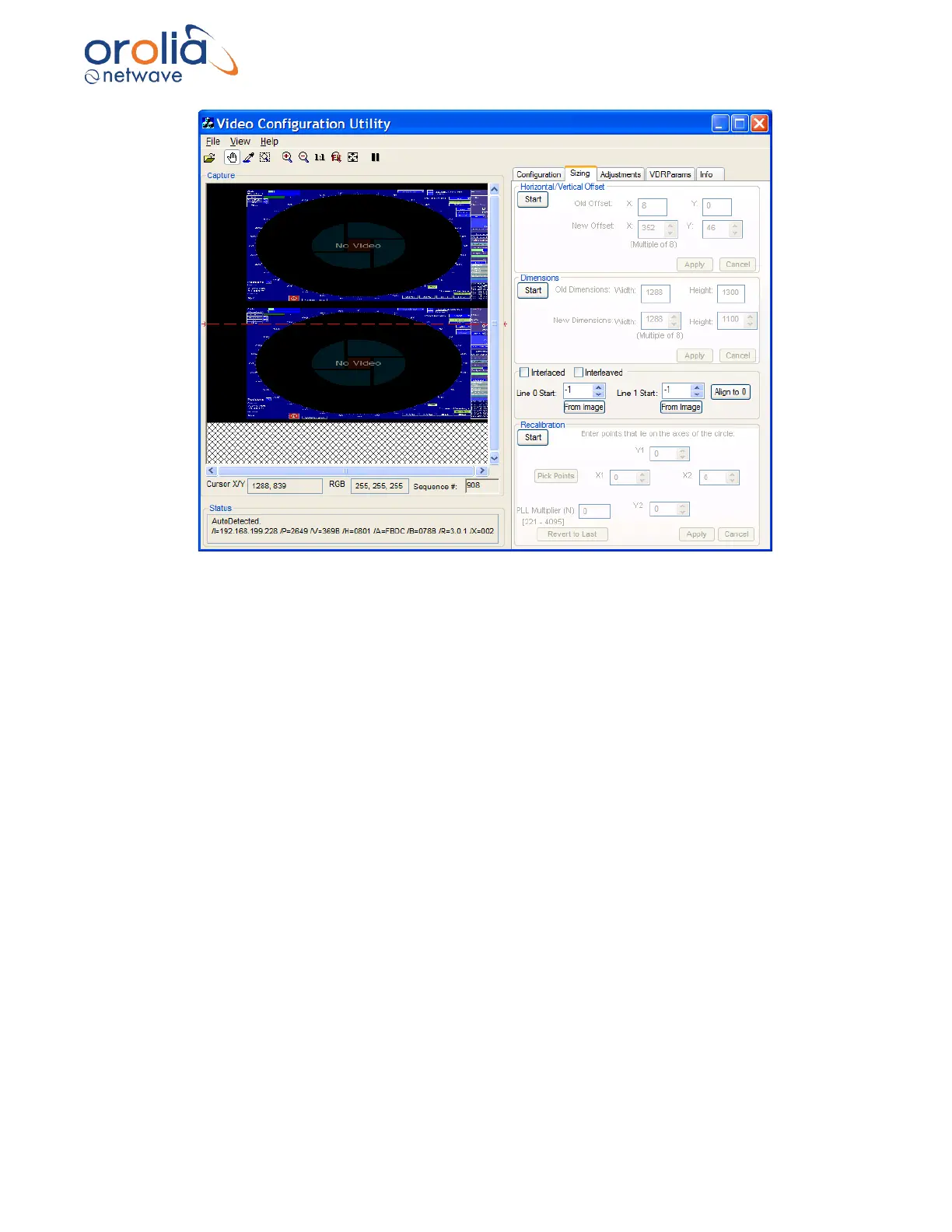
Figure 10.18.3 - Interlaced image with height set properly
5. Once the images are entirely visible; ensure a small amount of black space still
appears at the top of the Capture window to allow for further adjustments. To increase
the amount of black space at the top of the Capture window:
i. Click the Start button in the Horizontal/Vertical Offset section of the Sizing
page.
ii. Decrease the Vertical Offset.
NOTE: In most cases, the Vertical Offset value will only need to be decreased slightly (for
example, if the setting is 24 adjust to 16.).
6. Zoom in on upper image using Zoom in toolbar button OR View\Zoom In menu item.
7. Use the scrollbars to pan the image and find the top edge of the first image.
8. Click the From Image button under the Line 0 Start scroll box.
9. A message will allow user to click a point to find the top edge of the image.
10. Once the top edge of the image is found, scroll down to the lower image.



 To Next Page