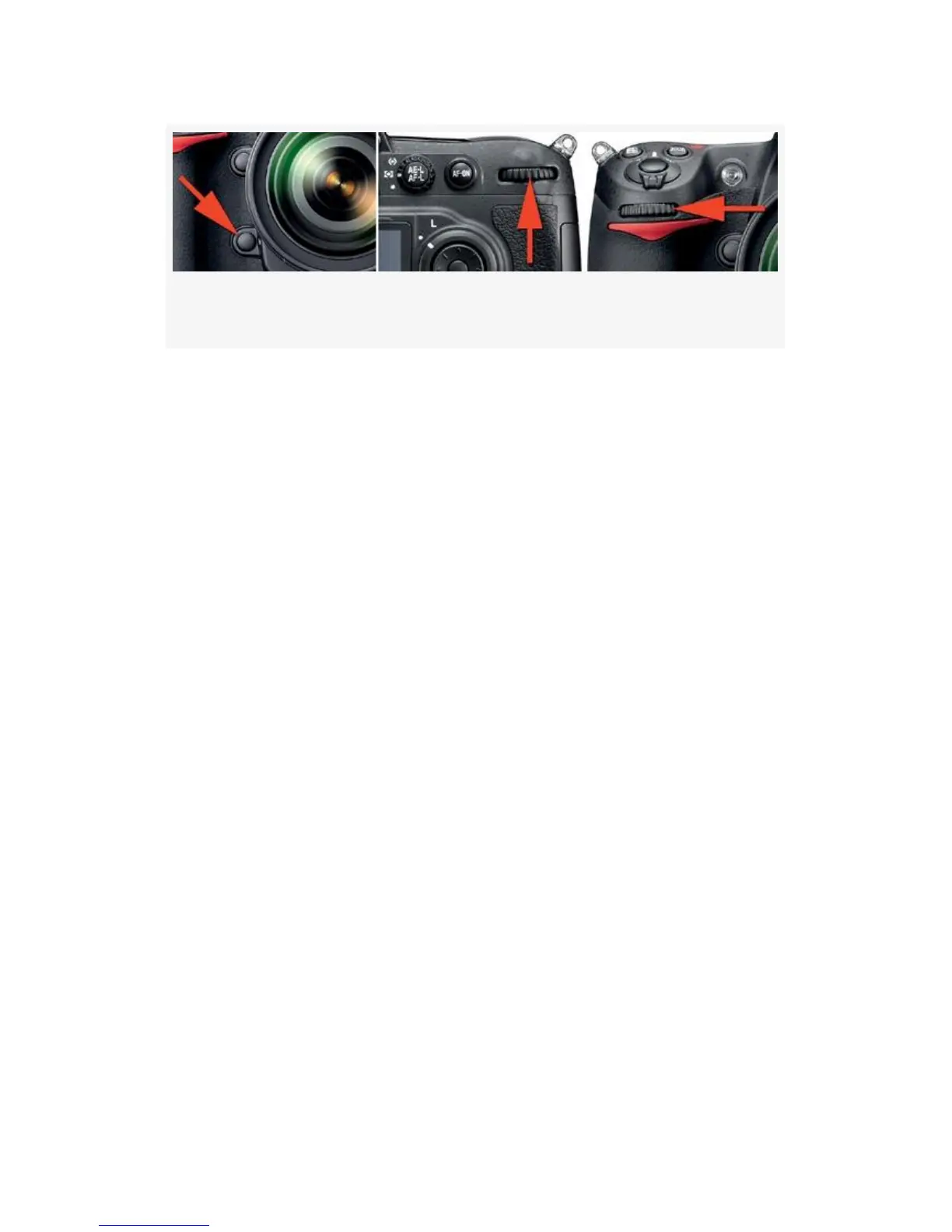
Figure 4-56. Controls for Auto bracketing
1. Choose AE & flash, AE only, or Flash only from the
Auto bracketing set screen, as shown in Figure 4-55,
image 3.
2. Next, press and hold the Fn (FUNC.) button on the right
front of the camera (see Figure 4-56, image 1, red arrow)
and turn the rear Main command dial to select the
number of shots in the bracket (up to 9; see Figure 4-56,
images 2 and 3, red arrows). You can also select on
which side of normal exposure the camera will take the
shots.
3. When you hold down the Fn (FUNC.) button, you’ll see
symbols on your camera’s Control panel similar to the
ones shown in Figure 4-57, except that the symbols will
be 0F and 1.0, and there will be no lines below the +/-
scale. The number of shots appears on the top left of the
Control panel, as shown in each screen in
Figure 4-57—5F, --2F, and +3F. The number of small
vertical lines hanging below the “+ ...... o ...... -” scale
(just above the BKT symbol) equal the number of shots
in the bracket. The position of those lines represents the
EV spread of the shots in the bracket. The front
Sub-command dial controls the EV steps between each
366



 To Next Page