images and press the OK button. This selection will be
grayed out if one of the memory card slots is empty.
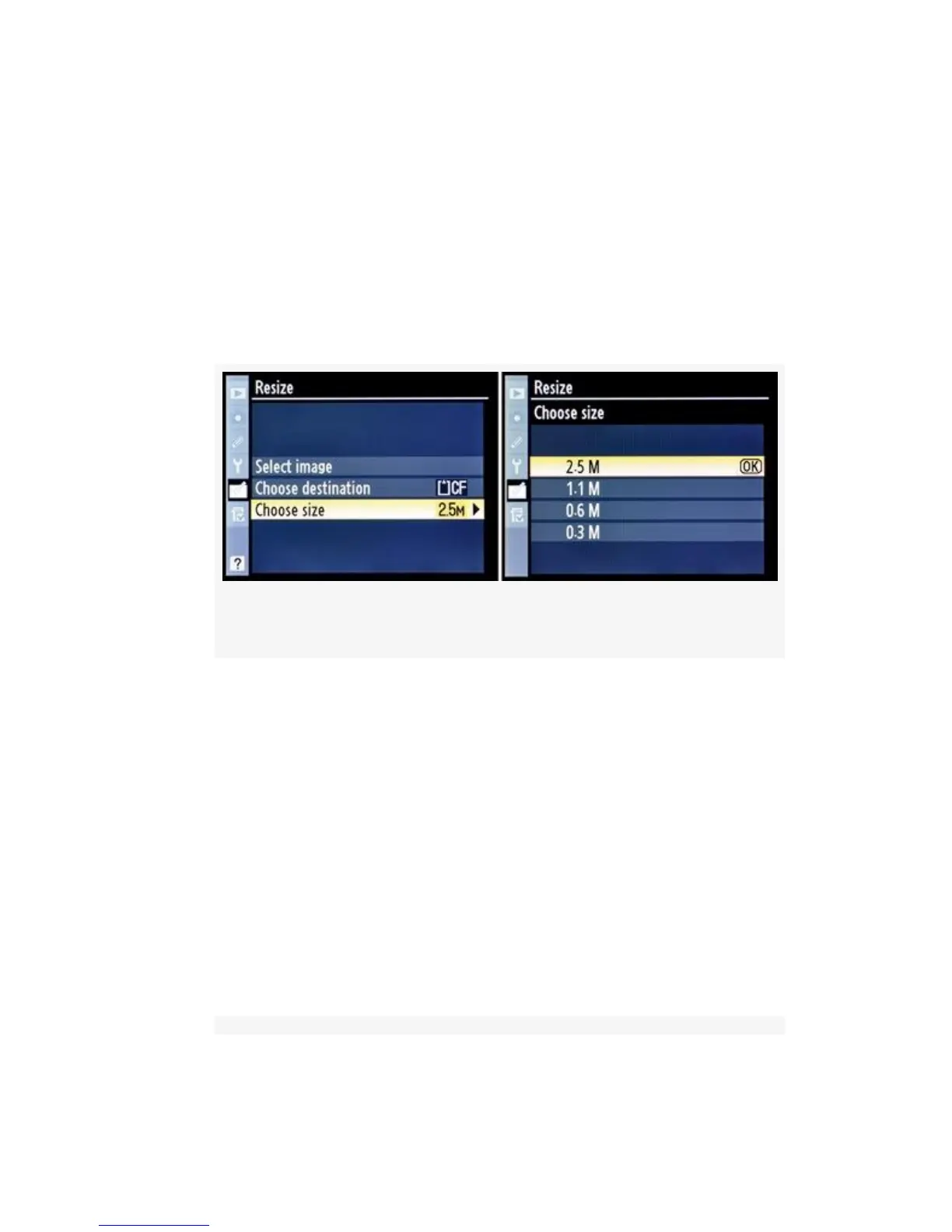
2. Next, select Choose size and scroll to the right (see
Figure 6-23). You’ll see four available sizes, from 2.5 M
down to 0.3 M. This choice is the actual megapixel size
the image will be reduced to when you finally save it.
Select one of them and press the OK button.
Figure 6-23. Choose a megapixel size
3. Next, choose Select image and scroll to the right (see
Figure 6-24, image 1). You’ll see six image thumbnails.
Use the Multi Selector to scroll around in this group of
thumbnails. Scroll up or down to see additional images,
if there are more on the memory card. When you see an
image you want to resize, press the Multi selector center
button to set the image as the one to be resized. A tiny
resize symbol will appear in the top
right corner of each thumbnail you set (see Figure 6-24,
image 2, red arrow). You can select and set as many
images as you’d like, and each of them will be resized.
559



 To Next Page