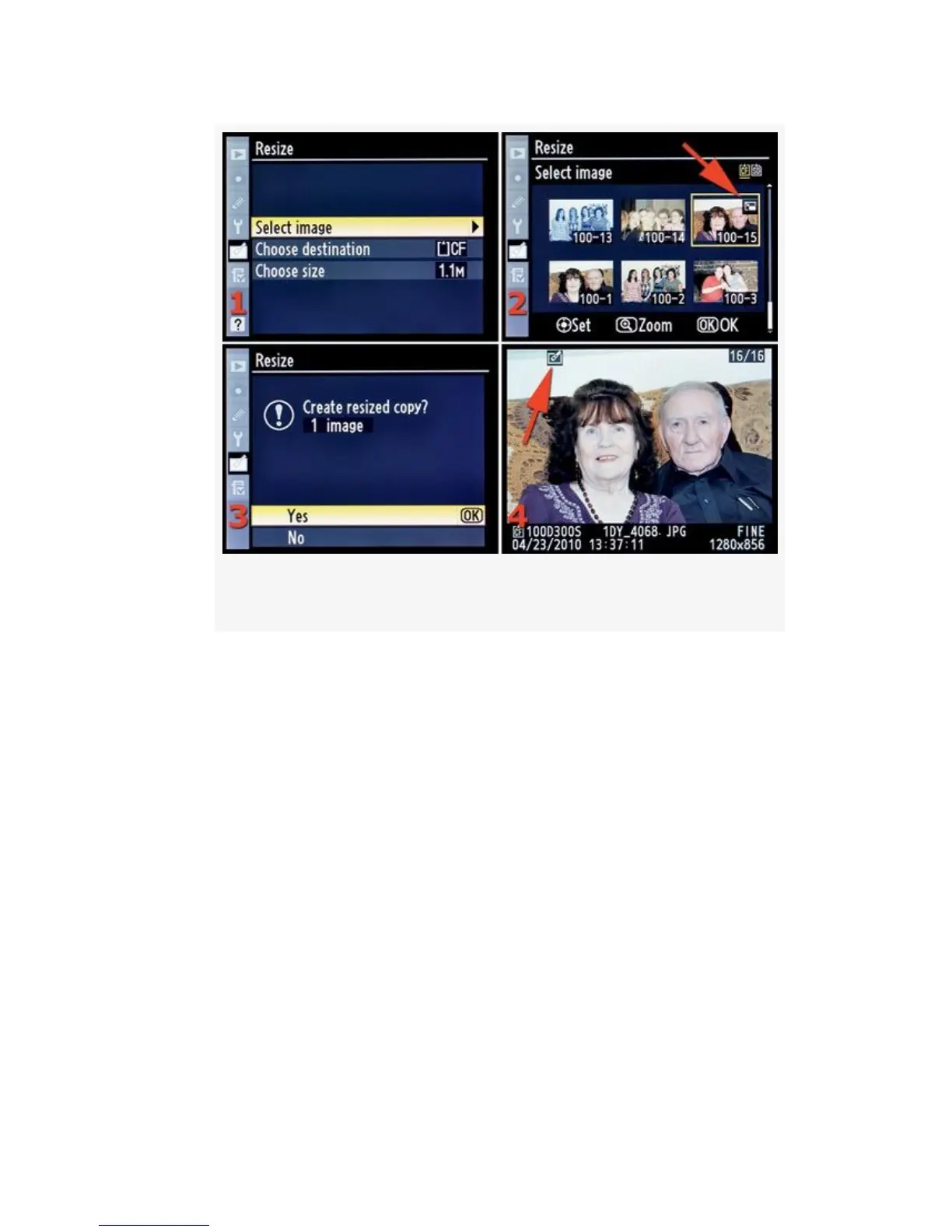
Figure 6-24. Saving the new JPEG
When all the images are set, press the OK button. A final
screen will show asking you, Create resized copy? N
images, as shown in Figure 6-24, image 3. Select Yes
and press the OK button to create the resized image(s).
The last image in the group of Set images will display.
They’ll look just like the originals except for the
Retouch symbol in the top-left corner (see Figure 6-24,
image 4, red arrow).
My Recommendation: I use this function when I’m in the
field and want to make a small image to send via email. The
full-size JPEG file is too large to send by some email systems.
It’s nice to have a way to reduce image size without having to
find a computer. Please notice that this function does not
reduce the image size by cropping, like the Trim function we
560



 To Next Page