The Circle Pad doesn’t
work properly
•
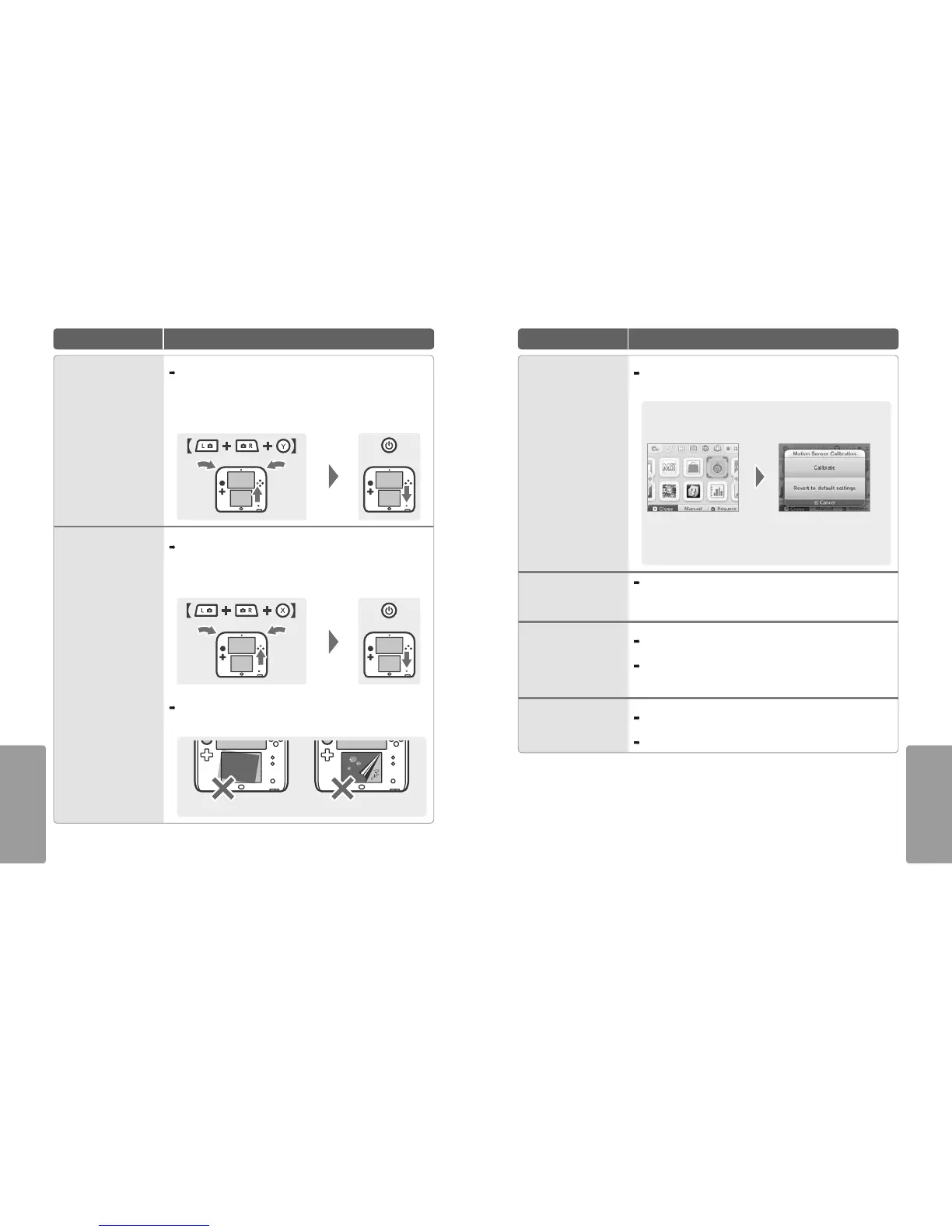
Does Circle Pad input match what you see on screen?
In rare cases, the Circle Pad’s input may stop working properly after long periods of use or
being used forcefully. If the in-game movements do not match the Circle Pad input, use the
CIRCLE PAD option in System Settings to calibrate the input (page 65).
Note: If movements are being input despite the Circle Pad not being used, and you are unable to use
the buttons or Touch Screen, turn the system o, then start it again on the Circle Pad calibration screen
by pressing the POWER Button while pressing and holding L Button + R Button + Y Button.
The Touch Screen doesn’t
work properly
•
Does the Touch Screen input match what you see on screen?
If the in-game movements do not match the Touch Screen input, use the TOUCH SCREEN option
in System Settings to calibrate the input (page 65).
Note: If you are unable to use the Touch Screen to perform this procedure, turn the system o, then
start it again on the Touch Screen calibration screen by pressing the POWER Button while pressing and
holding L Button + R Button + X Button.
•
Have you attached a commercially-available protective sheet to the Touch Screen?
If you have applied a commercially-available protective sheet to the Touch Screen, refer to its
instruction manual and be sure it has been applied correctly before attempting to calibrate
the Touch Screen.
Not aligned Trapped air or dirt
When playing a game that requires
you to move the system, the game
responds when the system is not
being moved or the game doesn’t
respond correctly to the movements
•
The built-in motion sensor may be producing incorrect input.
If the system is subjected to sudden changes in temperature or physical shocks, the sensor can
start to produce false responses. In these cases, carry out the following steps to recalibrate
the sensor.
Place the system on a level surface
and touch CALIBRATE
Press and hold Y Button and
B Button for 3 seconds
Note: When CALIBRATE is touched, the system will consider the position it is in to be level.
The settings for the motion sensor will be adjusted accordingly.
On the HOME Menu, press and hold the Y Button and B Button for 3 seconds to open
the motion sensor calibration screen. Place the system on a level surface and touch
CALIBRATE or REVERT TO DEFAULT SETTINGS.
The screen goes completely black
and the system won’t respond /
The system freezes up
If the screen stays black when you turn the system on or when you exit Sleep Mode, or the
screen suddenly goes black during gameplay and the system stops responding, turn the
system o by holding the POWER Button down until the power LED goes out, then press
the POWER Button again to turn the system back on.
No sound from the speaker
•
Is the volume set to the lowest level?
Try adjusting the volume by using the volume control on the side of the system.
•
Are headphones connected?
If headphones are attached to the Nintendo 2DS, no sound will come through the speaker.
Note: The camera’s shutter sound will always be played at a xed volume, regardless of the current
setting of the volume control and even if headphones are connected.
No audio from headphones
•
Is the volume set to the lowest level?
Try adjusting the volume by using the volume control on the side of the system.
•
Is the plug of the headphones rmly inserted?
Make sure the plug of the headphones is securely plugged into the audio jack.



 To Next Page