17
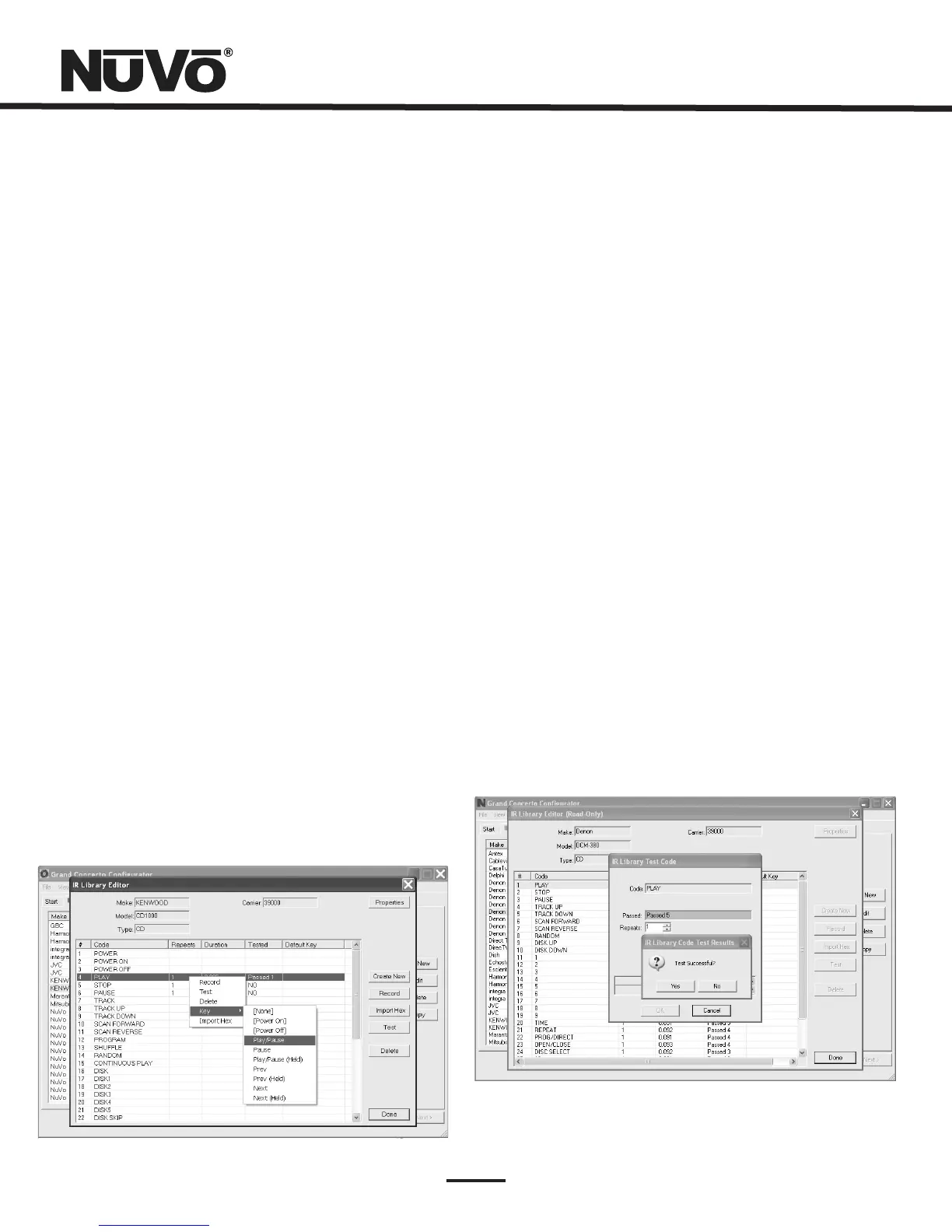
2.3IRLibraryDefaultKeyAssignment(Fig.15)
Oncethedesiredcodesareadded,assignthemtothe
appropriatekeyontheControlPad.Notethatbydesign,the
ControlPadhasonly3IRprogrammablefunctionkeysand
PowerON/PowerOff.Accesstomultiplepresetchoiceswill
becoveredlaterintheMacrossection.
ToassigndefaultIRfunctionstotheControlPadbuttons,
right-clickoneachcodeandselect “Keys.” Thisopensa
drop-downmenuofthepossiblekeyselectionsforthe
GrandConcertoControlPad.Selecttheappropriatekeyfor
thatcommandandtheConfiguratorwilladdittotheDefault
Keyfieldforthatcommand.ThePlay/Pause,Prev.andNext
functionshaveanadditional(Held)function.Thisallowsan
additionalfunctionassignmentthatisactivatedwhenthe
buttonisheld.TheControlPadautomaticallydisplaysthe
functionbeingsenttothesourcecomponent.
Oncethissequenceiscompleted,proceedtothenext
functioncommand,andrepeattheabovesteps.Whenyou
haveassignedadefaultkeyforeachIR,clickon “Done” and
thatcomponent'sIRLibraryiscomplete.
Youcanalsoassigndiscretepoweronandoffcommands.
TheGrandConcertoSystemwillinitiatetheOncommand
whenazoneisturnedonandinturninitiatetheOff
commandwhenthezoneAllOfffunction(holdingthePower
buttonforthreeseconds)isinitiatedfromanyoftheControl
Pads.
Fig.15
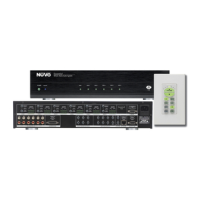
2.4IRLibraryTest(Fig.16)
AnimportantfeatureoftheGrandConcertoConfiguratoris
theabilitytotesteachIRcodeasitisaddedtotheIR
Library.Thisinsuresthateverycodewillworkreliably.
Whenanewcodeisadded,whileitisstillhighlighted,click
onthetestbutton,ordoubleclickonthehighlightedcode.
ThiswillopentheIRLibraryTestwindow.Makesurethatthe
IRLearningInterfacebox'sIRemitteriseitherfacingtheIR
receiverwindowofthesourceequipmentoranIRemitteris
pluggedintooneofthetwoIRemitteroutputsandaffixed
totheIRreceiverwindowofthesourceequipment.Clicking
onthetestbuttonwillcausetheIRLearninginterfaceto
emitthecode.Thesourceequipmentshouldrespond
appropriatelytothecommandifithasbeenstored
correctly.Atestresultboxwillopenwhereyoucanrecord
yesornotothetest.Threesuccessfultestresultsare
requiredbeforethe “Passed” countturnsgreen.Clicking
the “OK” buttonwillsavetheresultsintheIRLibrary.The
“Tested” columnforthatcommandwillshowthenumberof
successfultestsperformed.
Althoughnotrequired,testingeachcodeishighly
recommended.
Fig.16



 To Next Page