Chapter 6: Secure SSH Tunneling & SDT Connector
124 Console Server & RIM Gateway User Manual
6.2.3 Auto-configure SDT Connector client with the user’s access privileges
Each user on the console server has an access profile which has been configured with those specific connected hosts
and serial port devices the user has authority to access, and a specific set of the enabled services for each of these. This
configuration can be auto-uploaded into the SDT Connector client:
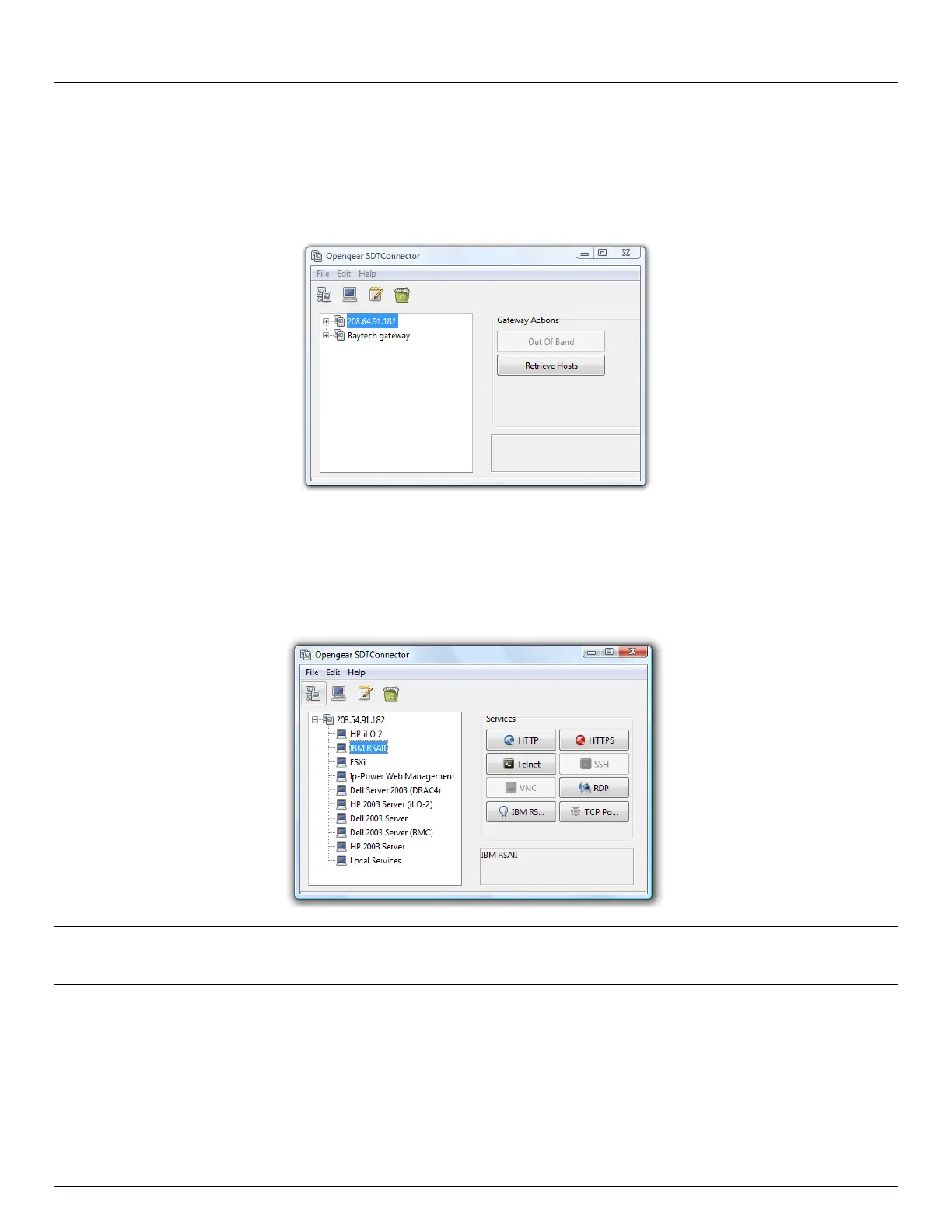
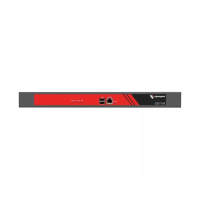
Click on the new gateway icon and select Retrieve Hosts. This will:
configure access to network connected Hosts that the user is authorized to access and set up (for
each of these Hosts) the services (e.g. HTTPS, IPMI2.0) and the related IP ports being redirected
configure access to the console server itself (this is shown as a Local Services host)
configure access with the enabled services for the serial port devices connected to the console server
Note The Retrieve Hosts function will auto-configure all classes of user (i.e. they can be members of user or admin or
some other group or no group) however SDT Connector will not auto-configure the root (and it recommended
that this account is only used for initial config and for adding an initial admin account to the console server)
6.2.4 Make an SDT connection through the gateway to a host
Simply point at the host to be accessed and click on the service to be used in accessing that host. The SSH
tunnel to the gateway is then automatically established, the appropriate ports redirected through to the host, and
the appropriate local client application is launched pointing at the local endpoint of the redirection:


 To Next Page