Chapter 10: Nagios Integration
216 Console Server & RIM Gateway User Manual
10.3.5 Configure selected Network Hosts for Nagios monitoring
The individual Network Hosts connected to the console server to be monitored must also be configured for Nagios
checks:
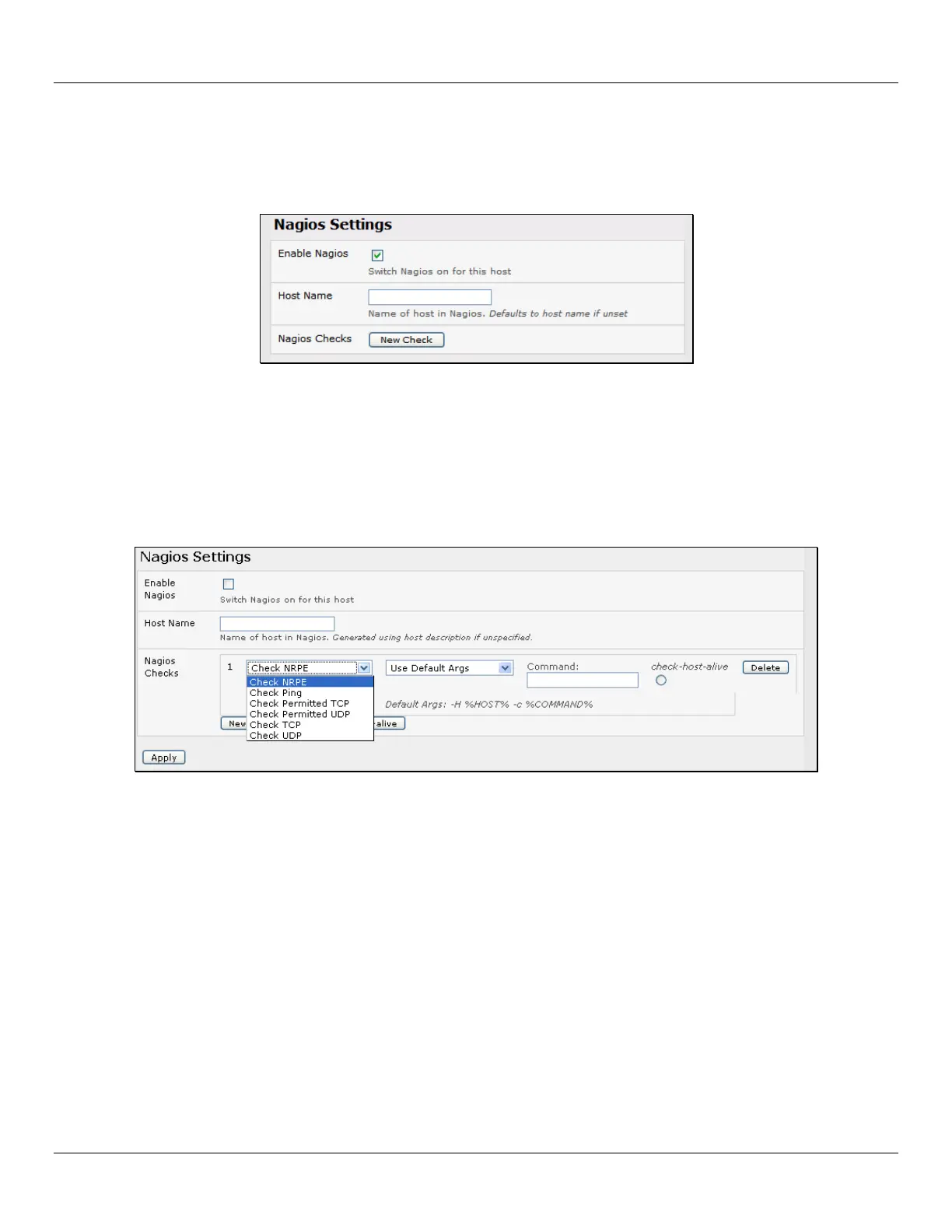
Select Serial&Network: Network Port and click Edit on the Network Host to be monitored
Select Enable Nagios, specify the name of the device as it will appear on the upstream Nagios server
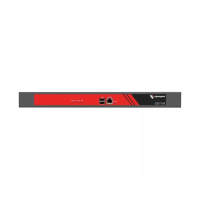
Click New Check to add a specific check which will be run on this host
Select Check Permitted TCP/UDP to monitor a service that you have previously added as a Permitted Service
Select Check TCP/UDP to specify a service port that you wish to monitor, but do not wish to allow external (SDT
Connector) access to
Select Check TCP to monitor
The Nagios Check nominated as the check-host-alive check is the check used to determine whether the
network host itself is up or down
Typically this will be Check Ping – although in some cases the host will be configured not to respond to pings
If no check-host-alive check is selected, the host will always be assumed to be up
You may deselect check-host-alive by clicking Clear check-host-alive
If required, customize the selected Nagios Checks to use custom arguments
Click Apply


 To Next Page