P350 Operation Manual 20
Section 3 - Command module & system setup
The command module acts as the main control unit and digital video processor for the system. It is compatible with
both drums, the external PSU and the Pearpoint range of P330, P330+ and P340 flexiprobe pushrod systems.
The 8” LCD displays the on-screen system menu, live video or stored media files. You can control the command
module using the keypad or the keyboard; this manual will detail using both methods where applicable.
In addition to playback and control, the command module can be connected to external video equipment to personal
computers using the USB-B or the RJ45 sockets and to compatible Bluetooth
®
devices.
3.1 Powering up
When the system is correctly assembled, switch it on using the On/Off switch on the powered drum or external PSU.
NOTE: The command module takes approximately 10 seconds to display the first screen.
Depending on the settings, the command module will display one or two short intro screens, followed by the welcome
screen. The welcome screen displays important system information; press OK to continue.
CAUTION: When you power off the system, wait at least 5 seconds before switching it on again. Failure to do
so may cause the system to lock up.
NOTE: When the command module is switched ON with no camera signal detected, the screen will display vertical
color bars.
NOTE: If the Emergency Stop button is used at any time to shut down the system, the PSU must be reset by rotating
the Emergency Stop button with the main switch set to OFF.
3.2 Welcome screen
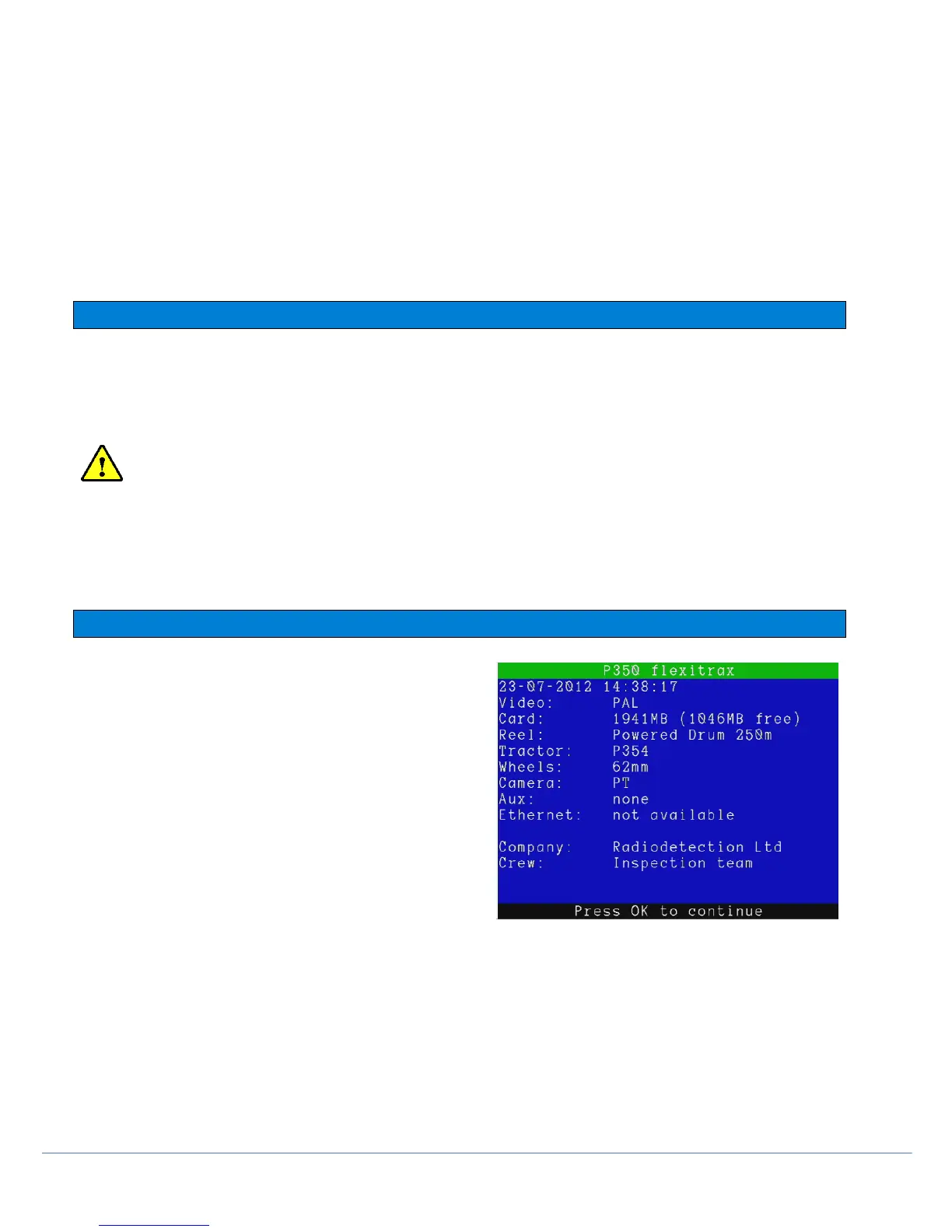
The welcome screen is the first screen to appear after the
Pearpoint logo and the optional intro screen. It provides
important system status and settings information. The welcome
screen is illustrated in Figure 3.1.
At start up the P350 system will automatically check the
components’ software for compatibility and or problems.
If a valid application is missing on any of the components as a
result of a failed upload, a warning message will
be displayed recommending a software upgrade.
Subsequently a “no application” warning will be shown.
If the software loaded on a component is incompatible with the
rest of the system a warning message will be
displayed recommending a software upgrade.
Figure 3.1: Welcome Screen
When a software “mismatch” or a “no application” on a component is reported, you may require a software
upgrade. Although the system may still function perfectly adequately and is only reporting a potential problem.
The welcome screen includes the following information:
• Video mode (PAL or NTSC)
• Memory card/drive size and free space.
• Reel or drum type / length
• Crawler Type: P354 or P356.



 To Next Page