P350 Operation Manual 36
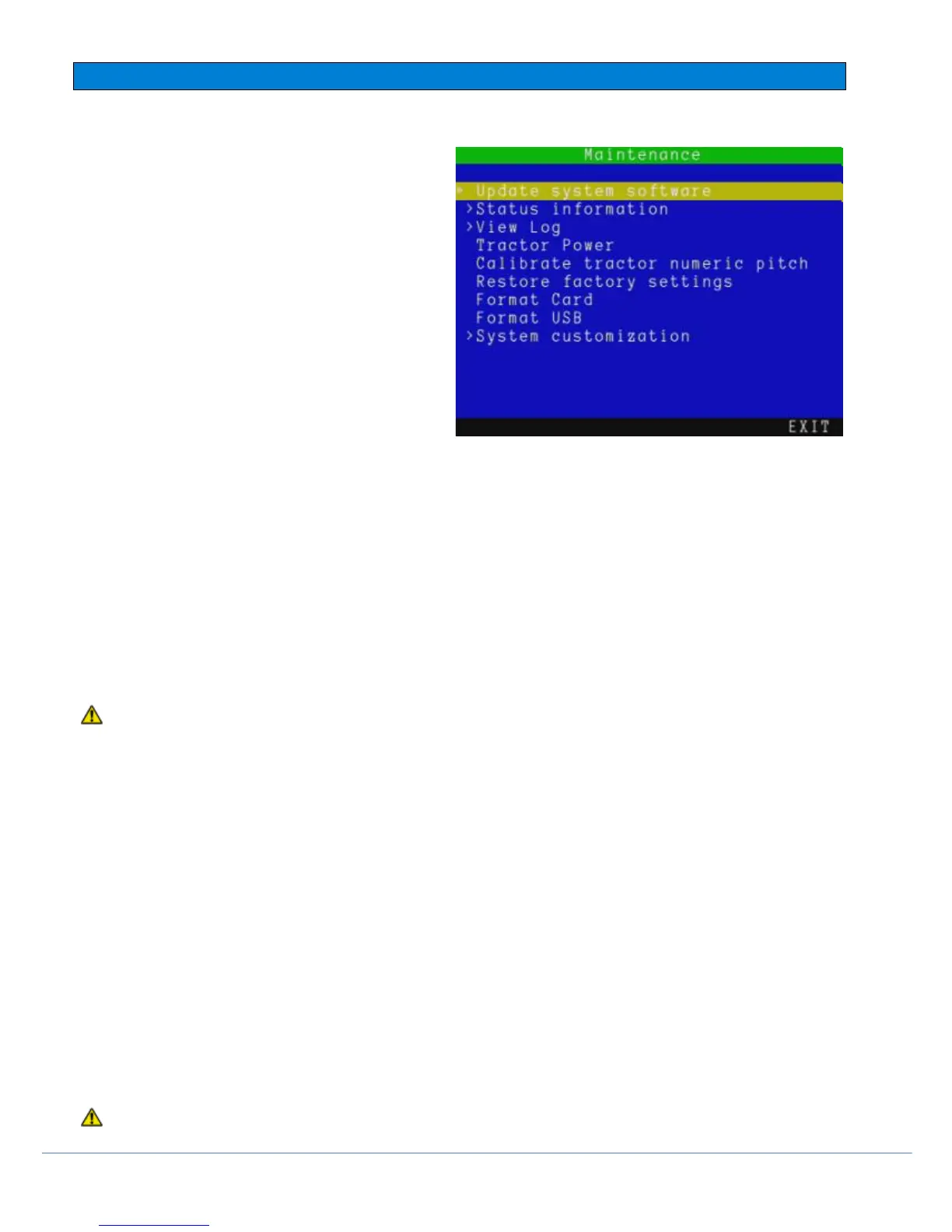
3.9 System Maintenance menu
The maintenance menu allows you to perform infrequent operation such as updating the controller software, formatting
your memory device or viewing your controller system
log.
From the Setup screen enter the Maintenance menu.
There are 9 maintenance options available:
Update System Software: Select this to
update the system software.
Status Information: Service personnel option
to access detailed information about the
controller internal hardware components.
View log: Select this to review system logs to
analyze activity. Can be used to diagnose
faults.
Tractor Power: Toggle power to the tractor.
NOTE: The Crawler and Camera will no longer work
when the power is off.
Calibrate tractor numeric pitch
Restore factory settings: Select this to restore your controller to its factory settings.
NOTE: Restoring the controller will erase all your system settings, personal preferences and your company details.
Format Card: Select this to format your Compact Flash card.
Format USB: Select this to format your USB flash drive.
If you format the Compact Flash card or USB Flash drive using your PC, format the card using the FAT32 file system.
Ask a Pearpoint representative if in doubt! Cards formatted in different formats or by a media player or digital camera
may not work.
CAUTION! Formatting the Compact Flash card or USB Flash drive will erase all existing data permanently; this
includes reports, photos and videos. Formatting cannot be undone so proceed with caution!
System customization: Enter this menu to load a new template for your job details and/or modify the built-in
defect codes.
Update your System software
Pearpoint may issue P350 system software updates to enhance system performance. To find out if Pearpoint has
released a new software update, please visit www.pearpoint.com or contact your local Pearpoint representative. It is
highly recommended that you periodically check for new software releases and update your controller when software
is made available. If you have two systems we would recommend upgrading both to the same version as they may
not necessary be fully compatible with each other.
These Controller Software Updates are free of charge and come as a “matched set” of system software. This is critical
in some scenarios, particularly the camera/tractor combination.
NOTE: Your system may already have the latest software installed. Check the software version of the file you are
about to use or download against your controller’s software version which you can access by pressing Fn + F4
together.
If using a memory storage device that contains survey files, or other valuable files, be sure to back up the data on to
your computer before continuing this procedure.
CAUTION: Do not switch off the controller or remove the memory storage device while the upgrade is in progress.
Failure to comply may render the controller inoperable.



 To Next Page