System diagnostics
If any issue is detected, a message will be displayed, describing the fault and the recommended actions to be carried
out.
This is the list of faults and recommended actions:
Press OK to close the fault message and continue operations.
If the fault is such that you require further assistance from a service centre please make a note of the fault reported
and how this developed. The system logs all issues in a file which can be found in the root of the memory card. The
file is called Controller_Log.txt and it should be made available for reference to the service personnel.
4.5 Recording video
Recording video is easy. Insert a compatible memory storage device with enough free recording space for your survey.
CAUTION! Do not remove the memory storage device or switch the command module off during the recording
process. Doing so may corrupt all data on the card and cause the command module to crash.
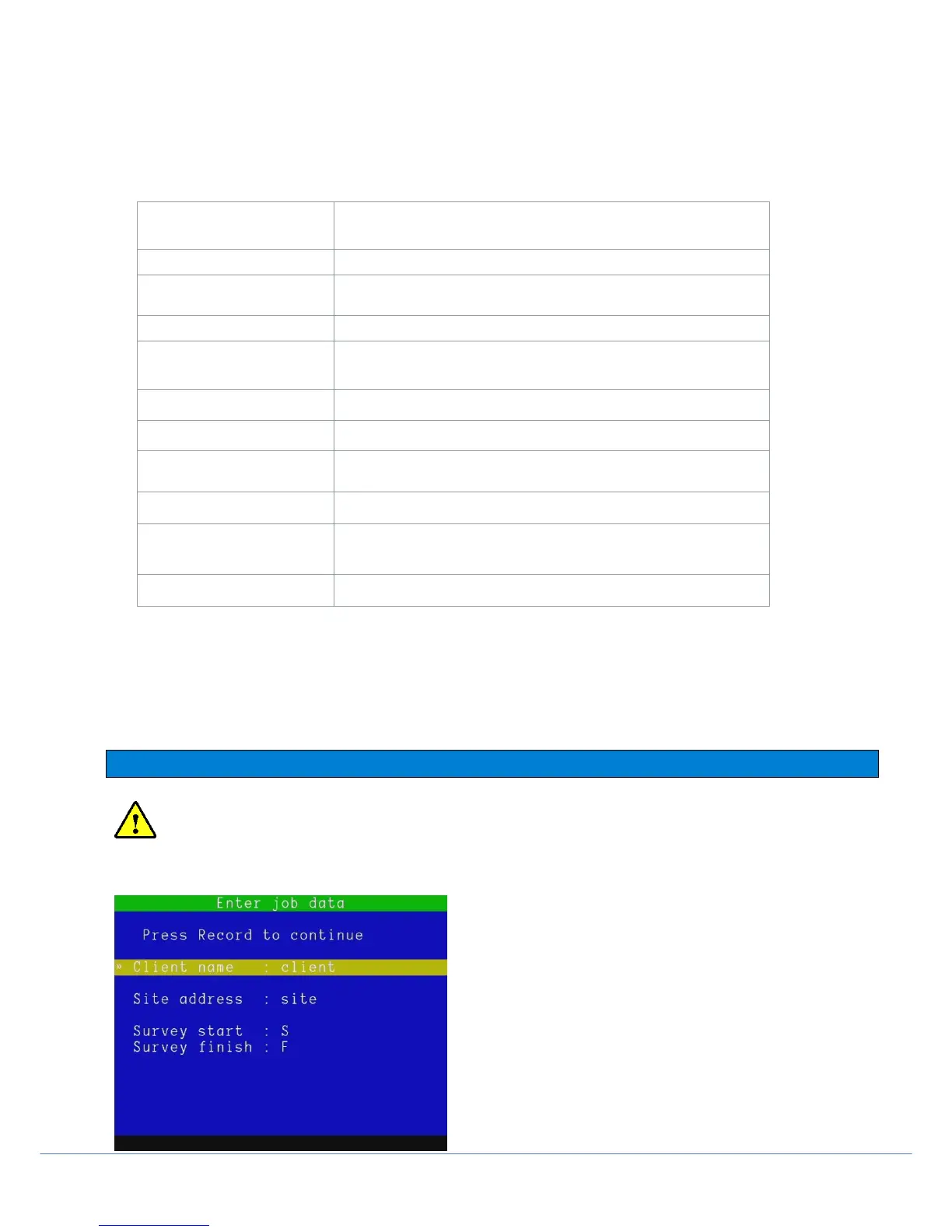
Figure 4.11: Enter job data window
To begin recording press ● (bottom left of the keypad buttons).
Enter the Client, Site and Survey information using the keyboard
and the OK button. Press ● again to start recording.
Connect the optional headset to record audio commentary over
the video.
To pause a recording, press ║. Press ║ or ● to resume.
To end the recording, press ■ on the keypad or press ESC on
the keyboard.



 To Next Page