P350 flexitrax Operation Manual 33
Caution: Setting the wrong wheels will effect drum speed when retrieving and may cause the crawler to topple
Cam Whitebal: Set the Camera white balance.
Cam environ: Setting the camera to pipe or surface mode can improve the video quality in different environments,
this can improve the video when used in pipe vs driving around outside.
After a pushrod reel has been selected once, the system will remember this and pressing the i character on the
keyboard will toggle between these two modes.
3.7 On-screen Display Settings
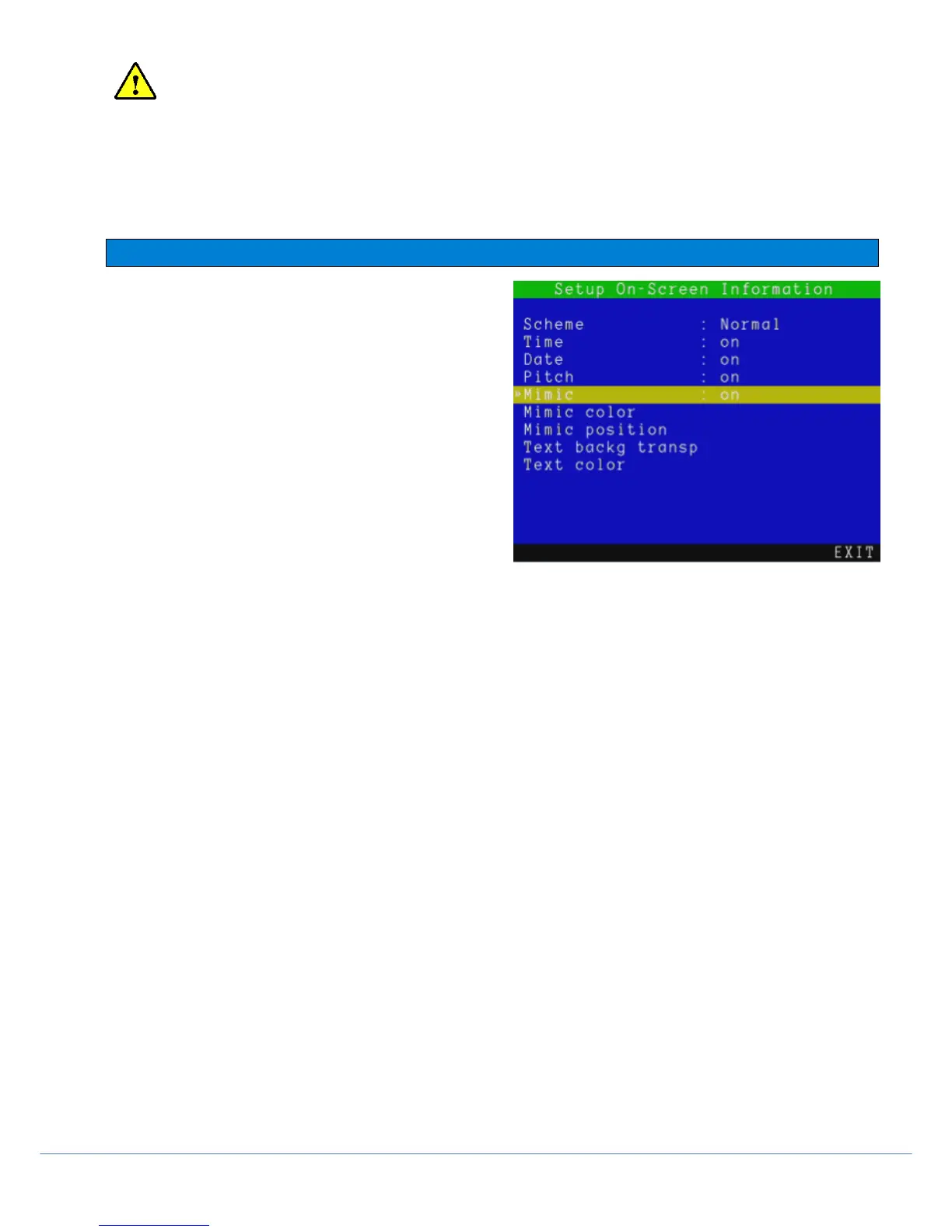
SETUP > ON-SCREEN INFORMATION
From this menu you can customize the information provided
on the display. Depending on the system and camera used
you will be able to turn information fields ON or OFF, and
customize their position and/or look.
.
There are 5 options:
Scheme: Change layout. See below for more
information.
Time: ON or OFF to display or hide the time.
Date: ON or OFF to display or hide the date.
Pitch: ON or OFF to display or hide the
inclinometer.
Mimic: ON or OFF to display or hide the mimic display (PT and PTZ cameras only)
Mimic color: Select a different color for the mimic. For example, a white mimic may not be visible on a white
image.
Mimic position: Move the mimic location. For example if you need visibility on a specific part of the screen.
Text backg transp: Change transparency level from solid to transparent for the menu background.
Text color: Change text color.
NOTE: Hiding any on screen information filed result in these fields not been recorded in your video and photos.



 To Next Page