P350 Operation Manual 34
Choosing an On-Screen Information layout
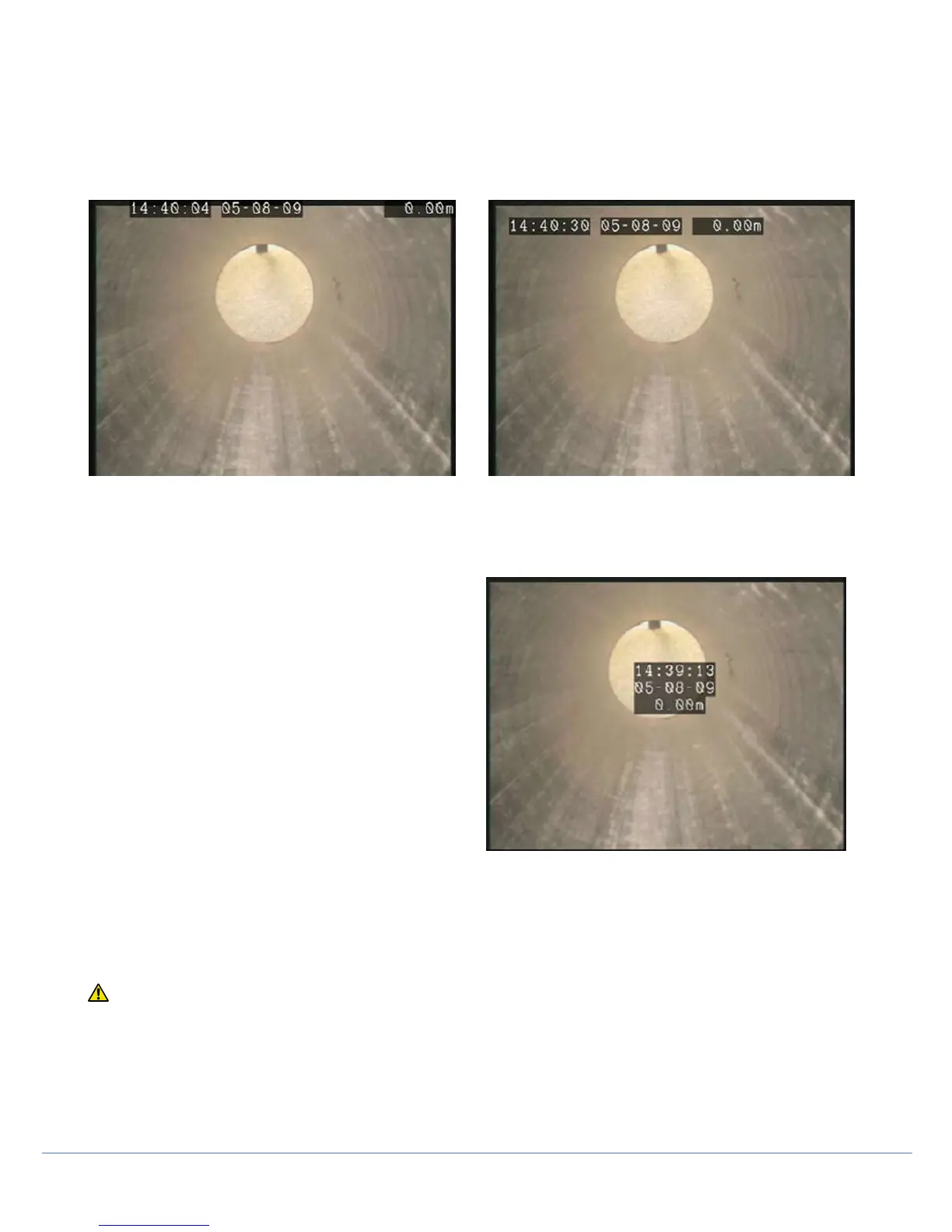
The P350 controller offers a choice of 3 different layouts for the position of the date, time and counter fields and the
position and size of any text page you may decide to show on the screen.
Deciding what layout to use is critical before starting your recordings as layouts cannot be modified after the recording
is created.
To set your preferred layout navigate to Scheme and choose between three layouts: Normal, TV and Custom.
Normal Layout
This is the standard layout optimized to make use of the entire screen. On-Screen information fields are positioned at
the very edges of the display. Overlaid text pages will also
have characters which may be positioned at the edges of
the display.
TV Layout
This layout is optimized for a DVD Recorder/TV screen. On-
Screen information fields and overlaid text pages are
positioned in the graphic safe area of the display.
Custom Layout
This layout is customizable. The position of time, date and
distance counter fields can be moved anywhere on the
screen.
Text pages may still have characters which may be
positioned at the edges of the display.
To personalize this layout, select Custom layout to enter
the layout setup screen:
Select the field you wish to move: TIME, DATE, COUNT or PITCH and use the arrow keys to position the
field. The field selected will flash on the screen.
Press RSTOR to restore the default position.
Press OK to confirm your choice and leave the setup screen
CAUTION: Be careful not to overlap the On-Screen information fields as this will affect their readability on the
screen and in recordings.



 To Next Page