P350 Operation Manual 62
CAUTION! Do not edit any files directly with a text editor or word processor as this may corrupt the report or render it
unreadable to FlexiSight Manager
Browsing and printing
1. Connect the memory storage device to your PC
2. Once your computer recognizes the controller, use Windows Explorer to locate the survey folder.
3. You can then copy or move the report folder to your computer or view it directly from your memory storage
device.
4. Using Windows Explorer locate the report.html file in the report folder.
5. Open “report.html” with a web browser.
6. If prompted, allow Active Content by right-clicking the yellow warning bar at the top of the screen and select
the ‘Allow Active Content’ option.
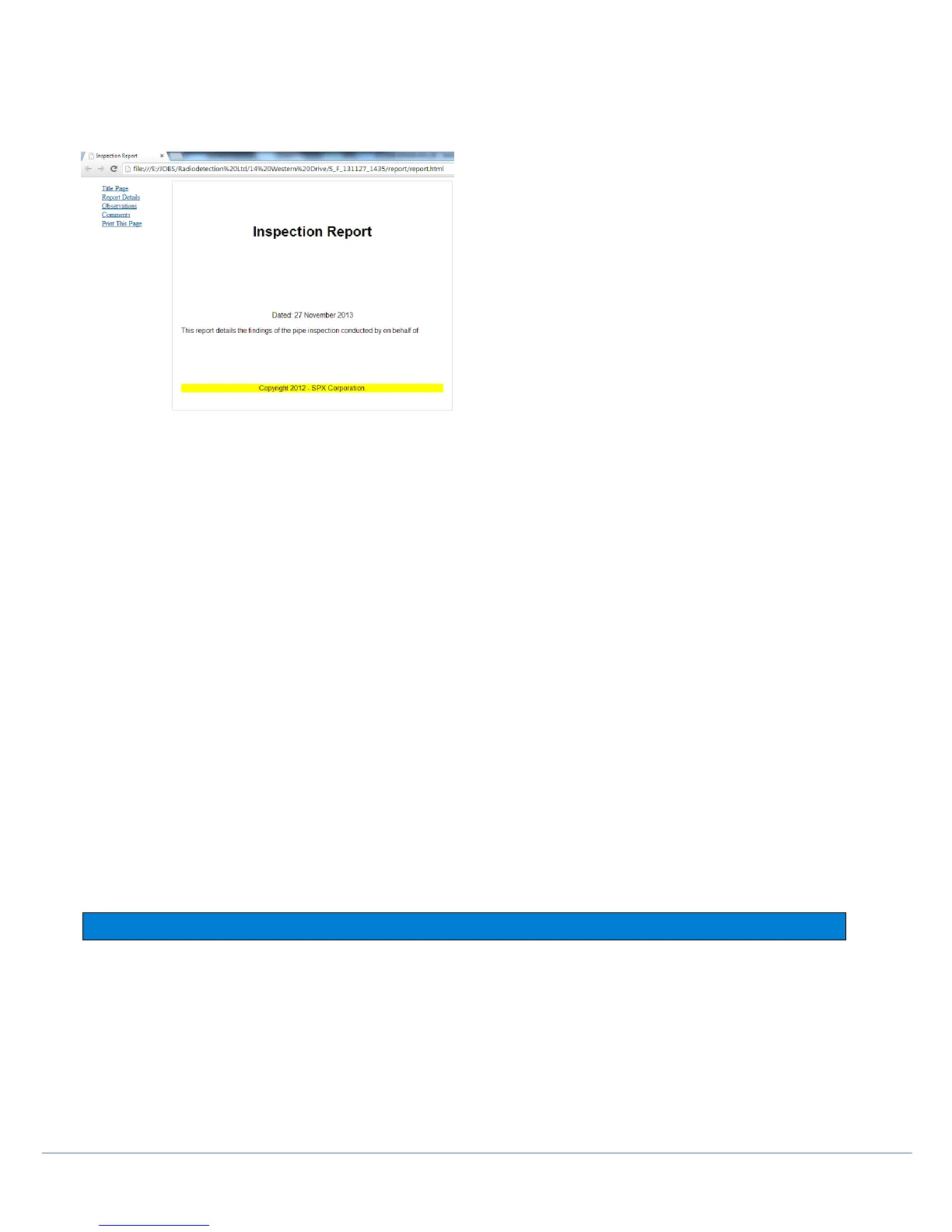
The report will load and display the navigation frame on the left and the title page on the right.
To assist navigation, the report is presented in a similar fashion to a web site or a PDF document with bookmarks
.
The report is divided into two frames:
The navigation frame on the left displays a link to each page and a print link that prints the currently displayed
page.
The content frame on the right displays the currently selected report page.
To print a page, select it using the links on the navigation frame and then press the Print This Page link. You
must repeat this step for each page of the report.
NOTE: Use the Print This Page link rather than using the File -> Print command, otherwise the printed page will also
include the navigation frame and be printed in landscape format.
5.4 One-Touch Recording
To disable the JOBS information fields and progress directly to recording video, go to MENU > SETUP >
CONTROLLER > BASIC SETTINGS > JOB PROMPT. Setting this to OFF will stop the JOBS information screen
popping up when you first press Record.
In this case the P350 will default to “client”,“site”, and “S_F” as references for the folder structures.



 To Next Page