P350 flexitrax Operation Manual 21
• Wheel Size.
• Camera Type: FW, PT or PTZ.
• Company (see Section Company Details Settings)
• Crew (see Section Company Details Settings).
If your wheel size, drum size or type is incorrect, it is important to change this. This may cause poor video quality and
/ or inaccurate counter measurements, as well as imbalanced drum/tractor speeds which may damage the Downhole
equipment. See the Section on changing system settings.
3.3 On-screen display (OSD)
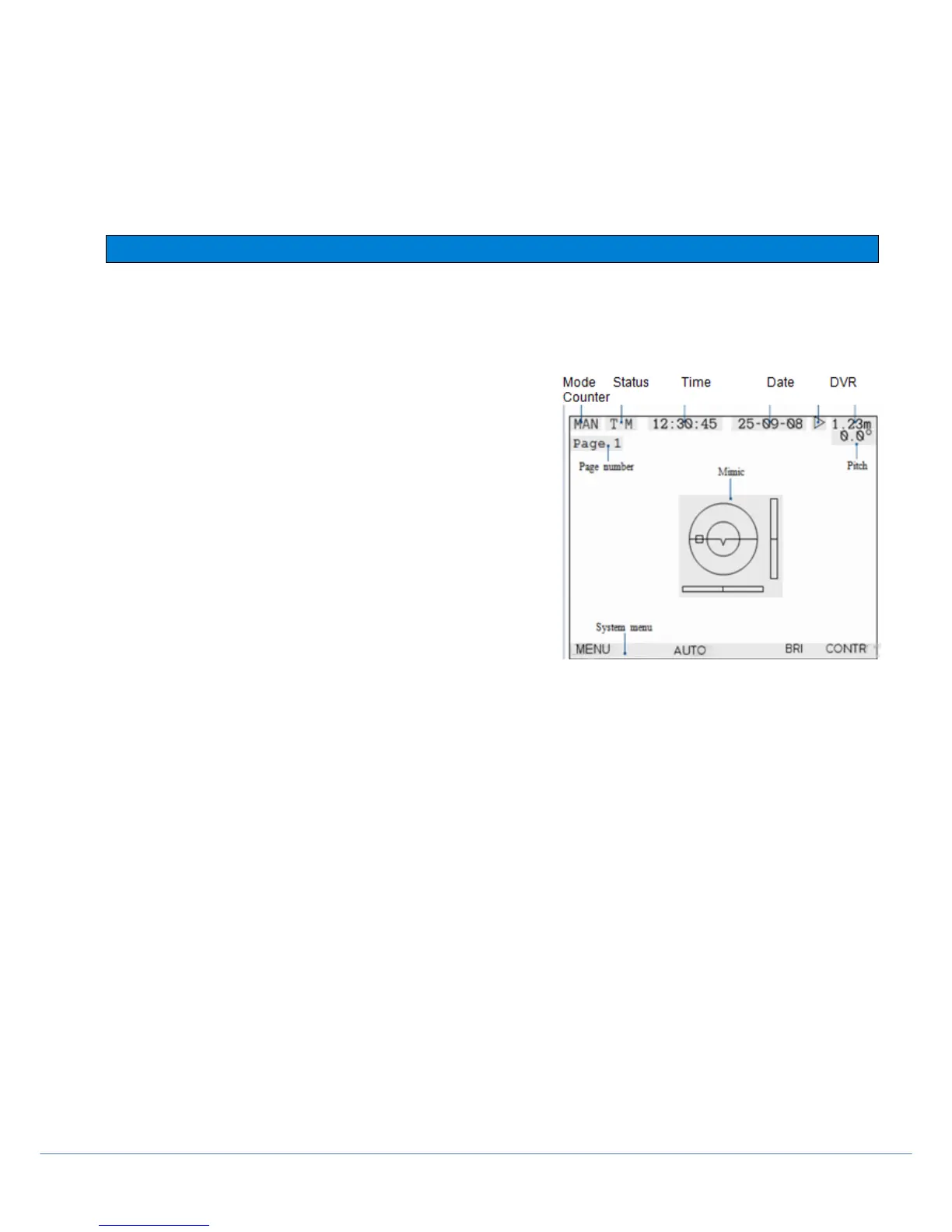
The OSD gives real-time system information on the display; it can change depending on system mode and display
settings. The OSD displays the following information and graphics, see Figure 3.2:
• Mode: ROD, MAN or AUTO. In ROD mode the command module is set to work with a compatible pushrod system
(the tractor will NOT work). In AUTO mode the drum automatically
manages the cable when the crawler moves. In manual mode the
Tractor drives unassisted and the drum does not recall the cable.
AUTO is considered standard.
• Status: Crawler and Drum status. T is displayed if a crawler is
present, B if the brake is engaged, M or P denotes a manual (M) or
powered (P) system.
• Time and Date
• DVR: indicates video recording, video or image playback status.
• Distance counter: crawler distance from last reset point (in feet or
meters). Press F10 to reset the distance to 0.0.
• Page: the currently selected text page (if any).
• Pitch: An inclinometer displays the crawler angle in degrees, or as
a gradient percentage.
• Mimic: Crawler driving speed (also steering information when used
with a P356). Also provides pan and tilt controls when a pan and tilt
camera is connected.
• System menu: to access menu. Figure 3.2 On-Screen Display
The Time, Date, Counter, Pitch and Mimic information is stored
on any recorded video (depending on chosen settings).
You can add, edit, move and change the OSD using the
Settings menu. See Section: 3.5 Controller Settings.



 To Next Page