P350 Operation Manual 58
Section 5 - Creating Reports
There are many ways to create a report; we aim to introduce a few options.
Some customers just want a video, then take screenshots and add text using an office program manually. To
do this just record video as described earlier. See the section ‘One-touch recording’ to turn off the reporting
feature to speed this up.
You can add text to the screen using the text page overlay. This can be enough for simple video surveys to
add location information, crew members and a brief description of the problem.
Use the built-in automatic Reporting software to make site observations for quick reporting later on.
5.1 Adding text to your video
During your survey you can choose to add on your video. Start recording using the recording button.
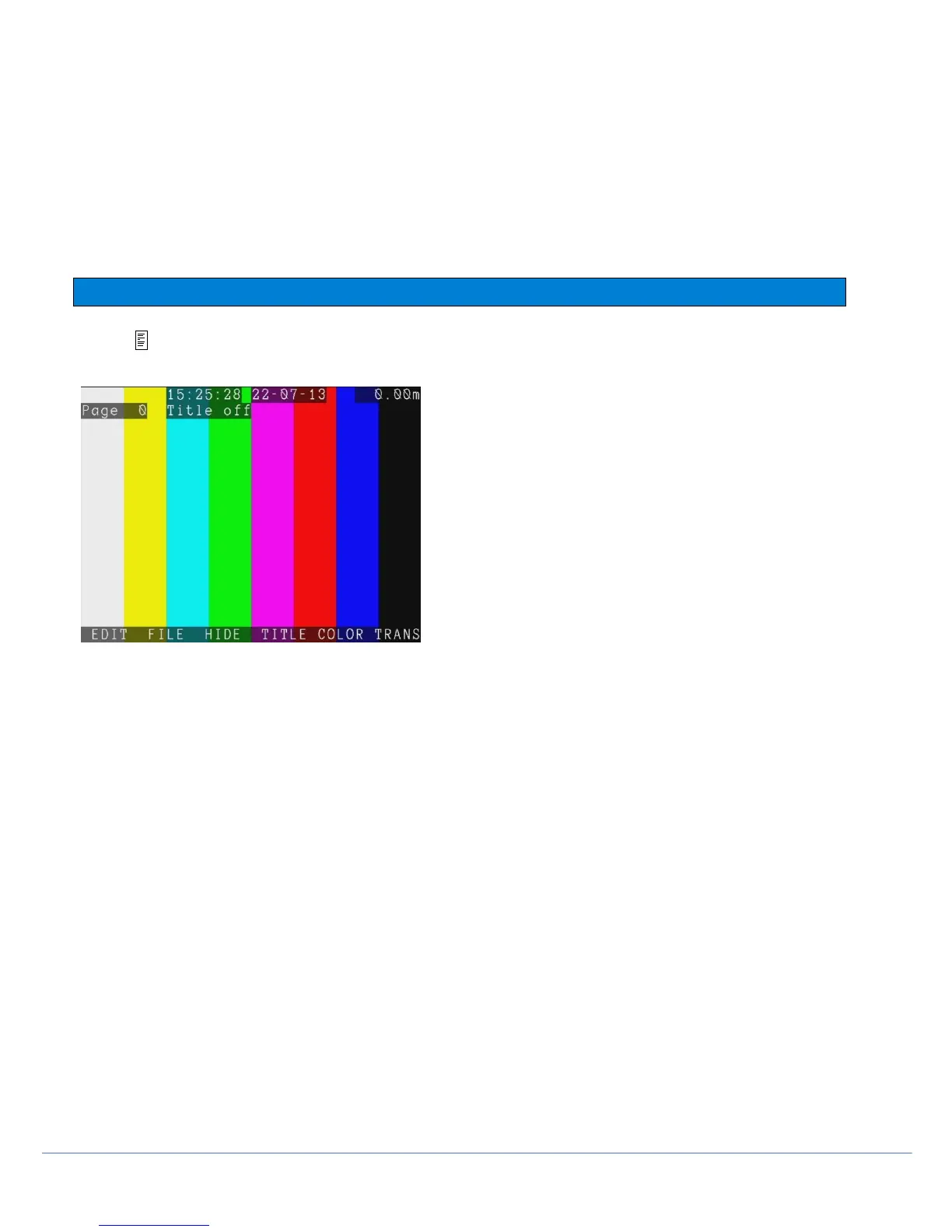
Press to enter the Text menu.
Figure 5.1: Text and Report menu
If this menu is opened during a recording, the video will pause while you type in your details. The recording will resume
automatically when you complete your task and press ENTER.
Advanced
There are 20 editable text pages that can be used, these can also be set to display automatically at the beginning of
your surveys.
Large fonts: 13 rows x 36 characters
Small fonts: 21 rows x 45 characters
NOTE: Take care when editing your text pages so that the resulting video recordings display all the information
required when it is converted to a DVD.
Use the ▲and ▼ arrows, or Page Up and Page Down keys to browse.
To include any of these Text pages at the beginning of your survey Press F4 TITLE. Press COLOR or TRANS to
change the color or transparency of the text overlay.
Press F3 HIDE to remove the current overlaid page and exit the Text menu.
NOTE: The page title is not recorded in the video in real time.
Press F1 EDIT to modify the text page. Use the keyboard or keypad to add or edit the text.



 To Next Page