P350 flexitrax Operation Manual 25
3.5 Controller Settings
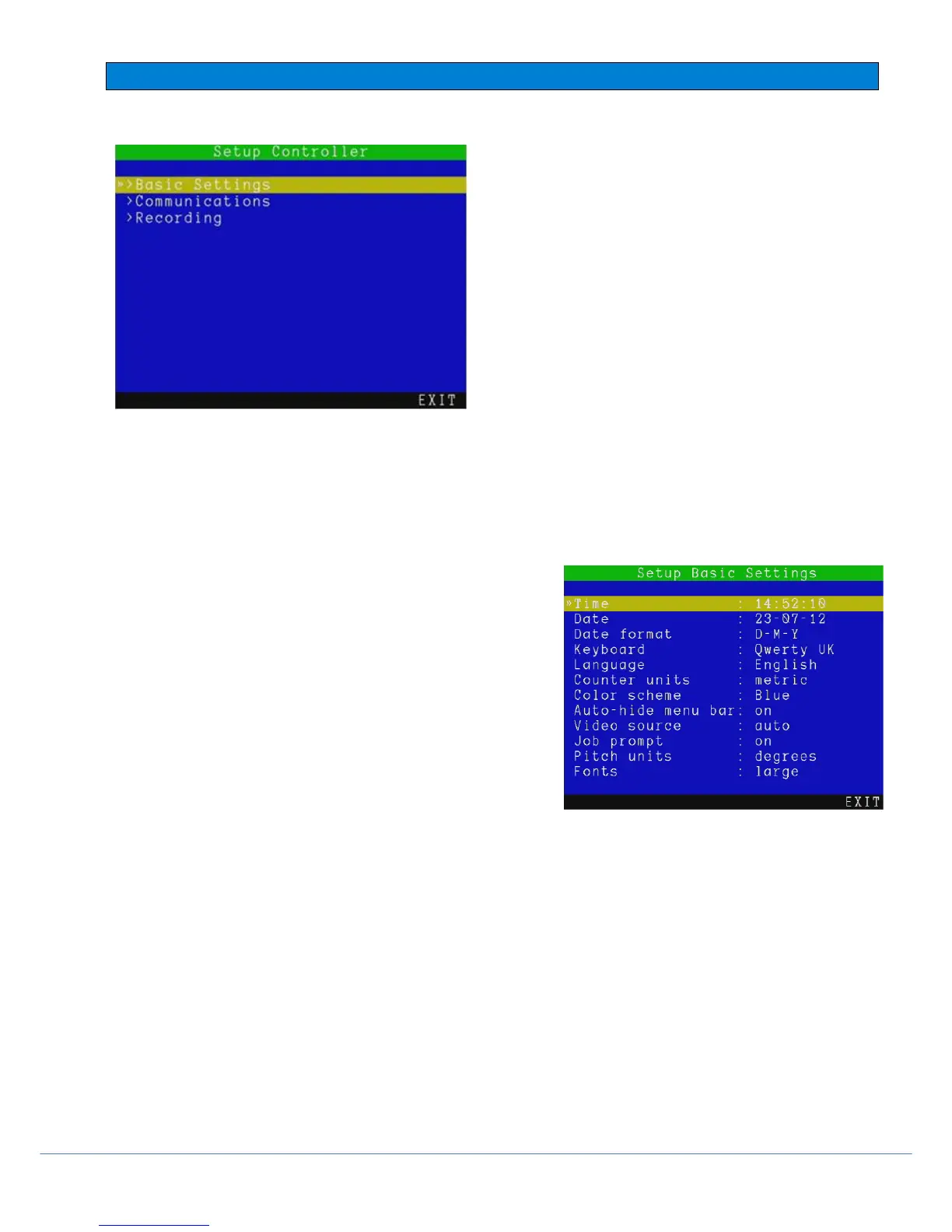
MENU > SETUP > CONTROLLER
3.5.1 Basic Settings
Select the setting you wish to vary and press OK or Enter to modify.
Enter the required data or make a selection by using the ▲ or ▼ keys.
Press OK to confirm your choice or press the ◄ key to cancel.
There are 10 basic settings you can modify:
Time: enter the time in hh:mm:ss format. Use the up and
down arrows to change and the left/ right arrows to move sideways.
Date: enter today’s date as specified by the Date format.
Date format: choose between D-M-Y and M-D-Y.
Keyboard: select your keyboard type / language.
Language: select the system language.
Counter Units: chose between metric and imperial.
Color scheme: select your preferred color scheme.
Auto-hide menu bar: if “ON”, the menu bar will disappear after 20 seconds. Press any key to make it visible.
Video Source: set the video source for display and recording.
There are 3 choices: Auto, Camera and External:
o Auto gives preference to the external video source (if present).
o Camera selects the P350 camera as the default video source.
o External selects the external video source. You can connect an external video source to the
controller using standard composite RCA. The controller’s video input jack is located inside the
I/O interface panel and is highlighted with a yellow ring around the jack.
Job prompt: When ON the controller asks for Client, Site and Survey information during your first recording.
This will set the JOB for all your recordings during the session, until you power down. If the prompt is OFF,
you will go to the Quick Job Start and it will not ask you for this information, but will not save the files in
convenient folders. Refer to section 4.4 Figure 4.8 and Section 6.1 for more information.
Pitch units: Select degrees or gradients as units for the inclinometer displayed on the screen.
Fonts: Default mode is ‘large’, some customers may find the ‘small’ fonts more convenient.



 To Next Page